> ## Documentation Index
> Fetch the complete documentation index at: https://docs.cloud.red/llms.txt
> Use this file to discover all available pages before exploring further.
# Taking Backups On-Demand
> Taking Backups On-Demand
Taking Backups On-Demand can be initiated from a few different locations in the Cloud.Red portal.
They can be initiated from the Backups and Device Groups sections.
### Taking Backups Via the Backups Section
Taking backups from the Backups section is the best way to get started.
Click “Backups” on the left menu to enter the section.
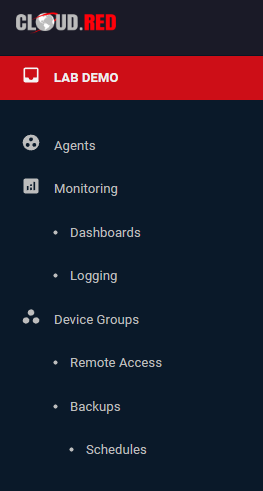 The section includes an interactive walk-through that can be started by clicking the help icon in the lower right-hand corner
To take a backup, first select the device in the drop-down you wish to take a backup for.
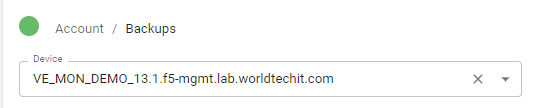 Then, click the backup button and confirm via the pop-up dialog:
 You will see status regarding your backups in the lower right-hand corner and when completed a notification in the upper right-hand corner.
### Taking Backups Via the Device Groups Section
Click “Device Group” on the left menu to enter the section.
You will see status regarding your backups in the lower right-hand corner and when completed a notification in the upper right-hand corner.
### Taking Backups Via the Device Groups Section
Click “Device Group” on the left menu to enter the section.
To take a backup, first select the menu icon of the device groups you wish to initiate backups for and select “Backups”
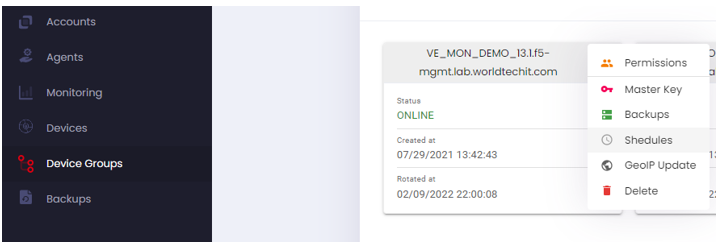 From the pop-up dialog, select the devices in the group you wish to initiate backups for and press “Create” to start the backups:
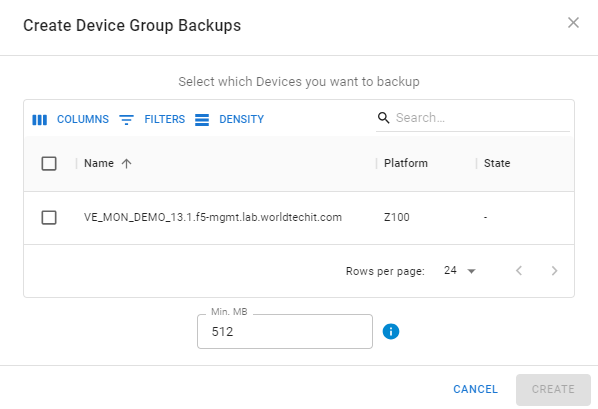 ### Min.MB
The “Min.MB” option allows you to specify the amount of space the Cloud.Red Agent will require to be available on the BIGIP’s /var partition before executing. If this amount of space is not available on the BIGIP’s /var partition, creation of the backup will be skipped.
**You will see status regarding your backups in the lower right-hand corner and when completed a notification in the upper right-hand corner.**
### Min.MB
The “Min.MB” option allows you to specify the amount of space the Cloud.Red Agent will require to be available on the BIGIP’s /var partition before executing. If this amount of space is not available on the BIGIP’s /var partition, creation of the backup will be skipped.
**You will see status regarding your backups in the lower right-hand corner and when completed a notification in the upper right-hand corner.**