> ## Documentation Index
> Fetch the complete documentation index at: https://docs.cloud.red/llms.txt
> Use this file to discover all available pages before exploring further.

# Application Dashboards

> App Dashboards allows F5 Administrators to provide application owners with secure, granular control over key aspects of only their applications, such as managing Virtual IPs, pools, and pool members.

<CardGroup>
  <Card title="Application Dashboards Overview" icon="circle-play" href="https://youtu.be/To6isEkd4JY">
    Learn more about Application Dashboards
  </Card>
</CardGroup>

**App Dashboards** ensures that application owners can monitor and make adjustments to their specific applications without requiring full administrative privileges on the entire F5 BigIP environment.\
By granting access only to relevant applications, App Dashboards enable teams to operate more independently while maintaining overall system security and integrity.

## Enabling App Dashboards

By Default, App Dashboards is not enable. Once the feature is enabled, it will poll virtuals and any configured sub components on all devices in that device group.

App Dashboards will poll the device during the backup process or on demand. To limit impact on the devices, the discovery is performed sequentially.

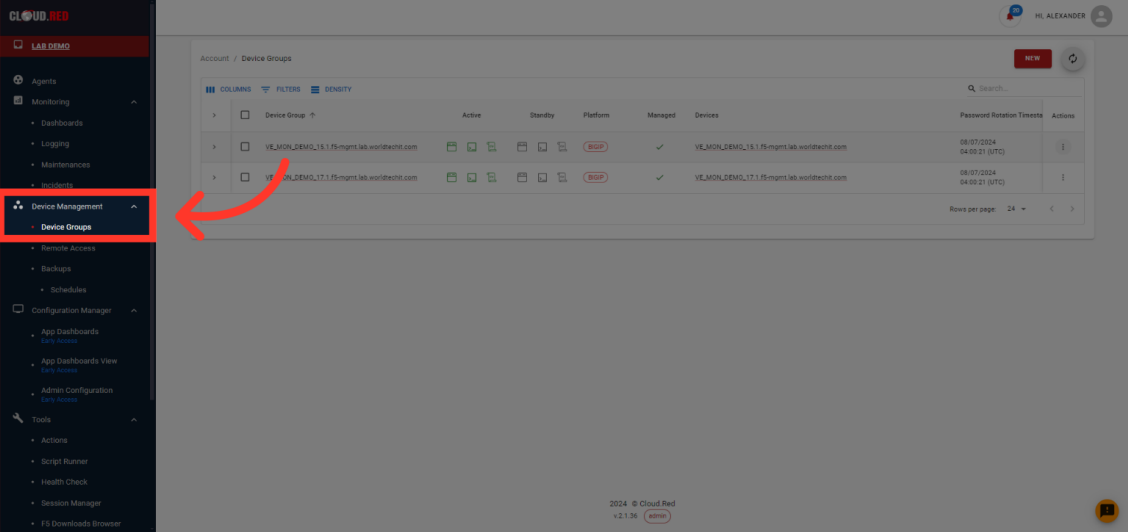
* To enable this feature, navigate to the "device management" Tab in the left-hand navigation.
<img className="block h-48 dark:hidden" src="https://mintcdn.com/cloudred/jouRqP5D1sJw9S7R/features/app-dashboards-images/select-device-management-light.png?fit=max&auto=format&n=jouRqP5D1sJw9S7R&q=85&s=ae684aa91032bc4a27cdaaaa7d7198b7" width="1128" height="532" data-path="features/app-dashboards-images/select-device-management-light.png" />

<img className="hidden h-48 dark:block" src="https://mintcdn.com/cloudred/jouRqP5D1sJw9S7R/features/app-dashboards-images/select-device-management-light.png?fit=max&auto=format&n=jouRqP5D1sJw9S7R&q=85&s=ae684aa91032bc4a27cdaaaa7d7198b7" width="1128" height="532" data-path="features/app-dashboards-images/select-device-management-light.png" />

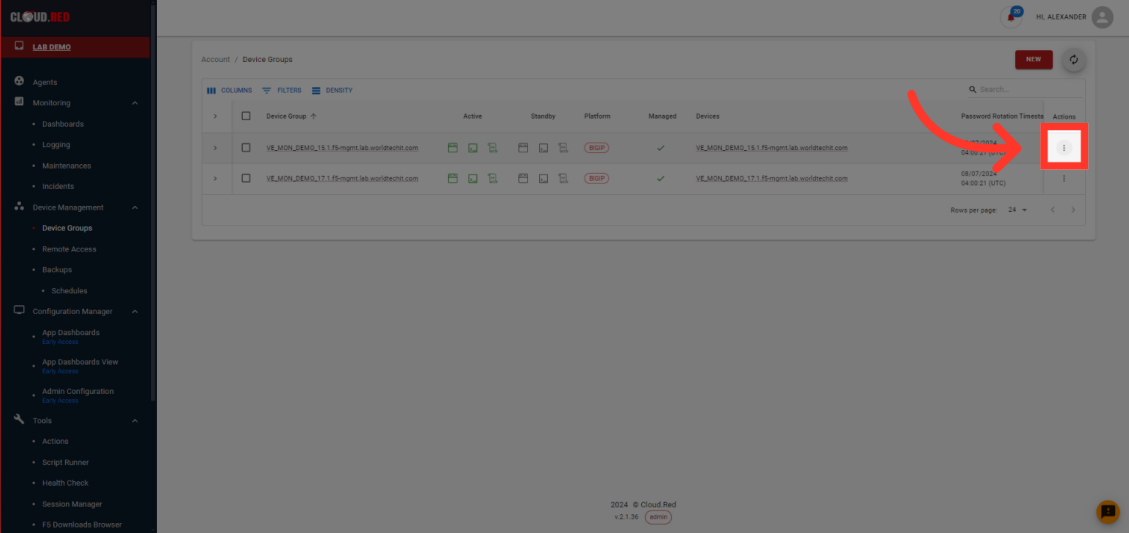
* Select actions for the device group intended to be enabled.
<img className="block h-48 dark:hidden" src="https://mintcdn.com/cloudred/jouRqP5D1sJw9S7R/features/app-dashboards-images/select-actions-light.png?fit=max&auto=format&n=jouRqP5D1sJw9S7R&q=85&s=51cb44ba354e592348e480ed56098f59" width="1129" height="533" data-path="features/app-dashboards-images/select-actions-light.png" />

<img className="hidden h-48 dark:block" src="https://mintcdn.com/cloudred/jouRqP5D1sJw9S7R/features/app-dashboards-images/select-actions-light.png?fit=max&auto=format&n=jouRqP5D1sJw9S7R&q=85&s=51cb44ba354e592348e480ed56098f59" width="1129" height="533" data-path="features/app-dashboards-images/select-actions-light.png" />

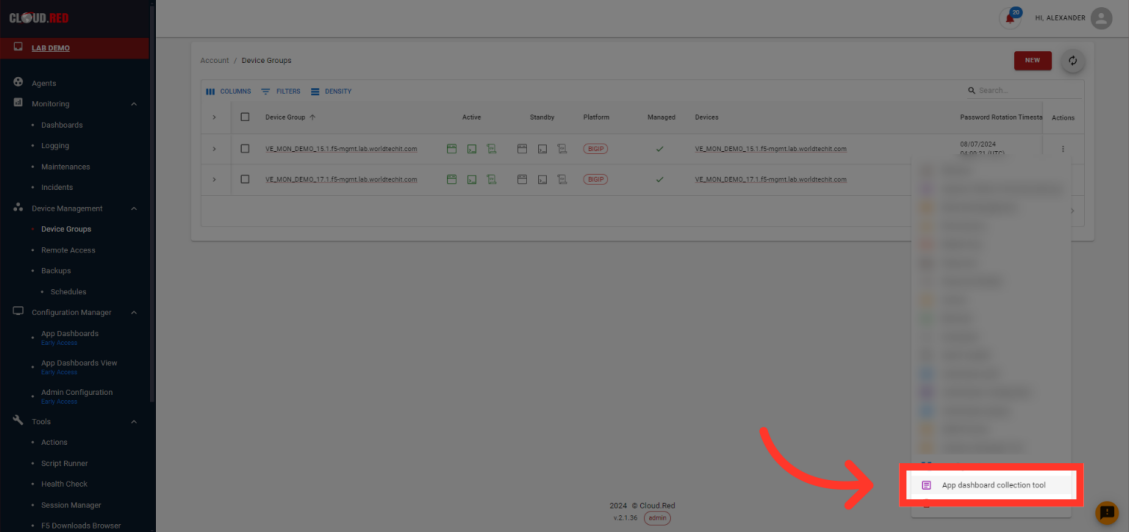
* Select the "App Dashboards Collection Tool"
<img className="block h-48 dark:hidden" src="https://mintcdn.com/cloudred/jouRqP5D1sJw9S7R/features/app-dashboards-images/select-collection-tool-light.png?fit=max&auto=format&n=jouRqP5D1sJw9S7R&q=85&s=69a0704888a01c00a326ba22f22ccd73" width="1129" height="532" data-path="features/app-dashboards-images/select-collection-tool-light.png" />

<img className="hidden h-48 dark:block" src="https://mintcdn.com/cloudred/jouRqP5D1sJw9S7R/features/app-dashboards-images/select-collection-tool-light.png?fit=max&auto=format&n=jouRqP5D1sJw9S7R&q=85&s=69a0704888a01c00a326ba22f22ccd73" width="1129" height="532" data-path="features/app-dashboards-images/select-collection-tool-light.png" />

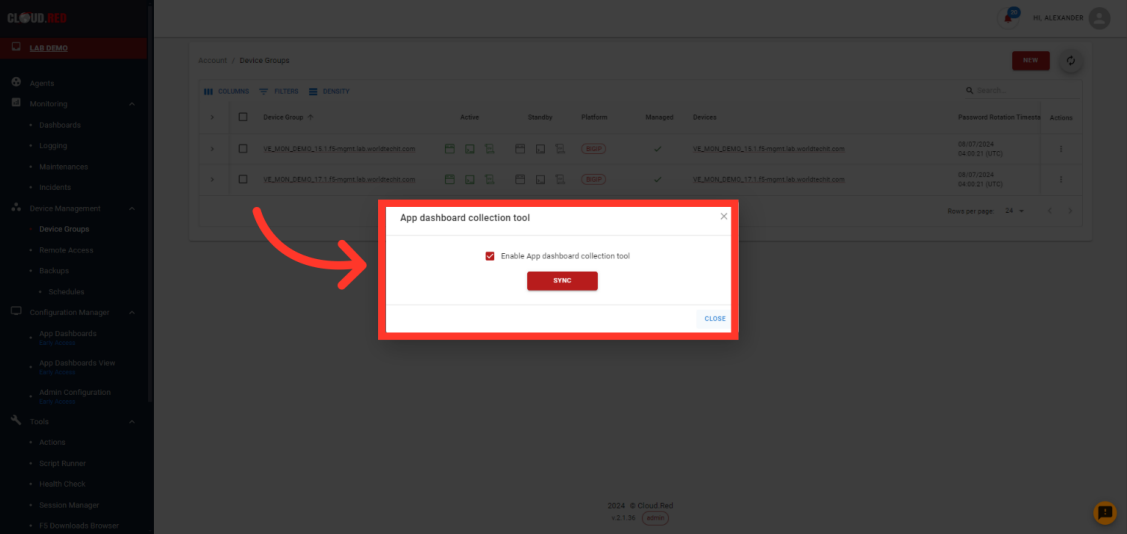
* Select Enable and sync to begin collecting the data for Application Dashboards.
<img className="block h-48 dark:hidden" src="https://mintcdn.com/cloudred/jouRqP5D1sJw9S7R/features/app-dashboards-images/enable-collection-tool-light.png?fit=max&auto=format&n=jouRqP5D1sJw9S7R&q=85&s=317a48694e83b9214587babefe967da4" width="1127" height="534" data-path="features/app-dashboards-images/enable-collection-tool-light.png" />

<img className="hidden h-48 dark:block" src="https://mintcdn.com/cloudred/jouRqP5D1sJw9S7R/features/app-dashboards-images/enable-collection-tool-light.png?fit=max&auto=format&n=jouRqP5D1sJw9S7R&q=85&s=317a48694e83b9214587babefe967da4" width="1127" height="534" data-path="features/app-dashboards-images/enable-collection-tool-light.png" />

<Note>
  This action **must** be repeated for each device group that is intended to have App Dashboards enabled
</Note>

## Creating Custom App Dashboards

For Devices that have been enabled for the application dashboard feature, users can create dashboards for each application owner.\
These app dashboards will provide visibility into a collection of VIPs and related sub-components. Application owners may also have permission to modify specific aspects of the VIPs or sub-components, as needed.

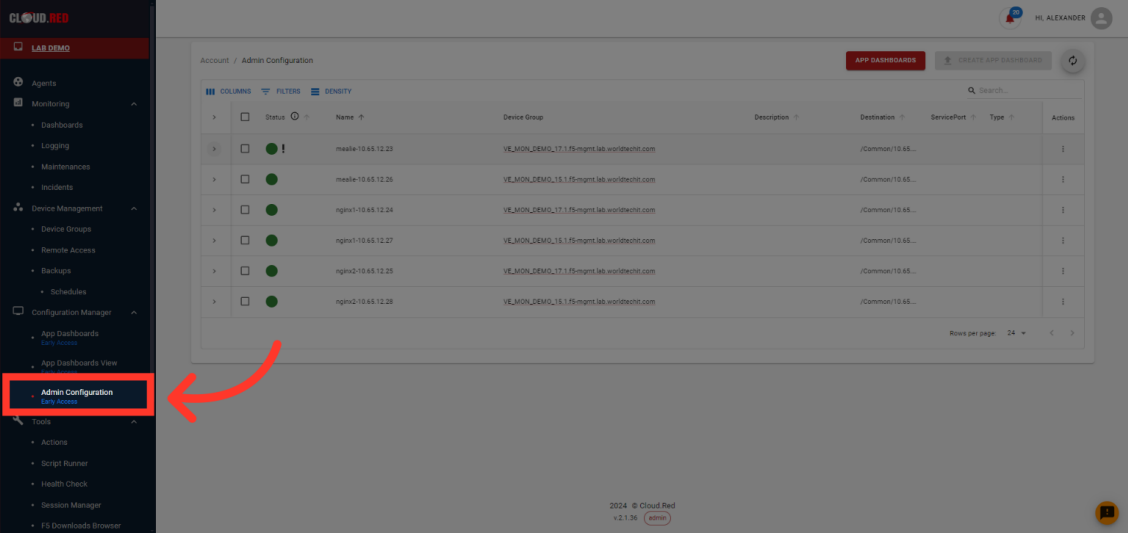
* To create custom app dashboards, navigate to the "Admin Configuration" Tab in the left-hand navigation.
<img className="block h-48 dark:hidden" src="https://mintcdn.com/cloudred/jouRqP5D1sJw9S7R/features/app-dashboards-images/select-admin-configuration-light.png?fit=max&auto=format&n=jouRqP5D1sJw9S7R&q=85&s=86357d434fb14c0a0bc9b6052d5a9dc1" width="1128" height="533" data-path="features/app-dashboards-images/select-admin-configuration-light.png" />

<img className="hidden h-48 dark:block" src="https://mintcdn.com/cloudred/jouRqP5D1sJw9S7R/features/app-dashboards-images/select-admin-configuration-light.png?fit=max&auto=format&n=jouRqP5D1sJw9S7R&q=85&s=86357d434fb14c0a0bc9b6052d5a9dc1" width="1128" height="533" data-path="features/app-dashboards-images/select-admin-configuration-light.png" />

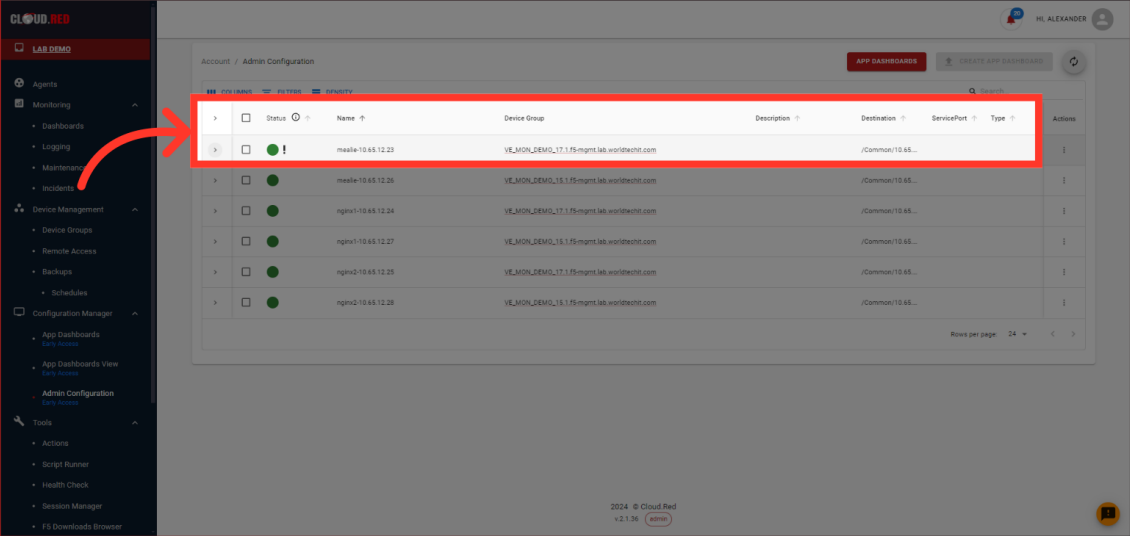
* In Admin Configuration, administators can view a list of all VIPs that are being poled. Administrators are provided the status, name, device group, a description, the destination, the service port, and type.
<img className="block h-48 dark:hidden" src="https://mintcdn.com/cloudred/jouRqP5D1sJw9S7R/features/app-dashboards-images/admin-configuration-columns-light.png?fit=max&auto=format&n=jouRqP5D1sJw9S7R&q=85&s=675f1b454af44020a28a87d3e2375d10" width="1130" height="536" data-path="features/app-dashboards-images/admin-configuration-columns-light.png" />

<img className="hidden h-48 dark:block" src="https://mintcdn.com/cloudred/jouRqP5D1sJw9S7R/features/app-dashboards-images/admin-configuration-columns-light.png?fit=max&auto=format&n=jouRqP5D1sJw9S7R&q=85&s=675f1b454af44020a28a87d3e2375d10" width="1130" height="536" data-path="features/app-dashboards-images/admin-configuration-columns-light.png" />

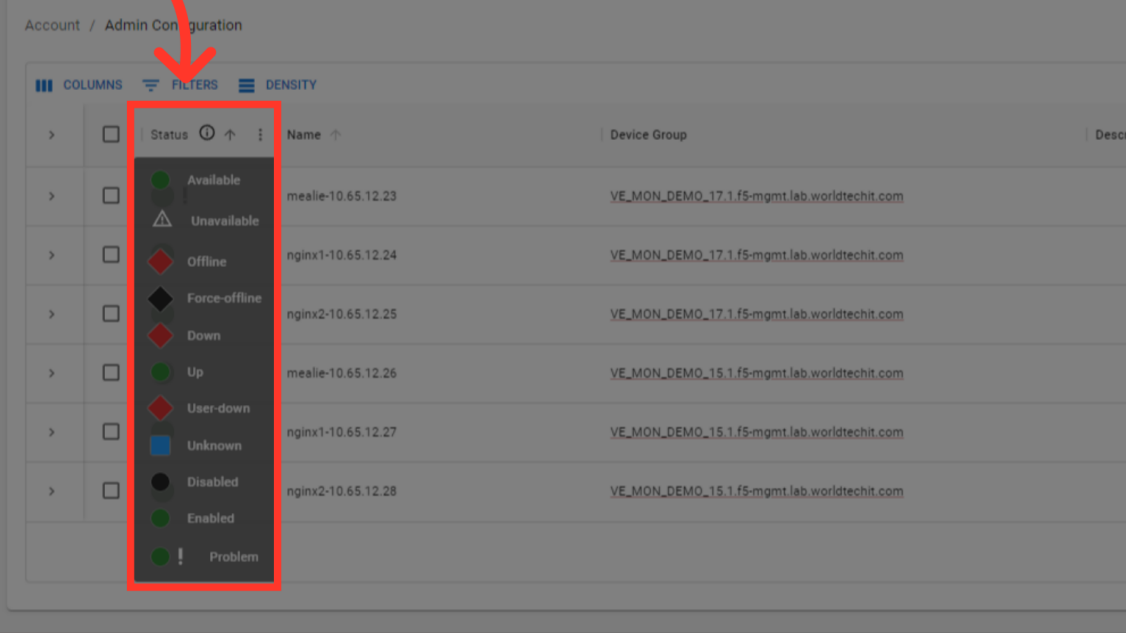
* By hovering over the information symbol next to status, all possible statuses can be viewed with the meaning of the status.

<Note>
  If a problem is indicated, it is caused by an underlying pool or pool member not beeing completely healthy.
</Note>

<img className="block h-48 dark:hidden" src="https://mintcdn.com/cloudred/jouRqP5D1sJw9S7R/features/app-dashboards-images/status-options-light.png?fit=max&auto=format&n=jouRqP5D1sJw9S7R&q=85&s=3df37b9e76131aac706deaad9a256bb0" width="1126" height="633" data-path="features/app-dashboards-images/status-options-light.png" />

<img className="hidden h-48 dark:block" src="https://mintcdn.com/cloudred/jouRqP5D1sJw9S7R/features/app-dashboards-images/status-options-light.png?fit=max&auto=format&n=jouRqP5D1sJw9S7R&q=85&s=3df37b9e76131aac706deaad9a256bb0" width="1126" height="633" data-path="features/app-dashboards-images/status-options-light.png" />

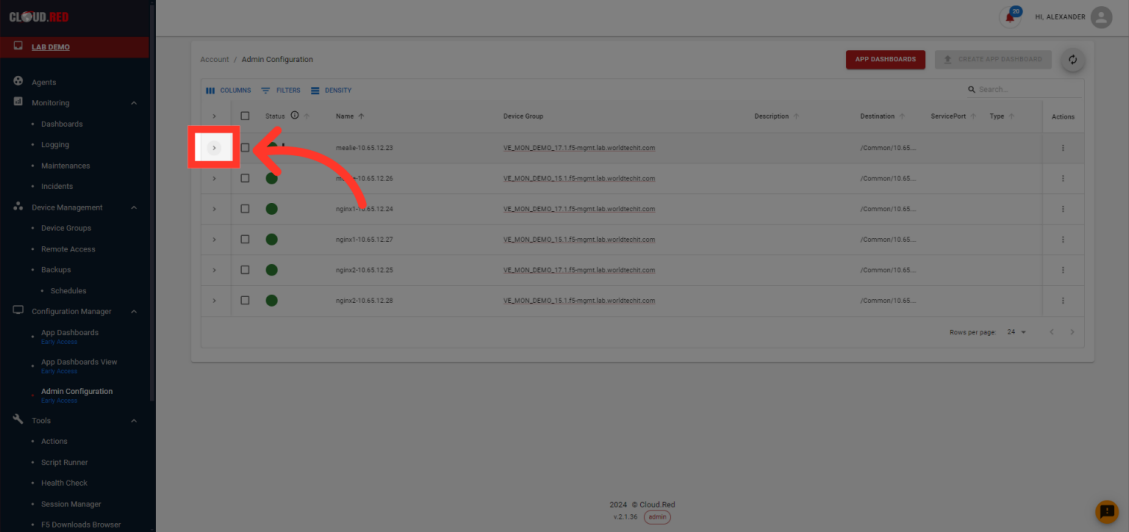
* To view more information about what is included in a vip, select the expand icon.
<img className="block h-48 dark:hidden" src="https://mintcdn.com/cloudred/jouRqP5D1sJw9S7R/features/app-dashboards-images/expand-button-light.png?fit=max&auto=format&n=jouRqP5D1sJw9S7R&q=85&s=c6b96140e9c20265593325cc9f40f120" width="1129" height="532" data-path="features/app-dashboards-images/expand-button-light.png" />

<img className="hidden h-48 dark:block" src="https://mintcdn.com/cloudred/jouRqP5D1sJw9S7R/features/app-dashboards-images/expand-button-light.png?fit=max&auto=format&n=jouRqP5D1sJw9S7R&q=85&s=c6b96140e9c20265593325cc9f40f120" width="1129" height="532" data-path="features/app-dashboards-images/expand-button-light.png" />

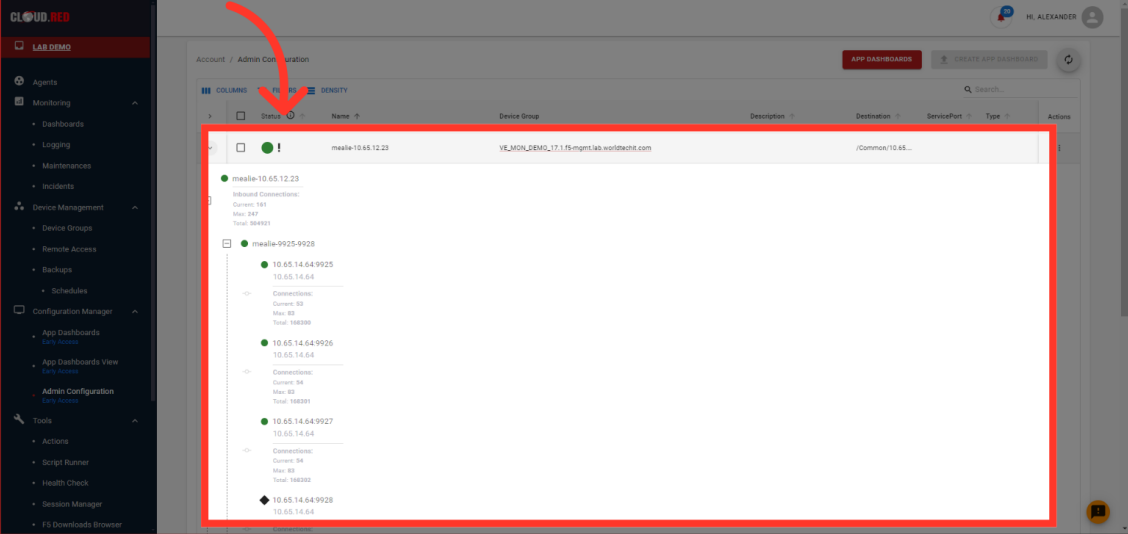
* When a VIP is expanded, a view of all associated pools and pool members is shown.
<img className="block h-48 dark:hidden" src="https://mintcdn.com/cloudred/jouRqP5D1sJw9S7R/features/app-dashboards-images/expanded-selection-light.png?fit=max&auto=format&n=jouRqP5D1sJw9S7R&q=85&s=ec1c603aa606392133c32c4809e5a8c4" width="1128" height="534" data-path="features/app-dashboards-images/expanded-selection-light.png" />

<img className="hidden h-48 dark:block" src="https://mintcdn.com/cloudred/jouRqP5D1sJw9S7R/features/app-dashboards-images/expanded-selection-light.png?fit=max&auto=format&n=jouRqP5D1sJw9S7R&q=85&s=ec1c603aa606392133c32c4809e5a8c4" width="1128" height="534" data-path="features/app-dashboards-images/expanded-selection-light.png" />

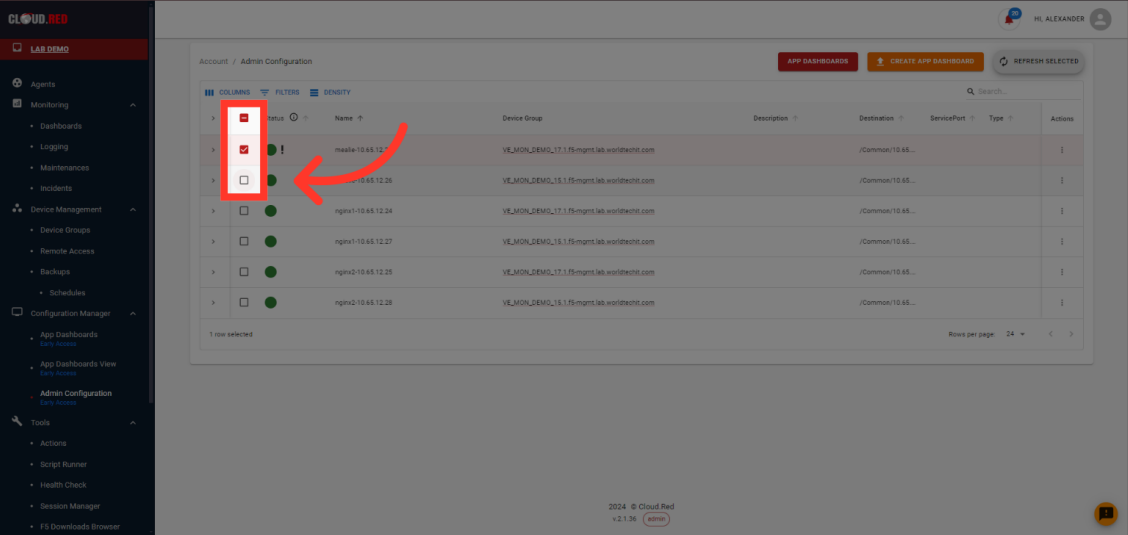
* To create a dashboard, select all VIPs intended to be included in the app dashboard. This can be one or multiple.
<img className="block h-48 dark:hidden" src="https://mintcdn.com/cloudred/jouRqP5D1sJw9S7R/features/app-dashboards-images/select-vips-light.png?fit=max&auto=format&n=jouRqP5D1sJw9S7R&q=85&s=3bb0ba1515ed43785b12837ed5a98966" width="1128" height="535" data-path="features/app-dashboards-images/select-vips-light.png" />

<img className="hidden h-48 dark:block" src="https://mintcdn.com/cloudred/jouRqP5D1sJw9S7R/features/app-dashboards-images/select-vips-light.png?fit=max&auto=format&n=jouRqP5D1sJw9S7R&q=85&s=3bb0ba1515ed43785b12837ed5a98966" width="1128" height="535" data-path="features/app-dashboards-images/select-vips-light.png" />

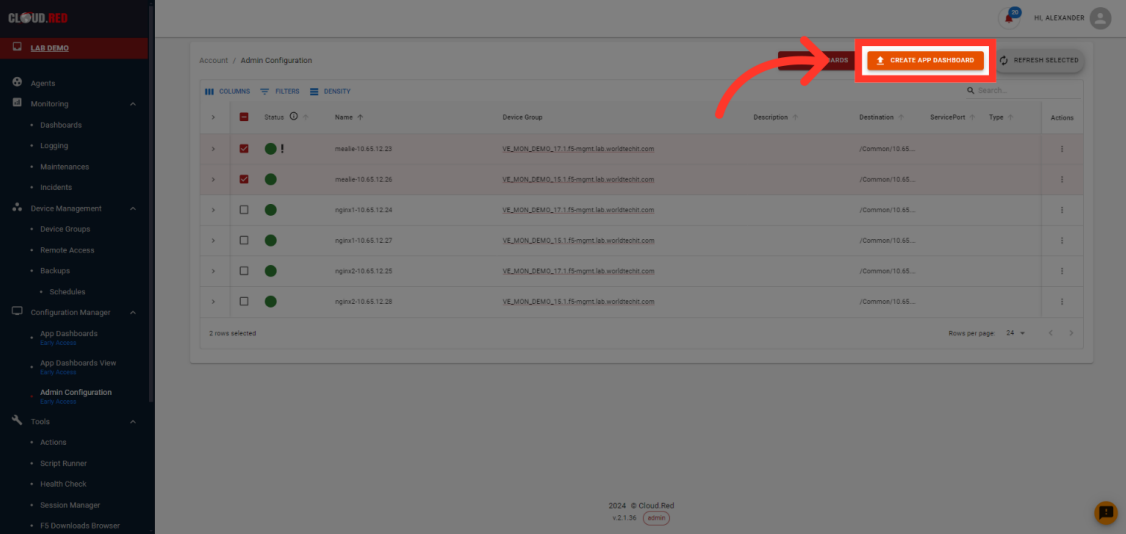
* In the top right, select create a dashboard.
<img className="block h-48 dark:hidden" src="https://mintcdn.com/cloudred/jouRqP5D1sJw9S7R/features/app-dashboards-images/create-app-dashboards-light.png?fit=max&auto=format&n=jouRqP5D1sJw9S7R&q=85&s=f342a240d9d231721362c97a35d85025" width="1126" height="534" data-path="features/app-dashboards-images/create-app-dashboards-light.png" />

<img className="hidden h-48 dark:block" src="https://mintcdn.com/cloudred/jouRqP5D1sJw9S7R/features/app-dashboards-images/create-app-dashboards-light.png?fit=max&auto=format&n=jouRqP5D1sJw9S7R&q=85&s=f342a240d9d231721362c97a35d85025" width="1126" height="534" data-path="features/app-dashboards-images/create-app-dashboards-light.png" />

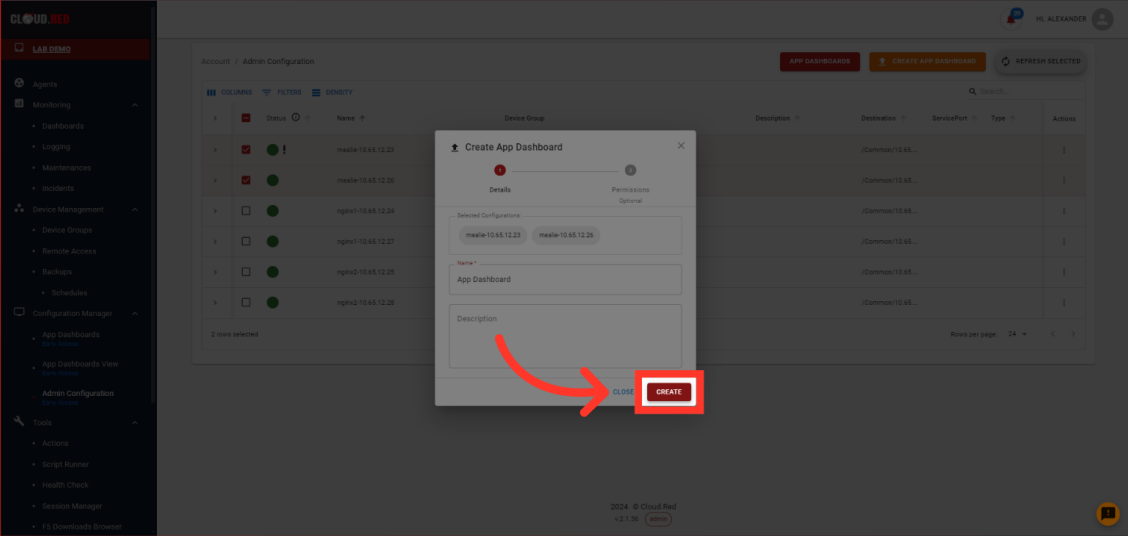
* After providing a name and desciption, select create.
<img className="block h-48 dark:hidden" src="https://mintcdn.com/cloudred/jouRqP5D1sJw9S7R/features/app-dashboards-images/click-create-light.png?fit=max&auto=format&n=jouRqP5D1sJw9S7R&q=85&s=a216b093b1f790a63b1c13d16c8a103d" width="1128" height="536" data-path="features/app-dashboards-images/click-create-light.png" />

<img className="hidden h-48 dark:block" src="https://mintcdn.com/cloudred/jouRqP5D1sJw9S7R/features/app-dashboards-images/click-create-light.png?fit=max&auto=format&n=jouRqP5D1sJw9S7R&q=85&s=a216b093b1f790a63b1c13d16c8a103d" width="1128" height="536" data-path="features/app-dashboards-images/click-create-light.png" />

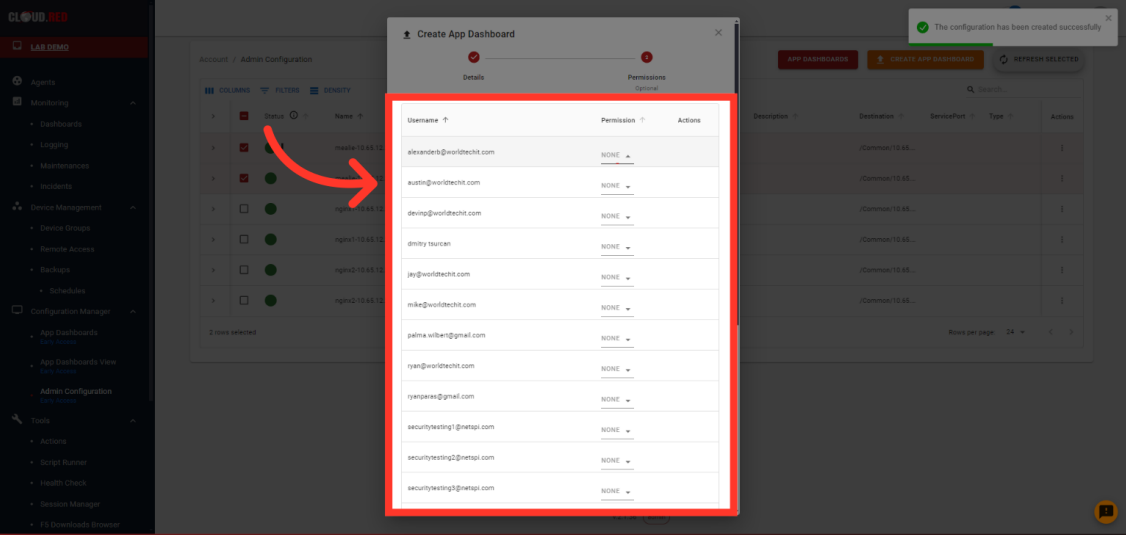
* By default, users **WILL NOT** have access to the dashboard. Provide all users that require permissions with the necessary role.
<img className="block h-48 dark:hidden" src="https://mintcdn.com/cloudred/jouRqP5D1sJw9S7R/features/app-dashboards-images/add-permissions-light.png?fit=max&auto=format&n=jouRqP5D1sJw9S7R&q=85&s=31f4ef72086243b5c9b85ca7399f2c7b" width="1126" height="535" data-path="features/app-dashboards-images/add-permissions-light.png" />

<img className="hidden h-48 dark:block" src="https://mintcdn.com/cloudred/jouRqP5D1sJw9S7R/features/app-dashboards-images/add-permissions-light.png?fit=max&auto=format&n=jouRqP5D1sJw9S7R&q=85&s=31f4ef72086243b5c9b85ca7399f2c7b" width="1126" height="535" data-path="features/app-dashboards-images/add-permissions-light.png" />

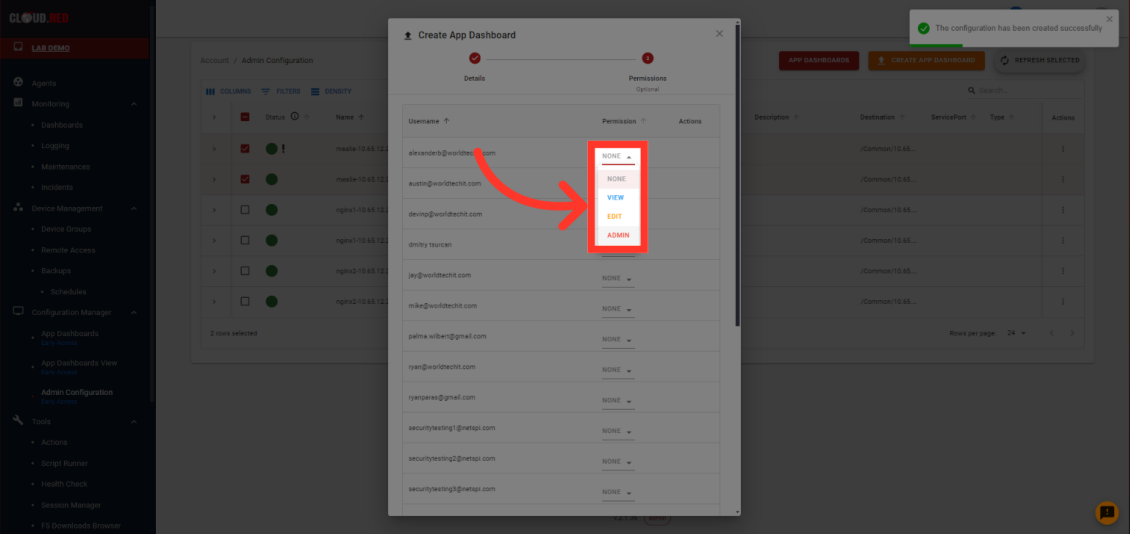
* Possible permissions levels are none, view, edit, or admin.
<img className="block h-48 dark:hidden" src="https://mintcdn.com/cloudred/jouRqP5D1sJw9S7R/features/app-dashboards-images/permissions-options-light.png?fit=max&auto=format&n=jouRqP5D1sJw9S7R&q=85&s=ab63fb9a6dab861111e38418e76d979a" width="1130" height="534" data-path="features/app-dashboards-images/permissions-options-light.png" />

<img className="hidden h-48 dark:block" src="https://mintcdn.com/cloudred/jouRqP5D1sJw9S7R/features/app-dashboards-images/permissions-options-light.png?fit=max&auto=format&n=jouRqP5D1sJw9S7R&q=85&s=ab63fb9a6dab861111e38418e76d979a" width="1130" height="534" data-path="features/app-dashboards-images/permissions-options-light.png" />

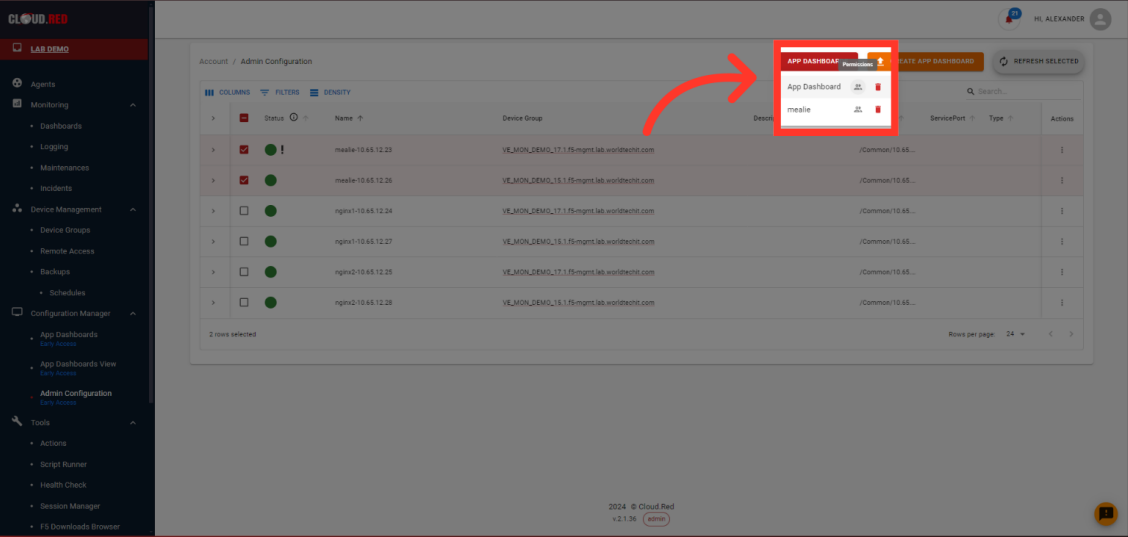
* To edit permissions of an existing dashboard, select app dashboards in the top right and select the permissions symbol.
<img className="block h-48 dark:hidden" src="https://mintcdn.com/cloudred/jouRqP5D1sJw9S7R/features/app-dashboards-images/edit-dashboards-light.png?fit=max&auto=format&n=jouRqP5D1sJw9S7R&q=85&s=669833bf0ee0e28d11f620aa01ffe20e" width="1128" height="537" data-path="features/app-dashboards-images/edit-dashboards-light.png" />

<img className="hidden h-48 dark:block" src="https://mintcdn.com/cloudred/jouRqP5D1sJw9S7R/features/app-dashboards-images/edit-dashboards-light.png?fit=max&auto=format&n=jouRqP5D1sJw9S7R&q=85&s=669833bf0ee0e28d11f620aa01ffe20e" width="1128" height="537" data-path="features/app-dashboards-images/edit-dashboards-light.png" />

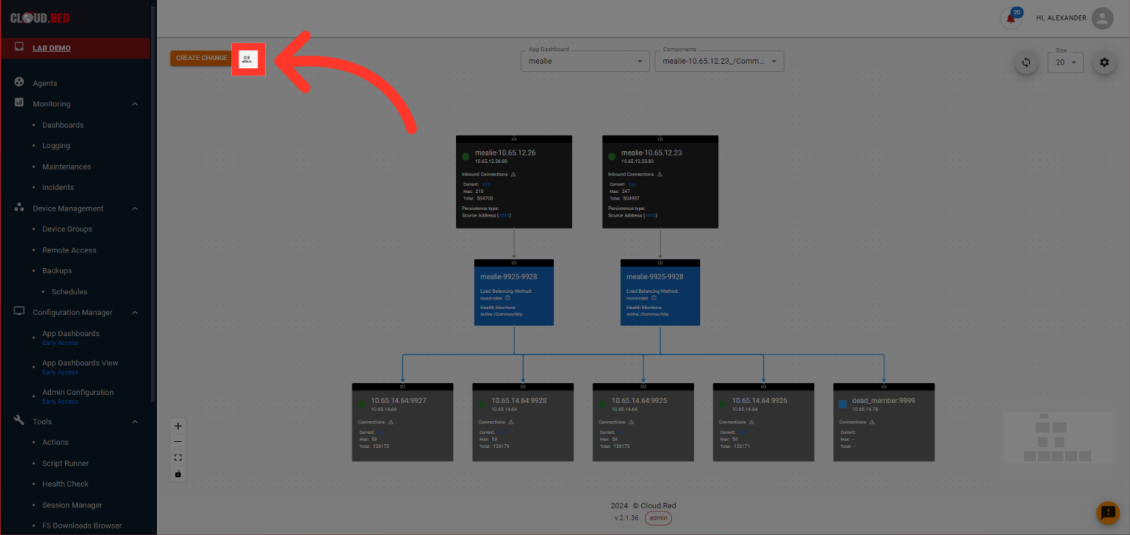
* Additionally, admin users can edit permissions inside of the app dashboard.
<img className="block h-48 dark:hidden" src="https://mintcdn.com/cloudred/jouRqP5D1sJw9S7R/features/app-dashboards-images/select-permissions-light.png?fit=max&auto=format&n=jouRqP5D1sJw9S7R&q=85&s=6b9ecf98c40465ee03215ef126169f85" width="1130" height="535" data-path="features/app-dashboards-images/select-permissions-light.png" />

<img className="hidden h-48 dark:block" src="https://mintcdn.com/cloudred/jouRqP5D1sJw9S7R/features/app-dashboards-images/select-permissions-light.png?fit=max&auto=format&n=jouRqP5D1sJw9S7R&q=85&s=6b9ecf98c40465ee03215ef126169f85" width="1130" height="535" data-path="features/app-dashboards-images/select-permissions-light.png" />

## Using App Dashboards

From the Application Dashboards, users have access to key information for their applications as well as granular control over key settings.

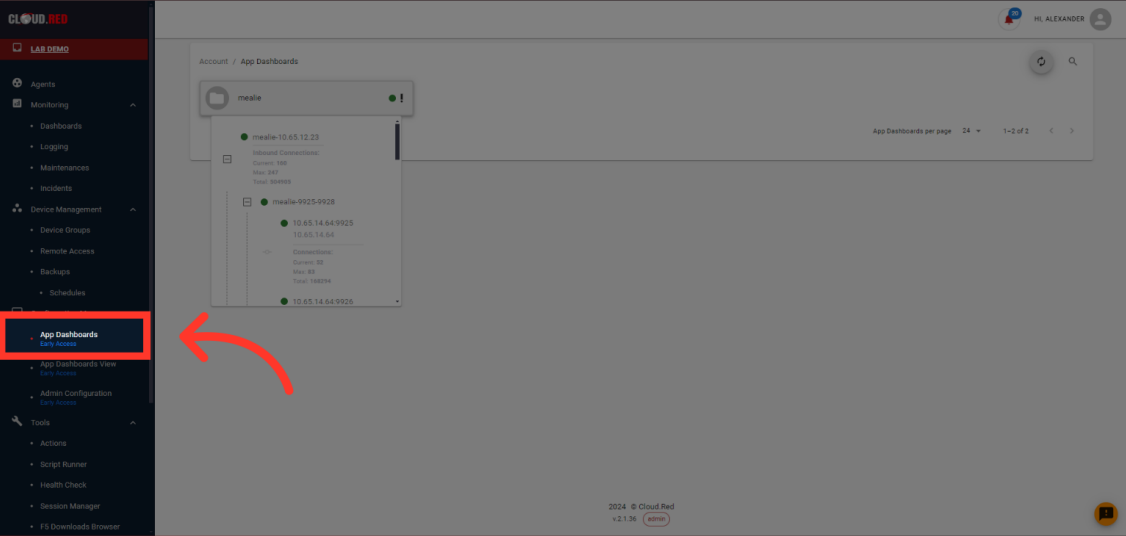
* To use app dashboards, navigate to the "App Dashboards" Tab in the left-hand navigation.
<img className="block h-48 dark:hidden" src="https://mintcdn.com/cloudred/jouRqP5D1sJw9S7R/features/app-dashboards-images/select-app-dashboards-light.png?fit=max&auto=format&n=jouRqP5D1sJw9S7R&q=85&s=7d80e28d87167b08c73d4a777bb71da1" width="1126" height="536" data-path="features/app-dashboards-images/select-app-dashboards-light.png" />

<img className="hidden h-48 dark:block" src="https://mintcdn.com/cloudred/jouRqP5D1sJw9S7R/features/app-dashboards-images/select-app-dashboards-light.png?fit=max&auto=format&n=jouRqP5D1sJw9S7R&q=85&s=7d80e28d87167b08c73d4a777bb71da1" width="1126" height="536" data-path="features/app-dashboards-images/select-app-dashboards-light.png" />

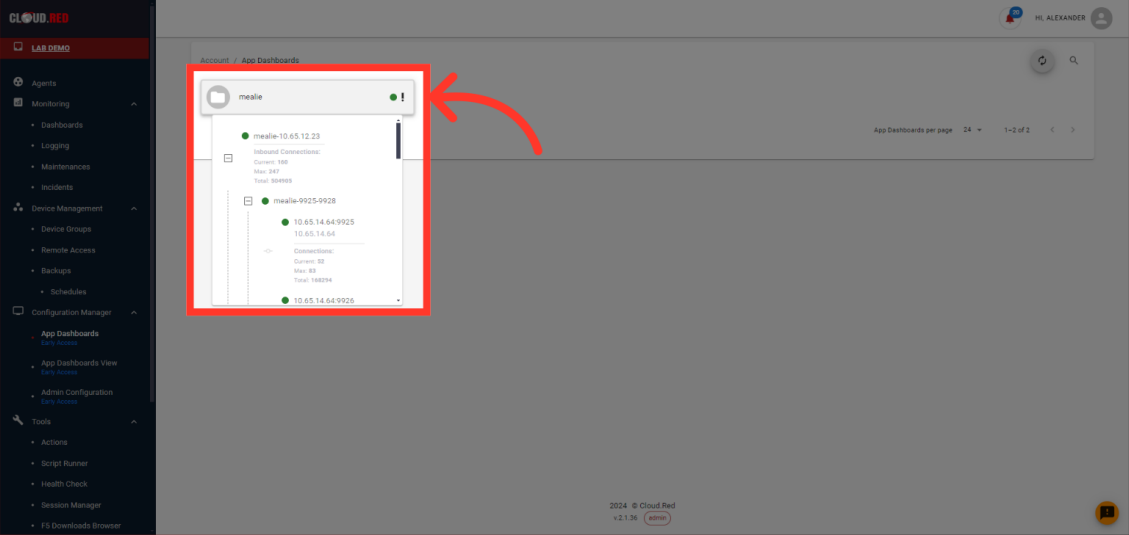
* Hovering over a dashboard will show an expanded view with the pools and pool members.
<img className="block h-48 dark:hidden" src="https://mintcdn.com/cloudred/jouRqP5D1sJw9S7R/features/app-dashboards-images/select-dashboard-light.png?fit=max&auto=format&n=jouRqP5D1sJw9S7R&q=85&s=f87022b6cfea86f33a315f9d77c3823a" width="1129" height="535" data-path="features/app-dashboards-images/select-dashboard-light.png" />

<img className="hidden h-48 dark:block" src="https://mintcdn.com/cloudred/jouRqP5D1sJw9S7R/features/app-dashboards-images/select-dashboard-light.png?fit=max&auto=format&n=jouRqP5D1sJw9S7R&q=85&s=f87022b6cfea86f33a315f9d77c3823a" width="1129" height="535" data-path="features/app-dashboards-images/select-dashboard-light.png" />

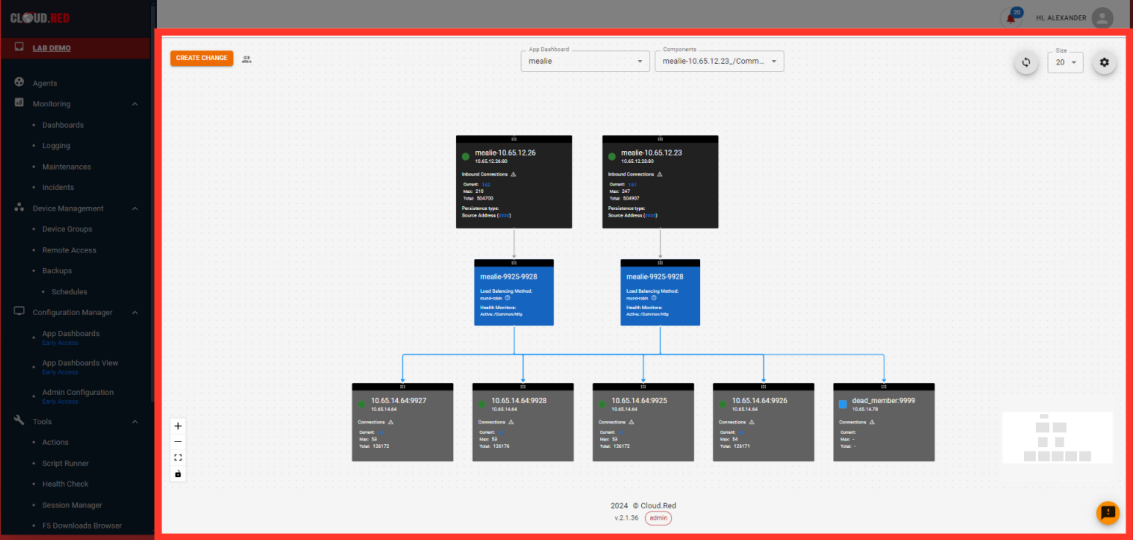
* After selecting a Dashboard, users can view all VIPs attached and have the capability to change it's configuration.
<img className="block h-48 dark:hidden" src="https://mintcdn.com/cloudred/lZ-9xTWiXWjj_SDm/features/app-dashboards-images/viewing-app-dashboards-light.png?fit=max&auto=format&n=lZ-9xTWiXWjj_SDm&q=85&s=cad542773cce68723030b656a1936908" width="1133" height="540" data-path="features/app-dashboards-images/viewing-app-dashboards-light.png" />

<img className="hidden h-48 dark:block" src="https://mintcdn.com/cloudred/lZ-9xTWiXWjj_SDm/features/app-dashboards-images/viewing-app-dashboards-light.png?fit=max&auto=format&n=lZ-9xTWiXWjj_SDm&q=85&s=cad542773cce68723030b656a1936908" width="1133" height="540" data-path="features/app-dashboards-images/viewing-app-dashboards-light.png" />

* Edit permissions to the dashboard my selecting the permissions icon.

<img className="block h-48 dark:hidden" src="https://mintcdn.com/cloudred/jouRqP5D1sJw9S7R/features/app-dashboards-images/select-permissions-light.png?fit=max&auto=format&n=jouRqP5D1sJw9S7R&q=85&s=6b9ecf98c40465ee03215ef126169f85" width="1130" height="535" data-path="features/app-dashboards-images/select-permissions-light.png" />

<img className="hidden h-48 dark:block" src="https://mintcdn.com/cloudred/jouRqP5D1sJw9S7R/features/app-dashboards-images/select-permissions-light.png?fit=max&auto=format&n=jouRqP5D1sJw9S7R&q=85&s=6b9ecf98c40465ee03215ef126169f85" width="1130" height="535" data-path="features/app-dashboards-images/select-permissions-light.png" />

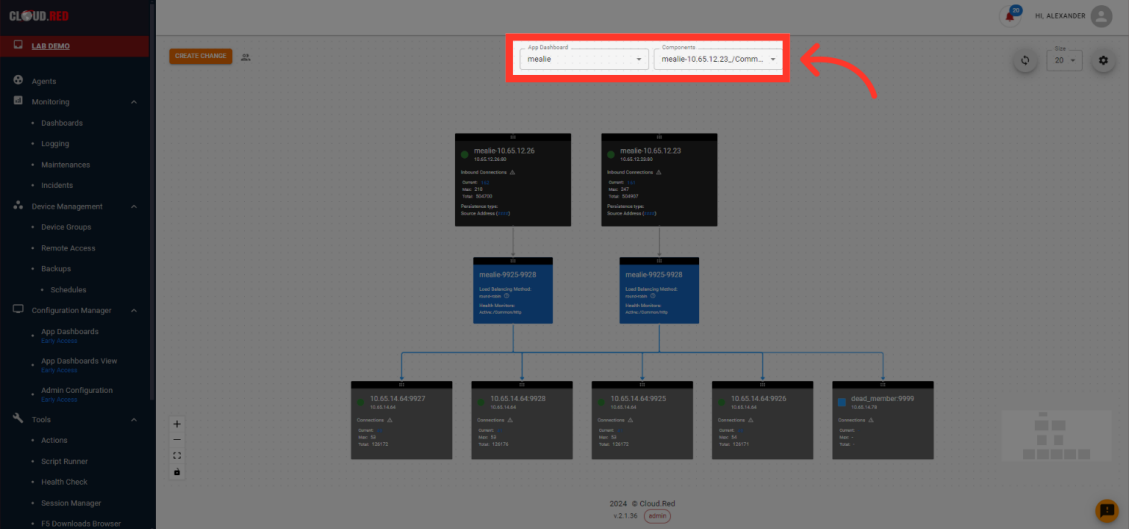
* Change dashboards or alter the currently displayed components of the dashboard using the App dashboards or components drop downs.
<img className="block h-48 dark:hidden" src="https://mintcdn.com/cloudred/jouRqP5D1sJw9S7R/features/app-dashboards-images/changing-dashboards-light.png?fit=max&auto=format&n=jouRqP5D1sJw9S7R&q=85&s=ea2fcfada3f292bf26cbe0850e8ce68f" width="1129" height="529" data-path="features/app-dashboards-images/changing-dashboards-light.png" />

<img className="hidden h-48 dark:block" src="https://mintcdn.com/cloudred/jouRqP5D1sJw9S7R/features/app-dashboards-images/changing-dashboards-light.png?fit=max&auto=format&n=jouRqP5D1sJw9S7R&q=85&s=ea2fcfada3f292bf26cbe0850e8ce68f" width="1129" height="529" data-path="features/app-dashboards-images/changing-dashboards-light.png" />

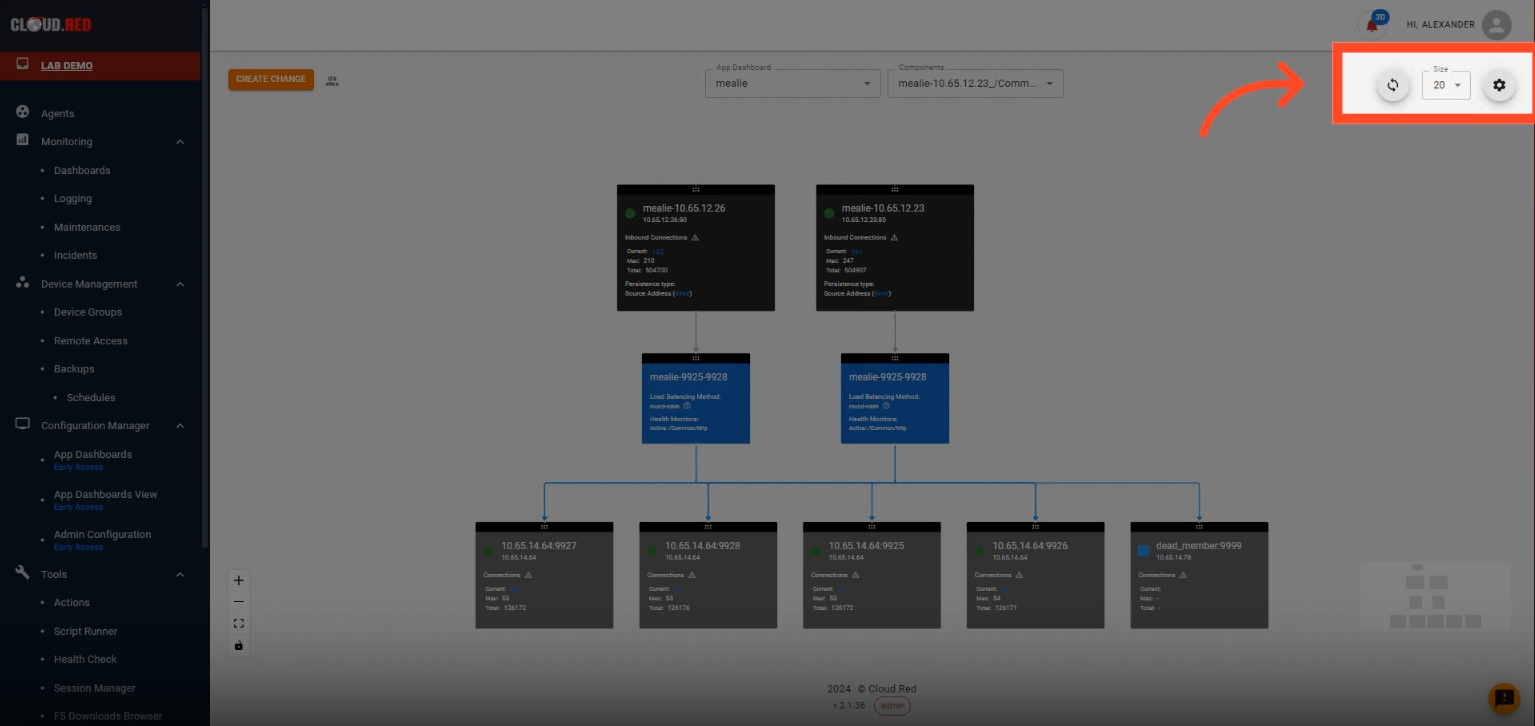
* In the top right, refresh the data, change the size, or pull up configuration controls for the dashboard.
<img className="block h-48 dark:hidden" src="https://mintcdn.com/cloudred/jouRqP5D1sJw9S7R/features/app-dashboards-images/app-dashboards-top-right-light.png?fit=max&auto=format&n=jouRqP5D1sJw9S7R&q=85&s=778800de9116b4615ed2d221d3da044f" width="1535" height="726" data-path="features/app-dashboards-images/app-dashboards-top-right-light.png" />

<img className="hidden h-48 dark:block" src="https://mintcdn.com/cloudred/jouRqP5D1sJw9S7R/features/app-dashboards-images/app-dashboards-top-right-light.png?fit=max&auto=format&n=jouRqP5D1sJw9S7R&q=85&s=778800de9116b4615ed2d221d3da044f" width="1535" height="726" data-path="features/app-dashboards-images/app-dashboards-top-right-light.png" />

### Creating Changes to Applications

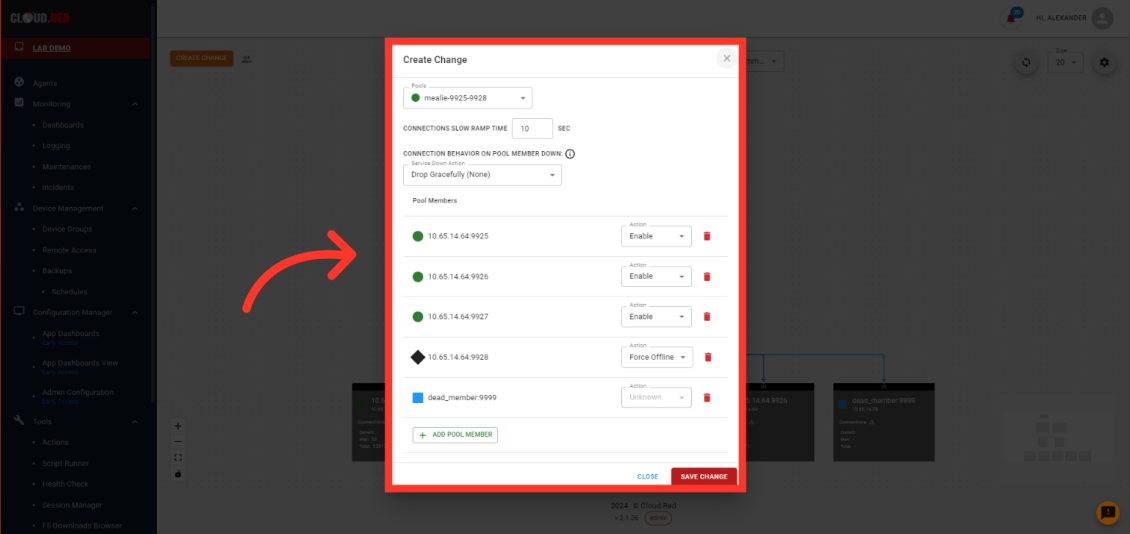
Users can quickly change the configuration of their pools by editing the slow ramp time or connection behavior on pool member down.

Users are able to quickly add, remove, or change the state of pool members.

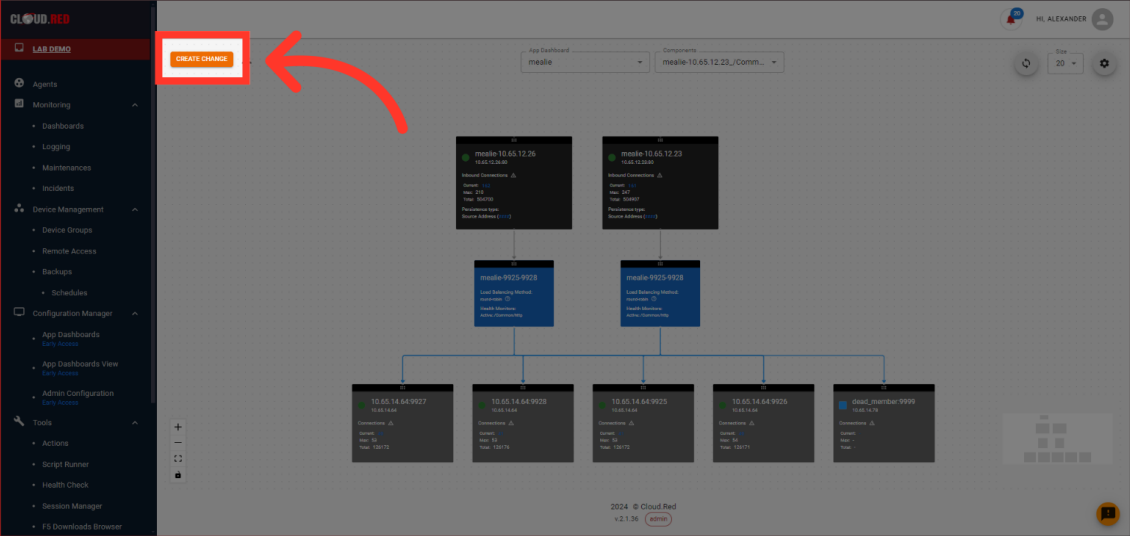
* To edit the configuration, Select the "Create Change" button.
<img className="block h-48 dark:hidden" src="https://mintcdn.com/cloudred/jouRqP5D1sJw9S7R/features/app-dashboards-images/select-create-change-light.png?fit=max&auto=format&n=jouRqP5D1sJw9S7R&q=85&s=5c9cabd9c20436eeb83581e7236dd9c7" width="1130" height="536" data-path="features/app-dashboards-images/select-create-change-light.png" />

<img className="hidden h-48 dark:block" src="https://mintcdn.com/cloudred/jouRqP5D1sJw9S7R/features/app-dashboards-images/select-create-change-light.png?fit=max&auto=format&n=jouRqP5D1sJw9S7R&q=85&s=5c9cabd9c20436eeb83581e7236dd9c7" width="1130" height="536" data-path="features/app-dashboards-images/select-create-change-light.png" />

* From the create change model, the current status of slow ramp time, connection behavior on pool members down, and the status of all pool members is shown for the selected pool.
<img className="block h-48 dark:hidden" src="https://mintcdn.com/cloudred/jouRqP5D1sJw9S7R/features/app-dashboards-images/create-change-screen-light.png?fit=max&auto=format&n=jouRqP5D1sJw9S7R&q=85&s=afce65e939f19b1b06a85b98b61ef2c1" width="1130" height="534" data-path="features/app-dashboards-images/create-change-screen-light.png" />

<img className="hidden h-48 dark:block" src="https://mintcdn.com/cloudred/jouRqP5D1sJw9S7R/features/app-dashboards-images/create-change-screen-light.png?fit=max&auto=format&n=jouRqP5D1sJw9S7R&q=85&s=afce65e939f19b1b06a85b98b61ef2c1" width="1130" height="534" data-path="features/app-dashboards-images/create-change-screen-light.png" />

### Editing Connections In App Dashboards

Users can quickly edit the connections of their applications for the entire virtual IP or for the individual Poll Member.

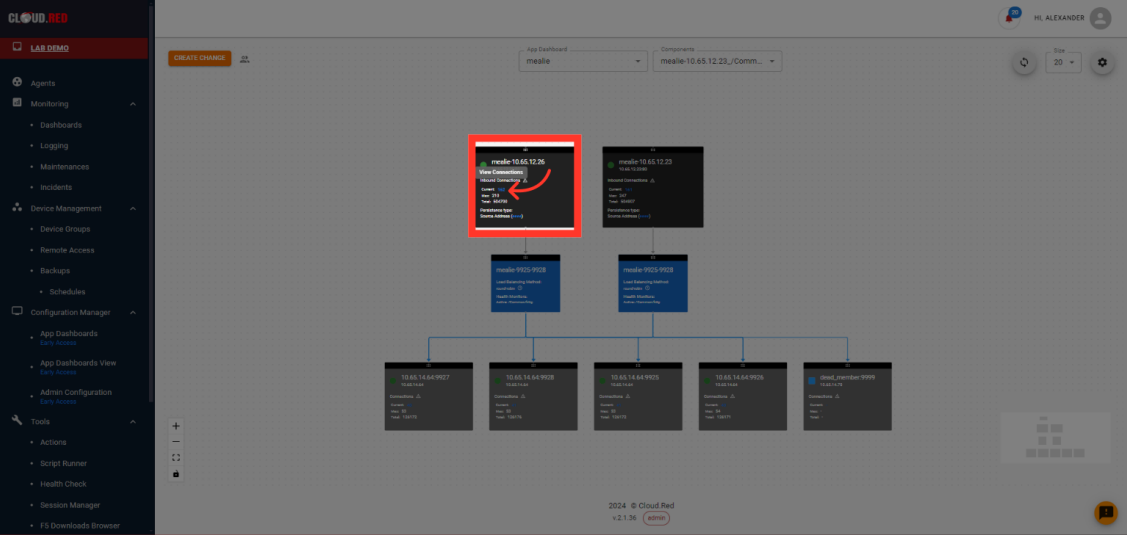
* To view the connection of the virtual IP, select the displayed number of connections.
<img className="block h-48 dark:hidden" src="https://mintcdn.com/cloudred/jouRqP5D1sJw9S7R/features/app-dashboards-images/select-view-connections-light.png?fit=max&auto=format&n=jouRqP5D1sJw9S7R&q=85&s=06bf256ae9504756dae97f006047118e" width="1127" height="535" data-path="features/app-dashboards-images/select-view-connections-light.png" />

<img className="hidden h-48 dark:block" src="https://mintcdn.com/cloudred/jouRqP5D1sJw9S7R/features/app-dashboards-images/select-view-connections-light.png?fit=max&auto=format&n=jouRqP5D1sJw9S7R&q=85&s=06bf256ae9504756dae97f006047118e" width="1127" height="535" data-path="features/app-dashboards-images/select-view-connections-light.png" />

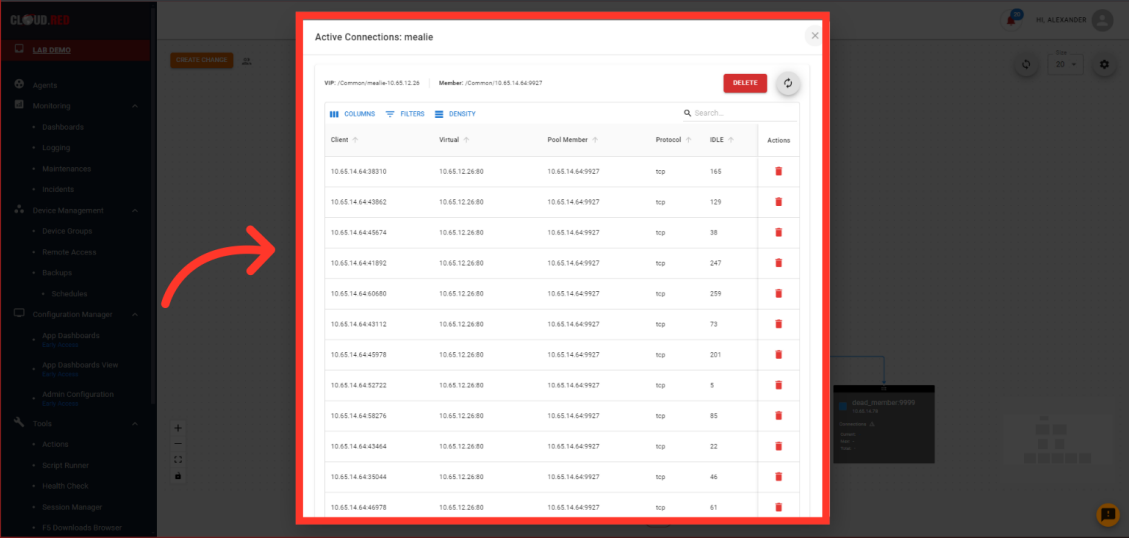
* A model containing active connections will be displayed.
<img className="block h-48 dark:hidden" src="https://mintcdn.com/cloudred/jouRqP5D1sJw9S7R/features/app-dashboards-images/editing-all-connections-light.png?fit=max&auto=format&n=jouRqP5D1sJw9S7R&q=85&s=4f4dbed94e5de24ac96c524c0de8af61" width="1129" height="538" data-path="features/app-dashboards-images/editing-all-connections-light.png" />

<img className="hidden h-48 dark:block" src="https://mintcdn.com/cloudred/jouRqP5D1sJw9S7R/features/app-dashboards-images/editing-all-connections-light.png?fit=max&auto=format&n=jouRqP5D1sJw9S7R&q=85&s=4f4dbed94e5de24ac96c524c0de8af61" width="1129" height="538" data-path="features/app-dashboards-images/editing-all-connections-light.png" />

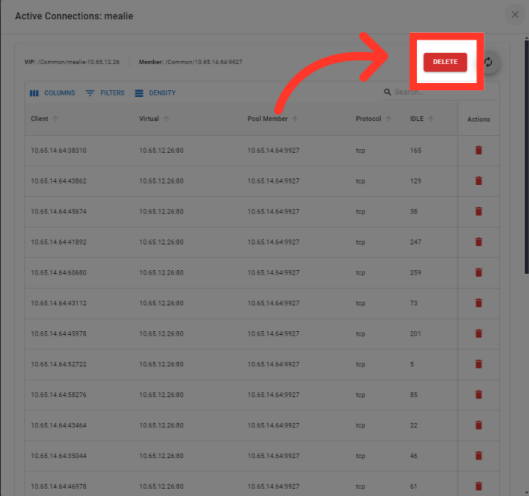
* Select the "DELETE" button in the top right to terminate all displayed connections.
<img className="block h-48 dark:hidden" src="https://mintcdn.com/cloudred/jouRqP5D1sJw9S7R/features/app-dashboards-images/deleting-all-connections-light.png?fit=max&auto=format&n=jouRqP5D1sJw9S7R&q=85&s=a9e76119d757adcdf96a3a68e60909b1" width="529" height="496" data-path="features/app-dashboards-images/deleting-all-connections-light.png" />

<img className="hidden h-48 dark:block" src="https://mintcdn.com/cloudred/jouRqP5D1sJw9S7R/features/app-dashboards-images/deleting-all-connections-light.png?fit=max&auto=format&n=jouRqP5D1sJw9S7R&q=85&s=a9e76119d757adcdf96a3a68e60909b1" width="529" height="496" data-path="features/app-dashboards-images/deleting-all-connections-light.png" />

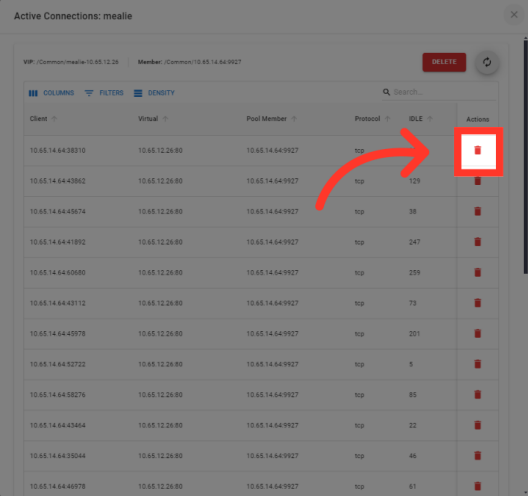
* Select the delete icon next to any connection to quckly remove individual connections.
<img className="block h-48 dark:hidden" src="https://mintcdn.com/cloudred/jouRqP5D1sJw9S7R/features/app-dashboards-images/deleting-individual-connections-light.png?fit=max&auto=format&n=jouRqP5D1sJw9S7R&q=85&s=3f1002c6f7223c32f1996f4124d123e4" width="528" height="496" data-path="features/app-dashboards-images/deleting-individual-connections-light.png" />

<img className="hidden h-48 dark:block" src="https://mintcdn.com/cloudred/jouRqP5D1sJw9S7R/features/app-dashboards-images/deleting-individual-connections-light.png?fit=max&auto=format&n=jouRqP5D1sJw9S7R&q=85&s=3f1002c6f7223c32f1996f4124d123e4" width="528" height="496" data-path="features/app-dashboards-images/deleting-individual-connections-light.png" />

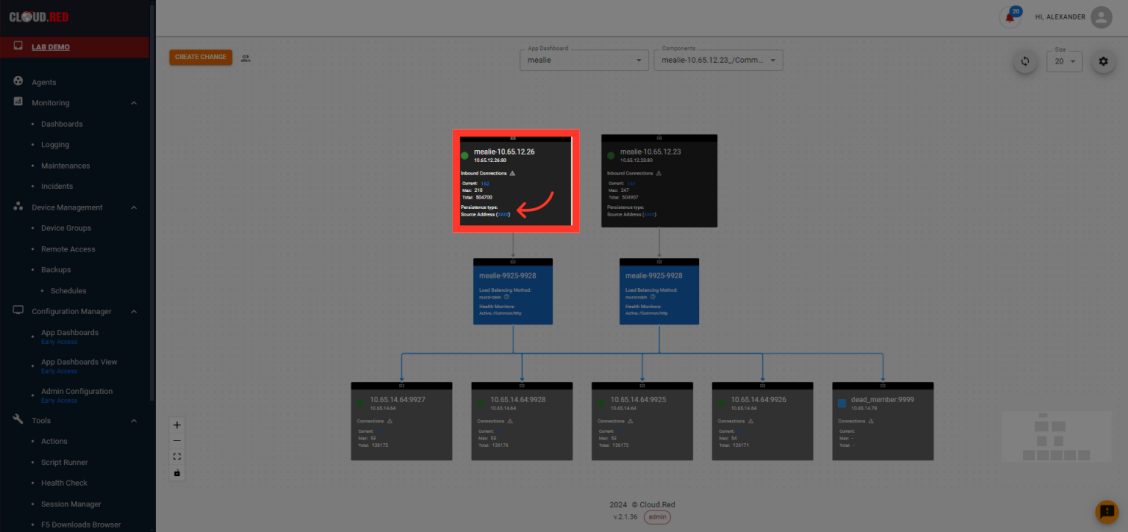
* To view the persistent connections of the Virtual IP, select the displayed persistent connections next to source address.
<img className="block h-48 dark:hidden" src="https://mintcdn.com/cloudred/jouRqP5D1sJw9S7R/features/app-dashboards-images/select-persistent-connections-light.png?fit=max&auto=format&n=jouRqP5D1sJw9S7R&q=85&s=0816e2683cae4db62cfe751c46560c6e" width="1128" height="532" data-path="features/app-dashboards-images/select-persistent-connections-light.png" />

<img className="hidden h-48 dark:block" src="https://mintcdn.com/cloudred/jouRqP5D1sJw9S7R/features/app-dashboards-images/select-persistent-connections-light.png?fit=max&auto=format&n=jouRqP5D1sJw9S7R&q=85&s=0816e2683cae4db62cfe751c46560c6e" width="1128" height="532" data-path="features/app-dashboards-images/select-persistent-connections-light.png" />

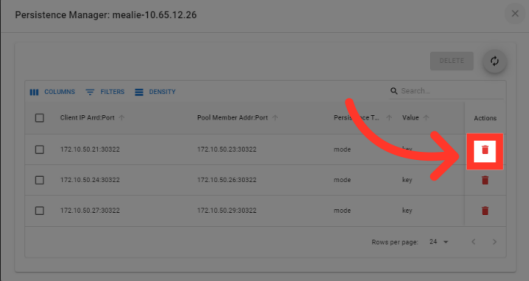
* Select the delete icon to remove individual persistent connections.
<img className="block h-48 dark:hidden" src="https://mintcdn.com/cloudred/jouRqP5D1sJw9S7R/features/app-dashboards-images/delete-persistent-connections-light.png?fit=max&auto=format&n=jouRqP5D1sJw9S7R&q=85&s=c5f6883047c24ac159c5f54f28ac0cdb" width="529" height="281" data-path="features/app-dashboards-images/delete-persistent-connections-light.png" />

<img className="hidden h-48 dark:block" src="https://mintcdn.com/cloudred/jouRqP5D1sJw9S7R/features/app-dashboards-images/delete-persistent-connections-light.png?fit=max&auto=format&n=jouRqP5D1sJw9S7R&q=85&s=c5f6883047c24ac159c5f54f28ac0cdb" width="529" height="281" data-path="features/app-dashboards-images/delete-persistent-connections-light.png" />

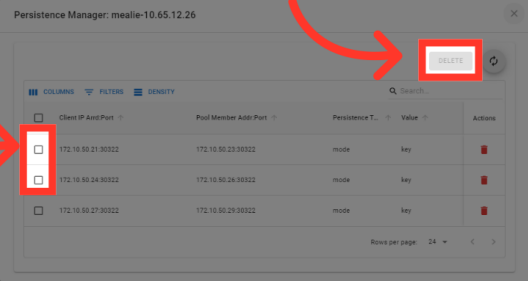
* Use the selection boxes on the left to remove multiple persistent connections at one time.
<img className="block h-48 dark:hidden" src="https://mintcdn.com/cloudred/jouRqP5D1sJw9S7R/features/app-dashboards-images/delete-multiple-persistent-connections-light.png?fit=max&auto=format&n=jouRqP5D1sJw9S7R&q=85&s=16541abb8b4963bc7d3268e7fce997e0" width="528" height="281" data-path="features/app-dashboards-images/delete-multiple-persistent-connections-light.png" />

<img className="hidden h-48 dark:block" src="https://mintcdn.com/cloudred/jouRqP5D1sJw9S7R/features/app-dashboards-images/delete-multiple-persistent-connections-light.png?fit=max&auto=format&n=jouRqP5D1sJw9S7R&q=85&s=16541abb8b4963bc7d3268e7fce997e0" width="528" height="281" data-path="features/app-dashboards-images/delete-multiple-persistent-connections-light.png" />

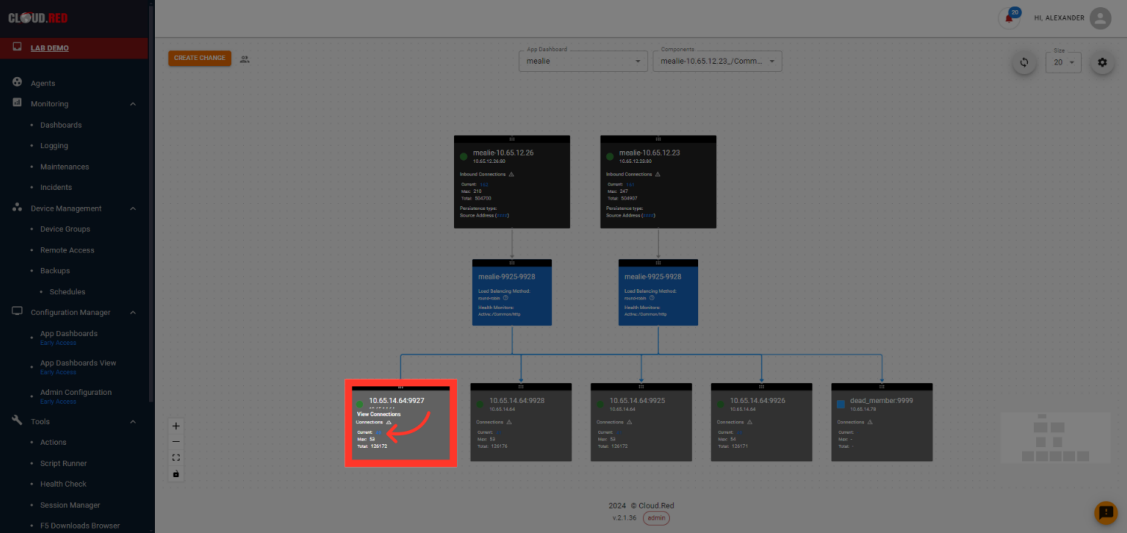
* To view the connection of an individual pool member, select the displayed number of connections.
<img className="block h-48 dark:hidden" src="https://mintcdn.com/cloudred/lZ-9xTWiXWjj_SDm/features/app-dashboards-images/view-pool-members-connections.png?fit=max&auto=format&n=lZ-9xTWiXWjj_SDm&q=85&s=39227731348a501256b86d118bafbf16" width="1127" height="533" data-path="features/app-dashboards-images/view-pool-members-connections.png" />

<img className="hidden h-48 dark:block" src="https://mintcdn.com/cloudred/lZ-9xTWiXWjj_SDm/features/app-dashboards-images/view-pool-members-connections.png?fit=max&auto=format&n=lZ-9xTWiXWjj_SDm&q=85&s=39227731348a501256b86d118bafbf16" width="1127" height="533" data-path="features/app-dashboards-images/view-pool-members-connections.png" />
