> ## Documentation Index
> Fetch the complete documentation index at: https://docs.cloud.red/llms.txt
> Use this file to discover all available pages before exploring further.
# Access Token Lifespan
> Set how long issued access tokens stay valid across your Cloud.Red account.
The **Access Token Lifespan** is a global setting that controls how long an issued access token stays valid before a user or service must re-authenticate. By default, access tokens expire after **90 minutes**.
You must be an **Account Admin** to view or change global settings.
## Change the Access Token Lifespan
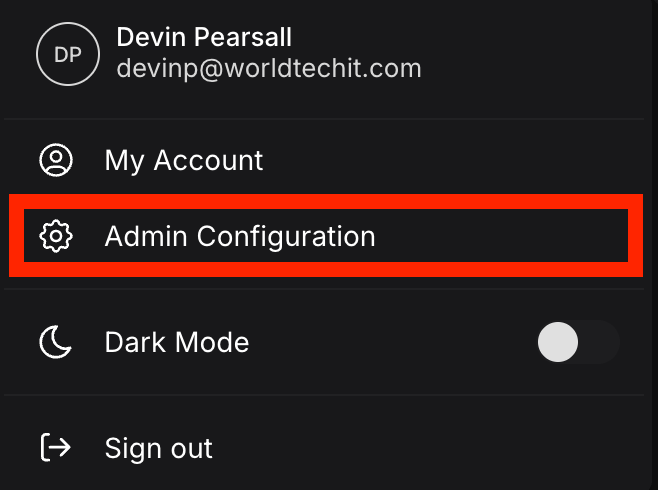
1. Click your profile in the top-right corner, then select **Admin Configuration**.
 2. In Admin Configuration, select the **Global Settings** tab.
3. Scroll to the bottom of Global Settings to find the **Access Token Lifespan** field. Enter a value and choose a **Unit** from the dropdown. Available units are **Seconds**, **Minutes**, and **Hours**.
2. In Admin Configuration, select the **Global Settings** tab.
3. Scroll to the bottom of Global Settings to find the **Access Token Lifespan** field. Enter a value and choose a **Unit** from the dropdown. Available units are **Seconds**, **Minutes**, and **Hours**.
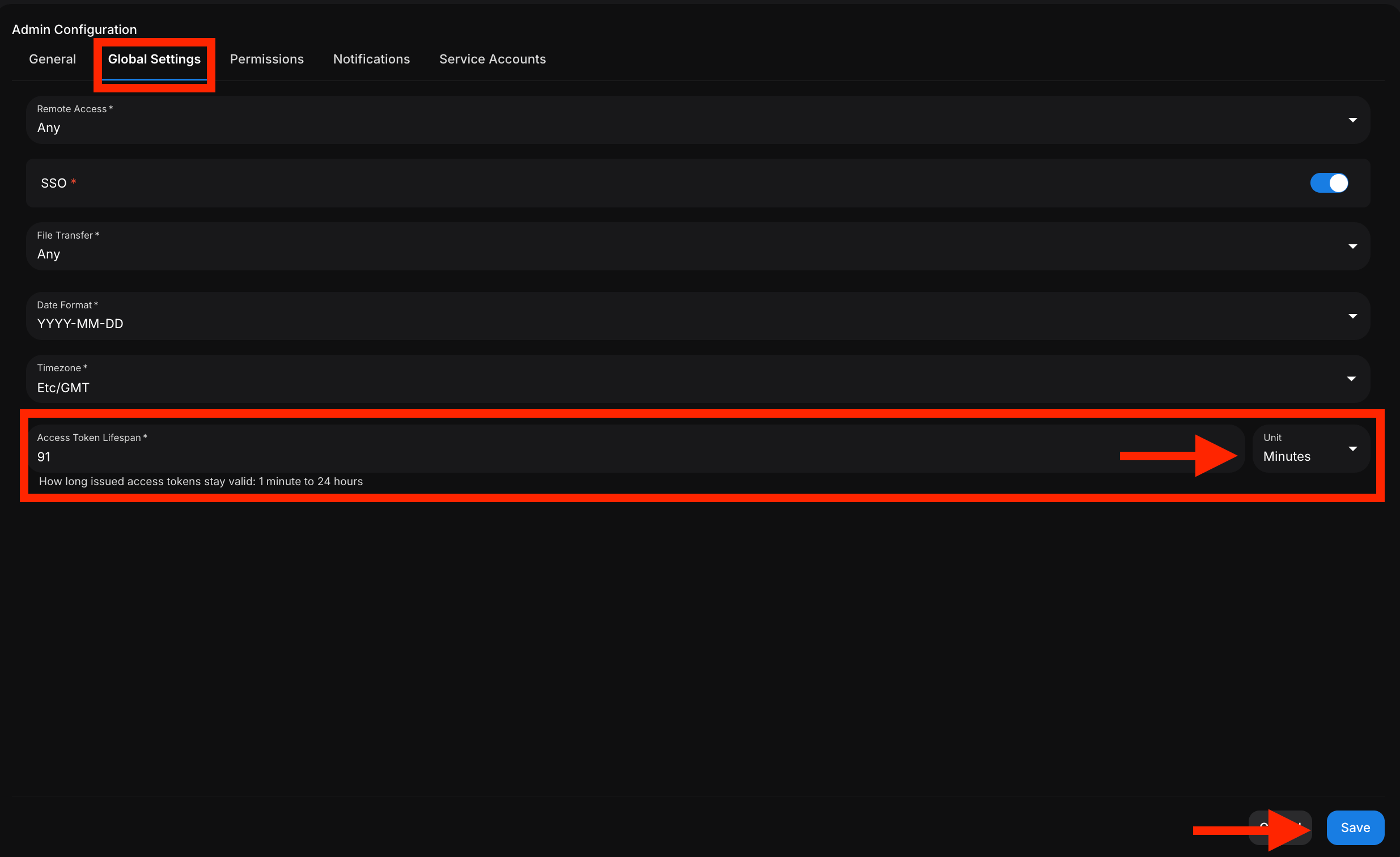 4. Click **Save** in the bottom-right of the page.
The lifespan must fall within a valid range: **1 minute to 24 hours**. The field help text reads: "How long issued access tokens stay valid: 1 minute to 24 hours".
Choosing a lifespan is a security tradeoff. Shorter lifespans are more secure but require users and service accounts to re-authenticate more often. Longer lifespans are more convenient but increase exposure if a token is compromised.
## Related
* [Service Accounts](/getting-started/service-accounts) — machine identities that use access tokens
* [Access Control](/cloud-red-essentials/access-control) — roles and permissions
4. Click **Save** in the bottom-right of the page.
The lifespan must fall within a valid range: **1 minute to 24 hours**. The field help text reads: "How long issued access tokens stay valid: 1 minute to 24 hours".
Choosing a lifespan is a security tradeoff. Shorter lifespans are more secure but require users and service accounts to re-authenticate more often. Longer lifespans are more convenient but increase exposure if a token is compromised.
## Related
* [Service Accounts](/getting-started/service-accounts) — machine identities that use access tokens
* [Access Control](/cloud-red-essentials/access-control) — roles and permissions