> ## Documentation Index
> Fetch the complete documentation index at: https://docs.cloud.red/llms.txt
> Use this file to discover all available pages before exploring further.
# CRCLI and MCP Authorization Grant
> Enable the OAuth 2.0 Device Authorization Grant required for crcli and the Cloud.Red MCP server
The **CRCLI and MCP Authorization Grant** enables the OAuth 2.0 Device Authorization Grant flow for your tenant. This flow lets devices obtain access tokens without a browser-based redirect on the device itself, and it is what powers `crcli auth login` and the Cloud.Red MCP server.
This grant must be enabled for your tenant before anyone can run `crcli auth login` or connect an AI client to the Cloud.Red MCP server. If it is disabled, device-flow logins will fail with an authorization error.
Enabling or disabling this grant requires access to **Admin Configuration**. Only tenant administrators can change this setting.
## Opening Admin Configuration
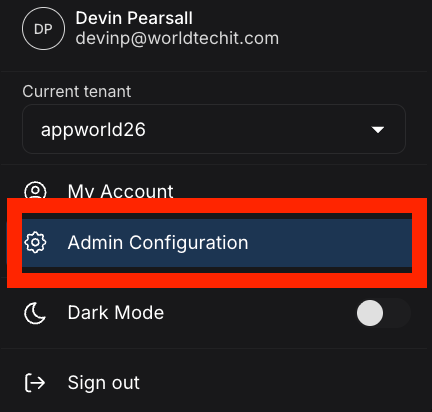
In the top-right of the Cloud.Red portal, select your profile, then choose "Admin Configuration".
 ## Enabling the Grant
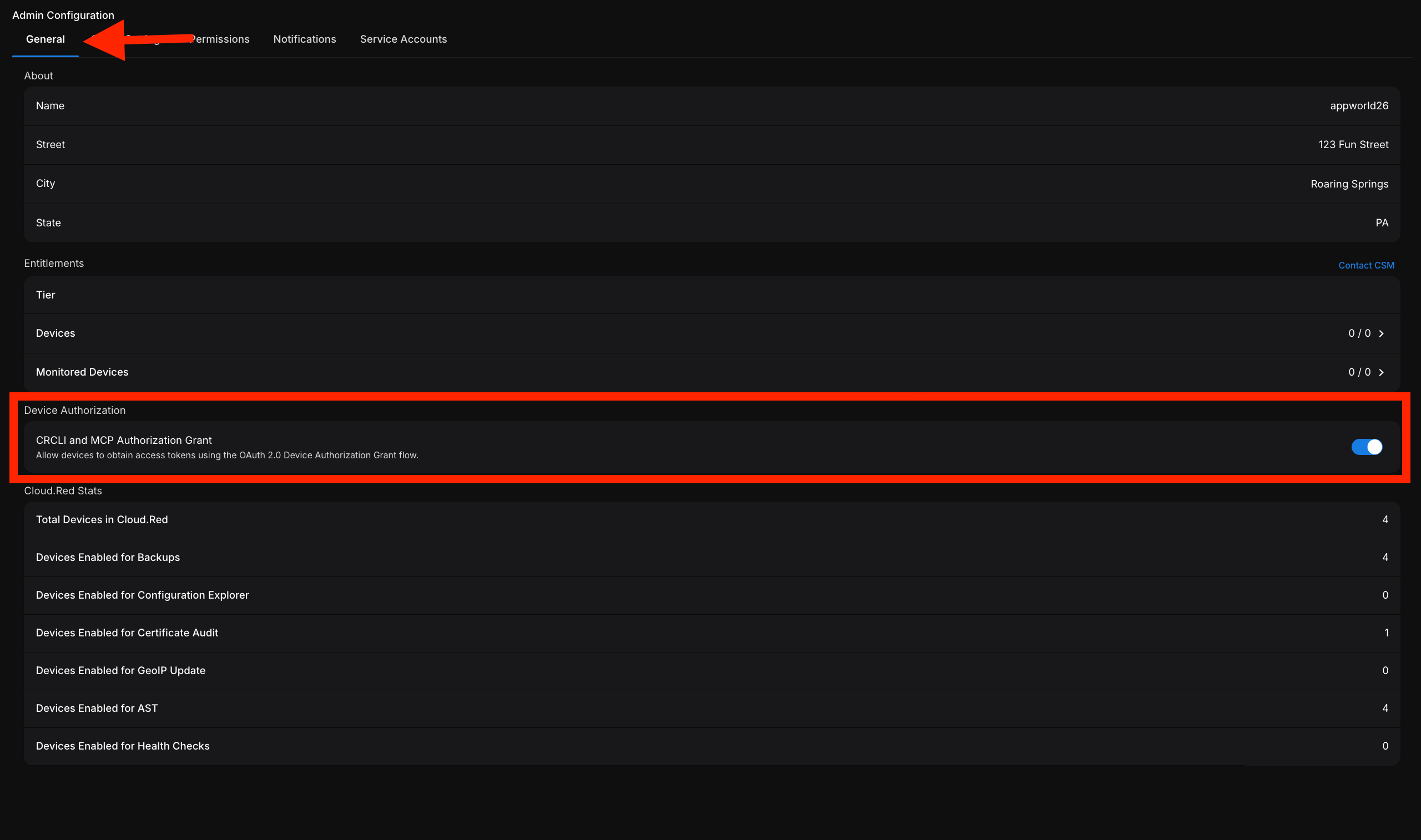
In Admin Configuration, go to the "General" tab. Under the "Device Authorization" section, toggle "CRCLI and MCP Authorization Grant" on.
The setting description reads: *"Allow devices to obtain access tokens using the OAuth 2.0 Device Authorization Grant flow."* This must be enabled to use crcli or the MCP server.
## Enabling the Grant
In Admin Configuration, go to the "General" tab. Under the "Device Authorization" section, toggle "CRCLI and MCP Authorization Grant" on.
The setting description reads: *"Allow devices to obtain access tokens using the OAuth 2.0 Device Authorization Grant flow."* This must be enabled to use crcli or the MCP server.
 Disabling the toggle takes effect immediately and blocks new crcli and MCP logins for the entire tenant. Existing sessions may continue until their tokens expire.
## Next Steps
* [crcli Authentication](/crcli/getting-started/authentication) — log in with `crcli auth login` once the grant is enabled.
* [AI Integration (MCP)](/mcp/overview) — connect Claude, Cursor, or any MCP-compatible client to Cloud.Red.
Disabling the toggle takes effect immediately and blocks new crcli and MCP logins for the entire tenant. Existing sessions may continue until their tokens expire.
## Next Steps
* [crcli Authentication](/crcli/getting-started/authentication) — log in with `crcli auth login` once the grant is enabled.
* [AI Integration (MCP)](/mcp/overview) — connect Claude, Cursor, or any MCP-compatible client to Cloud.Red.