> ## Documentation Index
> Fetch the complete documentation index at: https://docs.cloud.red/llms.txt
> Use this file to discover all available pages before exploring further.
# Maintenance Scheduling
> In advance of making any changes, please configure a maintenance window at least 5 minutes before the change.
**While this is not needed for changes to ltm, gtm, apm, asm, etc.. modules**
**You must do this for system level changes to prevent false positives from occurring.**
To schedule a maintenance period on Cloud.Red, follow these steps:
-Go to Cloud.Red and choose the “Maintenances” option from the left-hand navigation menu.
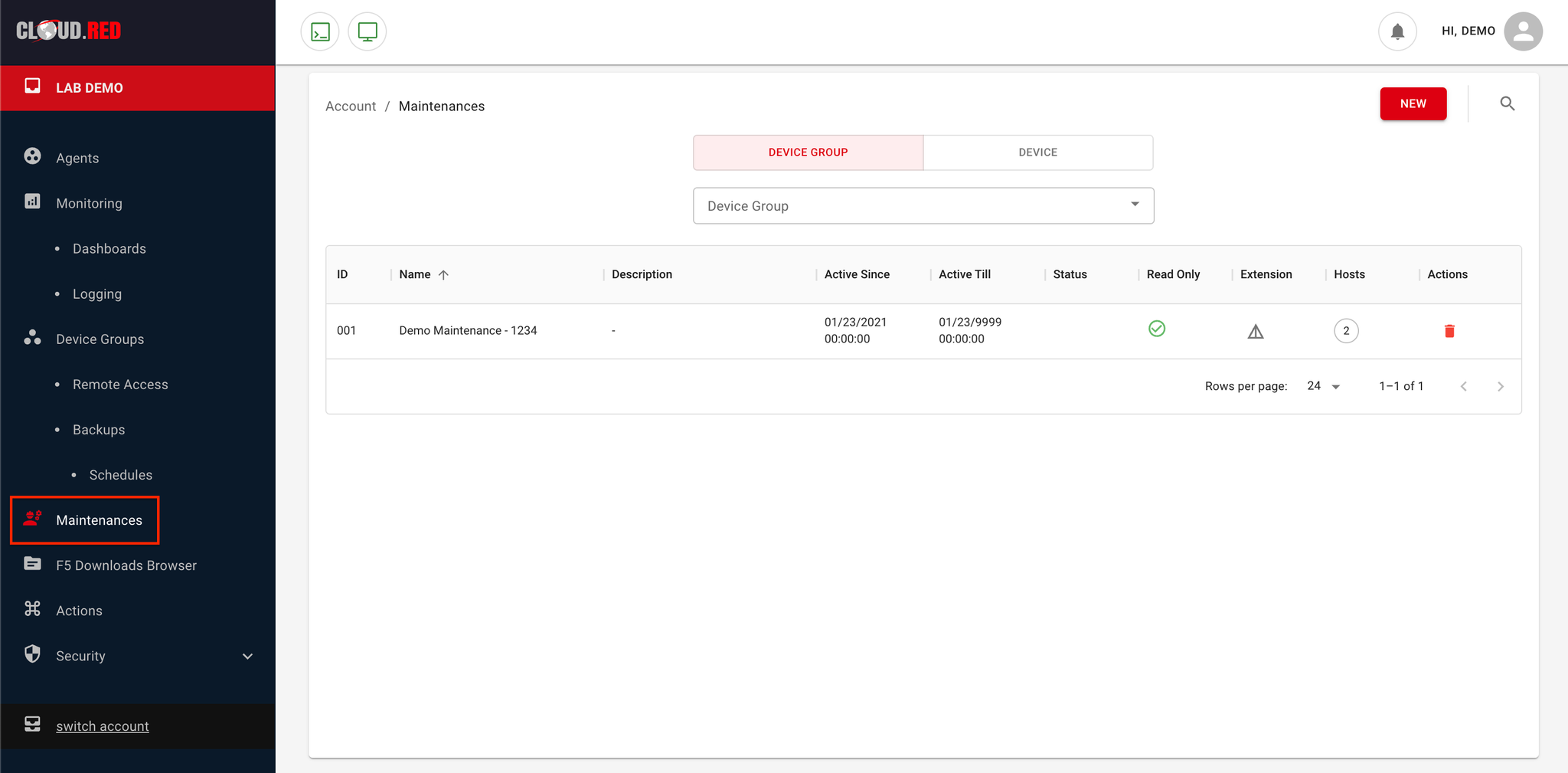 On the maintenances screen, you will be able to view any current maintenance periods.
* Click on the “New” button to create a new maintenance period.
On the maintenances screen, you will be able to view any current maintenance periods.
* Click on the “New” button to create a new maintenance period.
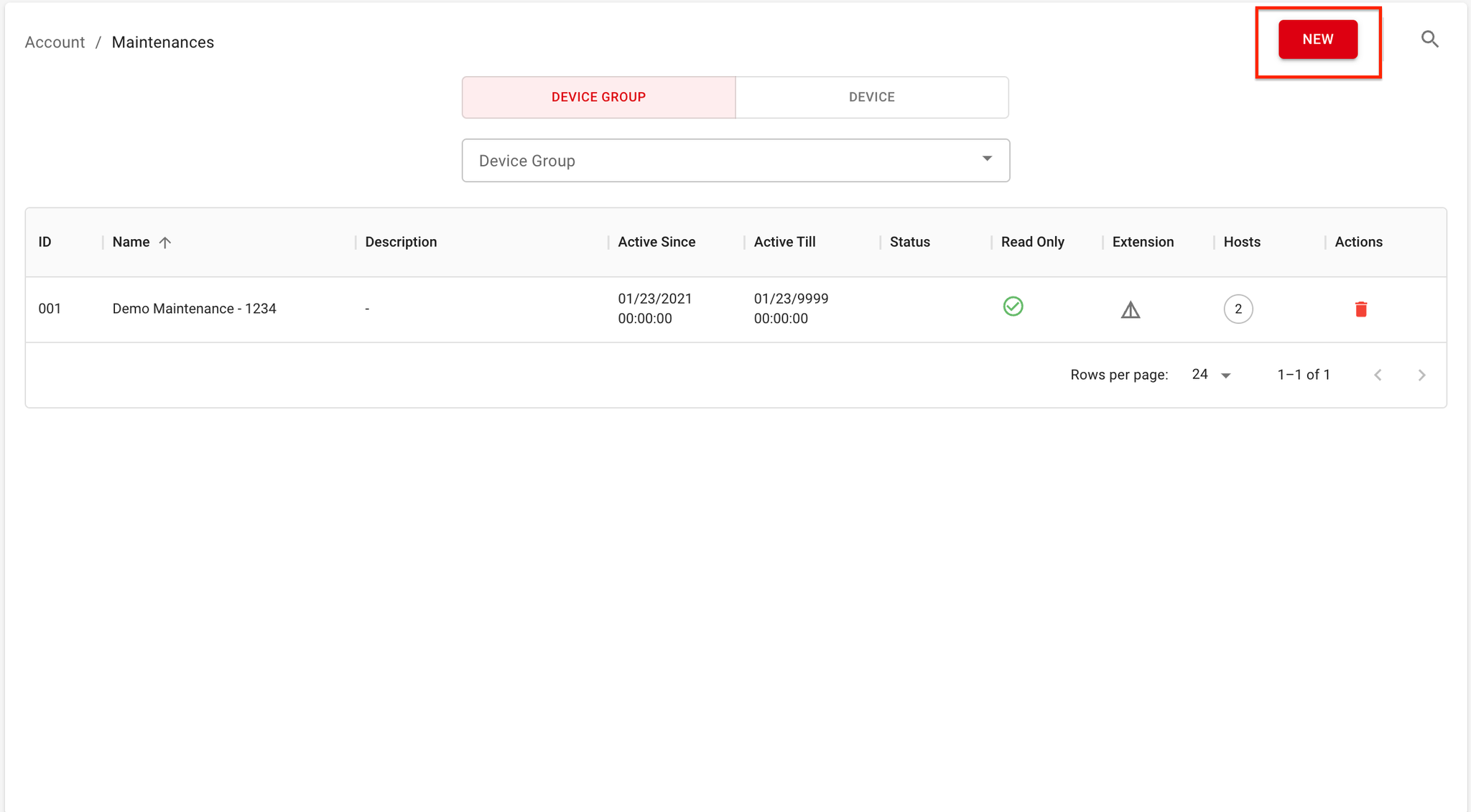 A pop-up window will appear as shown.
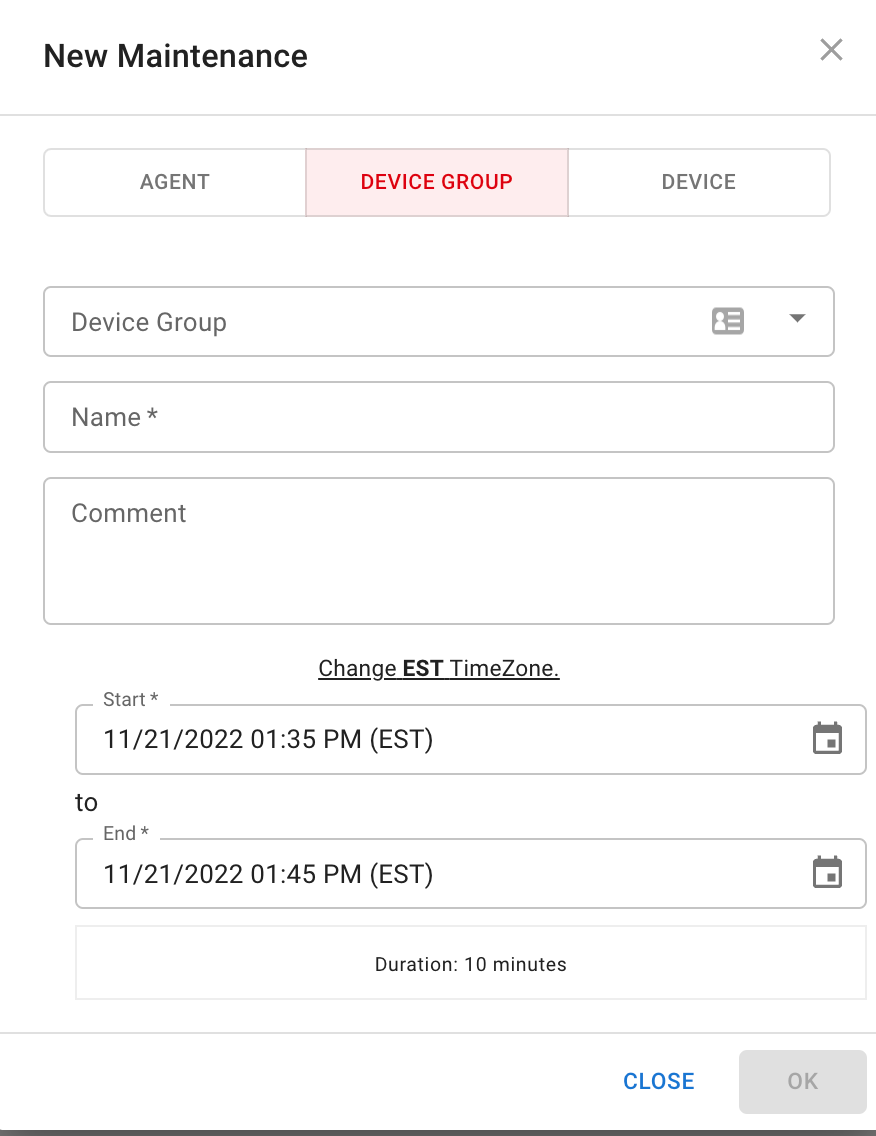 You are going to be required to supply the following in order to create the maintenance period:
* Device Group or Device
* Select either “Device Group” or “Device” to apply the maintenance window to.
* Name
* Enter a unique name for the maintenance window
* Comment
* Optional: Add a comment to provide a description of the maintenance window.
* Start Time
* Select your TimeZone, and set the start time for the maintenance window.
You are going to be required to supply the following in order to create the maintenance period:
* Device Group or Device
* Select either “Device Group” or “Device” to apply the maintenance window to.
* Name
* Enter a unique name for the maintenance window
* Comment
* Optional: Add a comment to provide a description of the maintenance window.
* Start Time
* Select your TimeZone, and set the start time for the maintenance window.
The time is set to 12:00 AM GMT by default.
* End Time
* Set the end time for the maintenance window.
* Confirm
* Click “Create” to create the maintenance period.