> ## Documentation Index
> Fetch the complete documentation index at: https://docs.cloud.red/llms.txt
> Use this file to discover all available pages before exploring further.

# Azure Agent Onboarding

> Azure Agent Onboarding overview

## Requirements

* Blob file storage
* Blob file Storage container
* Permissions to create an Image
* Permission to create a VM from the image
* Azure Cloud Shell access

<Tip>
  **Note:\
  The IP address must not be deployed to BIGIP management subnets or BIGIP data plane subnets.\
  Each agent can consist of up to 10 BIGIPs to be managed.\
  Optimally, the number of agents to be deployed would be equivalent to the number of zones such that traffic to/from the agent to/from F5 devices does not have to traverse WANs nor firewalls.\
  NOTE - all members of a sync group must all be reachable from the same agent**
</Tip>

***

## Copying VHD to Blob Storage

Requirements - gather the required information to supply the following variables

* CLIENT\_STORAGE\_ACCOUNT\_NAME - Azure storage account, in the subscription, resource group, and location/region you intend on deploying the virtual machine instance
* CLIENT\_BLOB\_CONTAINER\_NAME - Azure blob storage container, under the aforementioned Azure storage account
* URI\_PROVIDED\_BY\_WORLDTECHIT - URI provided by WorldtechIT to download the VHD  <br />
  You may need to consult your Azure administrator to ascertain the appropriate Azure storage account and blob storage container.  <br />

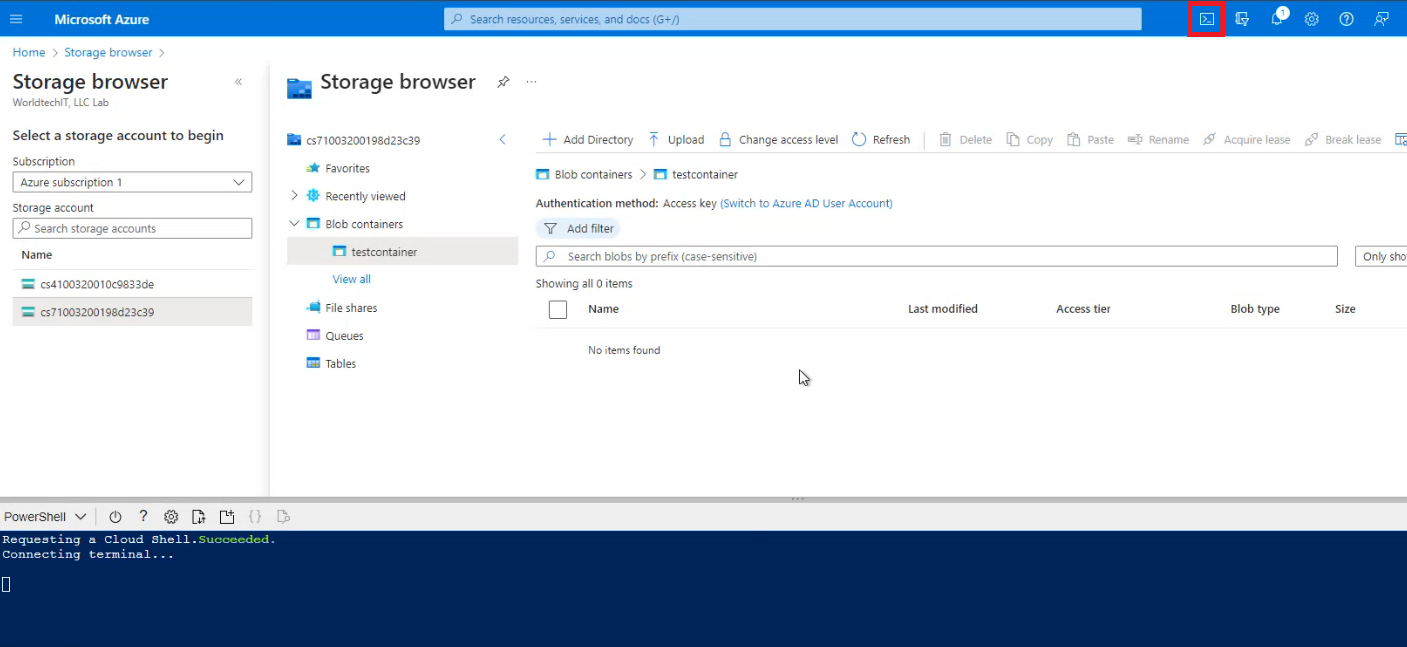
In Azure Portal, launch the Cloud Shell.

<img className="block h-32 dark:hidden" src="https://mintcdn.com/cloudred/swTjN0G2nb2atZA1/onboarding/agents/azure-images/launch-cloud-shell.png?fit=max&auto=format&n=swTjN0G2nb2atZA1&q=85&s=efe43264174ba7f9abfd719c2e62a609" width="1407" height="647" data-path="onboarding/agents/azure-images/launch-cloud-shell.png" />

<img className="hidden h-32 dark:block" src="https://mintcdn.com/cloudred/swTjN0G2nb2atZA1/onboarding/agents/azure-images/launch-cloud-shell.png?fit=max&auto=format&n=swTjN0G2nb2atZA1&q=85&s=efe43264174ba7f9abfd719c2e62a609" width="1407" height="647" data-path="onboarding/agents/azure-images/launch-cloud-shell.png" />

Insert the following command:

```yaml theme={null}
az storage blob copy start --destination-blob CRAGENT_300.vhd --account-name <CLIENT_STORAGE_ACCOUNT_NAME> --destination-container <CLIENT_BLOB_CONTAINER_NAME> --source-uri '<URI_PROVIDED_BY_WORLDTECHIT>'
```

<Tip>
  **Note: the subscription and location of the blob storage must match the the subscription and location where you intend on deploying the virtual machine instance**
</Tip>

Wait a couple of minutes and validate the VHD has populated into the intended Azure storage account and blob  <br />

<br />

<br />

## Creating the Image

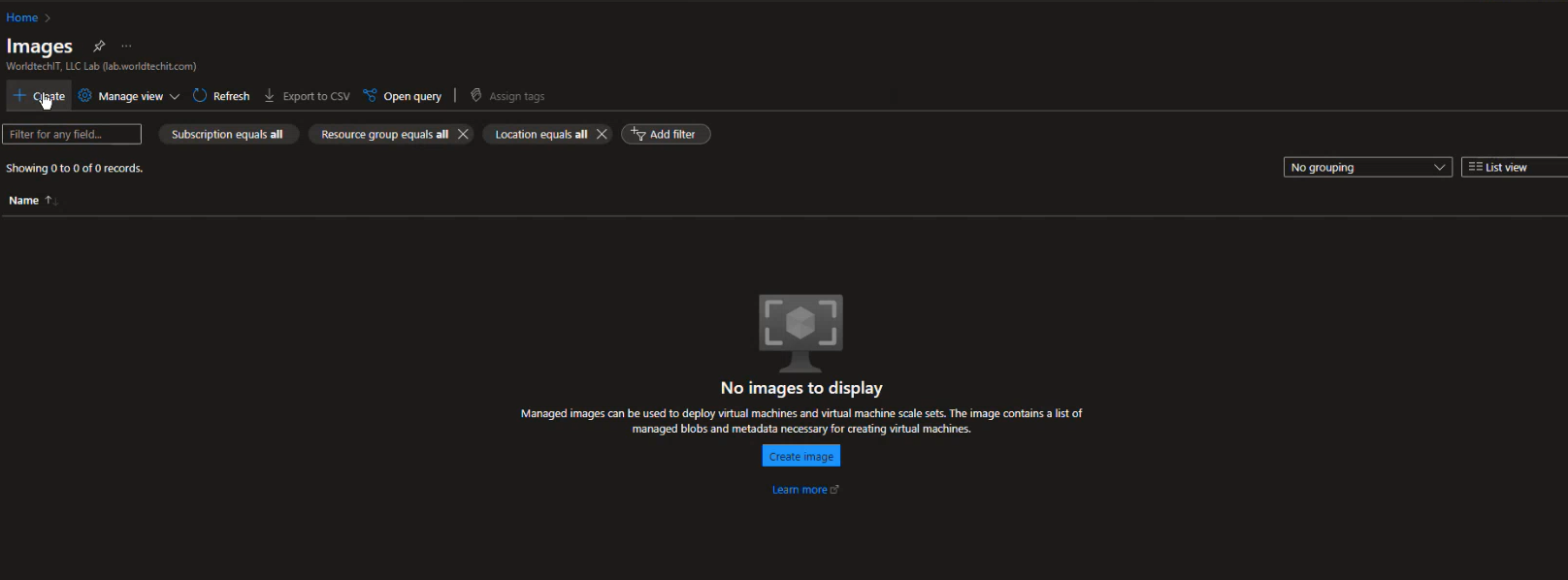
In Azure Portal, lunch ‘Images’.  <br />
Click Create

<img className="block h-32 dark:hidden" src="https://mintcdn.com/cloudred/XLCPZIg1Q1S_lH4Z/onboarding/agents/azure-images/create-image.png?fit=max&auto=format&n=XLCPZIg1Q1S_lH4Z&q=85&s=af954b8a8333439d53c3217be54b282f" width="1616" height="598" data-path="onboarding/agents/azure-images/create-image.png" />

<img className="hidden h-32 dark:block" src="https://mintcdn.com/cloudred/XLCPZIg1Q1S_lH4Z/onboarding/agents/azure-images/create-image.png?fit=max&auto=format&n=XLCPZIg1Q1S_lH4Z&q=85&s=af954b8a8333439d53c3217be54b282f" width="1616" height="598" data-path="onboarding/agents/azure-images/create-image.png" />

Note the following:

* Name the instance appropriate for your environment
* The Resource Group must where you intend on deploying the virtual machine instance
* The Region must match where you intend on deploying the virtual machine instance
* The OS type should be Linux
* The VM generation should be Gen 2
* Under Storage Blob, select the previously used storage account and blob and select the CRAGENT\_300.vhd file
* The account type should be standard SSD
* Host caching should be read/write

<img className="block h-32 dark:hidden" src="https://mintcdn.com/cloudred/XLCPZIg1Q1S_lH4Z/onboarding/agents/azure-images/image-creation-notes.png?fit=max&auto=format&n=XLCPZIg1Q1S_lH4Z&q=85&s=07cad240f237d615d4dc43a8f7f19a6d" width="1650" height="756" data-path="onboarding/agents/azure-images/image-creation-notes.png" />

<img className="hidden h-32 dark:block" src="https://mintcdn.com/cloudred/XLCPZIg1Q1S_lH4Z/onboarding/agents/azure-images/image-creation-notes.png?fit=max&auto=format&n=XLCPZIg1Q1S_lH4Z&q=85&s=07cad240f237d615d4dc43a8f7f19a6d" width="1650" height="756" data-path="onboarding/agents/azure-images/image-creation-notes.png" />

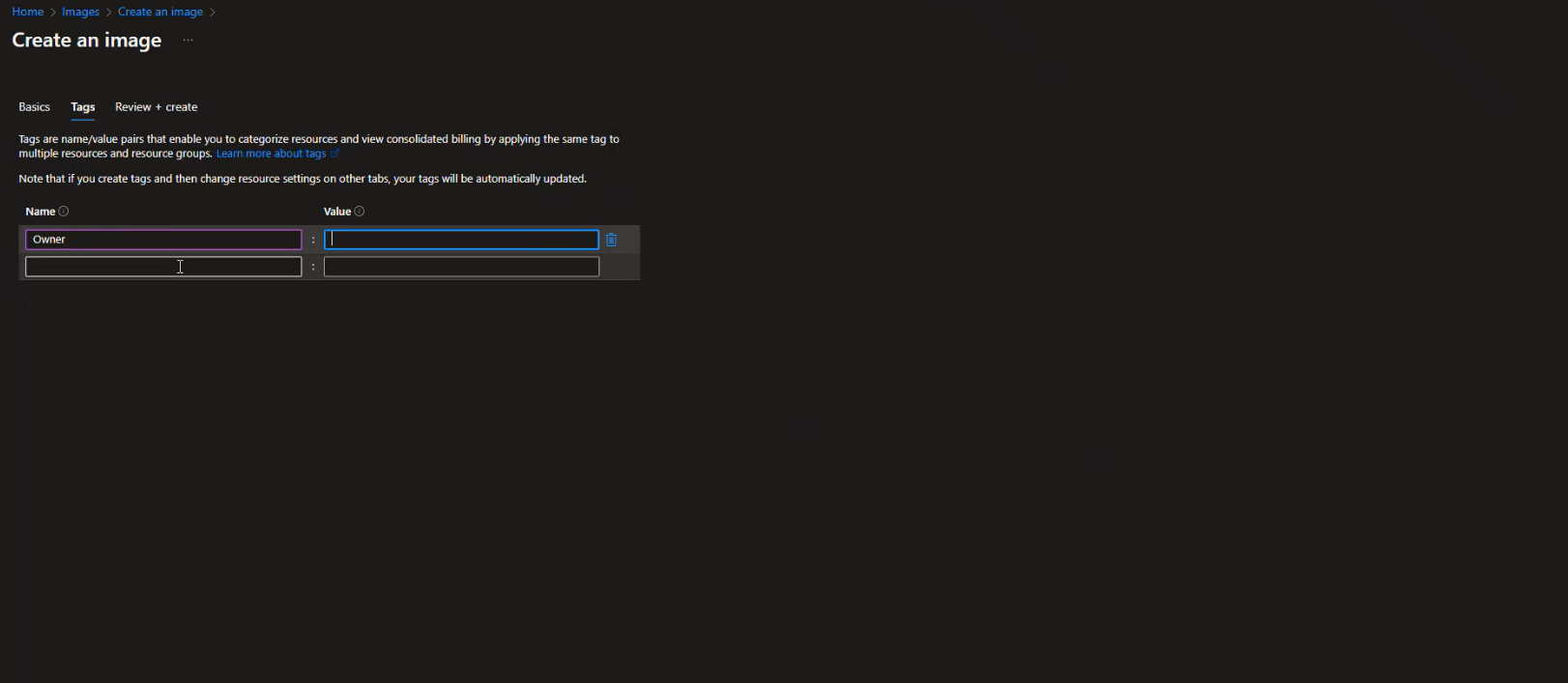
Create a tag appropriate for your environment (Required by Azure)
<img className="block h-32 dark:hidden" src="https://mintcdn.com/cloudred/swTjN0G2nb2atZA1/onboarding/agents/azure-images/tagging-notes.png?fit=max&auto=format&n=swTjN0G2nb2atZA1&q=85&s=0bbfc2b1bafbfa28e85344a7010c415d" width="1622" height="707" data-path="onboarding/agents/azure-images/tagging-notes.png" />

<img className="hidden h-32 dark:block" src="https://mintcdn.com/cloudred/swTjN0G2nb2atZA1/onboarding/agents/azure-images/tagging-notes.png?fit=max&auto=format&n=swTjN0G2nb2atZA1&q=85&s=0bbfc2b1bafbfa28e85344a7010c415d" width="1622" height="707" data-path="onboarding/agents/azure-images/tagging-notes.png" />

* Finish Creating the Image.
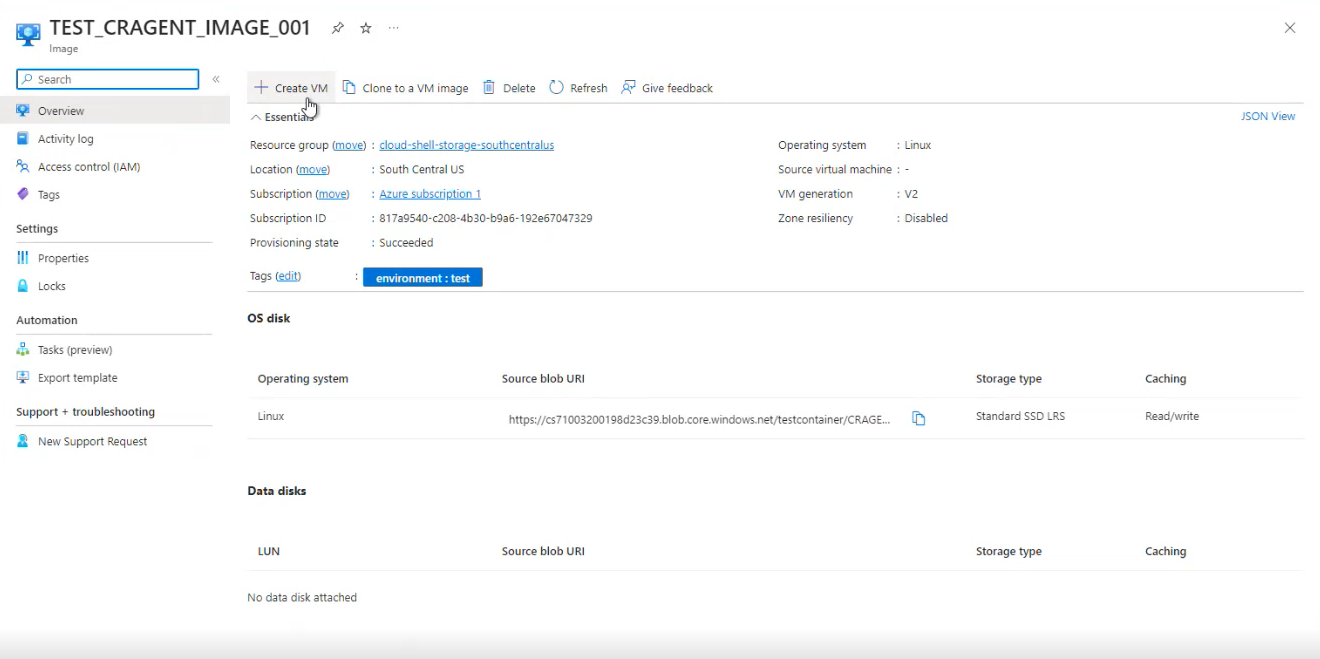
* When complete, click “Go to resource”

<img className="block h-32 dark:hidden" src="https://mintcdn.com/cloudred/XLCPZIg1Q1S_lH4Z/onboarding/agents/azure-images/go-to-resource.png?fit=max&auto=format&n=XLCPZIg1Q1S_lH4Z&q=85&s=8b15a5afb04e1c8367365b67b5f52e43" width="398" height="265" data-path="onboarding/agents/azure-images/go-to-resource.png" />

<img className="hidden h-32 dark:block" src="https://mintcdn.com/cloudred/XLCPZIg1Q1S_lH4Z/onboarding/agents/azure-images/go-to-resource.png?fit=max&auto=format&n=XLCPZIg1Q1S_lH4Z&q=85&s=8b15a5afb04e1c8367365b67b5f52e43" width="398" height="265" data-path="onboarding/agents/azure-images/go-to-resource.png" />

<br />

<br />

## Creating the Virtual Machine Instance

From the created image, create the the Virtual Machine Instance.
<img className="block h-32 dark:hidden" src="https://mintcdn.com/cloudred/XLCPZIg1Q1S_lH4Z/onboarding/agents/azure-images/create-virtual-machine.png?fit=max&auto=format&n=XLCPZIg1Q1S_lH4Z&q=85&s=ebd46f36fa6c005e709c037179381f75" width="1320" height="659" data-path="onboarding/agents/azure-images/create-virtual-machine.png" />

<img className="hidden h-32 dark:block" src="https://mintcdn.com/cloudred/XLCPZIg1Q1S_lH4Z/onboarding/agents/azure-images/create-virtual-machine.png?fit=max&auto=format&n=XLCPZIg1Q1S_lH4Z&q=85&s=ebd46f36fa6c005e709c037179381f75" width="1320" height="659" data-path="onboarding/agents/azure-images/create-virtual-machine.png" />

Ensure the Agent Connectivity requirements are met. You can view the connectivity requirements at Agent Connectivity Requirements  <br />
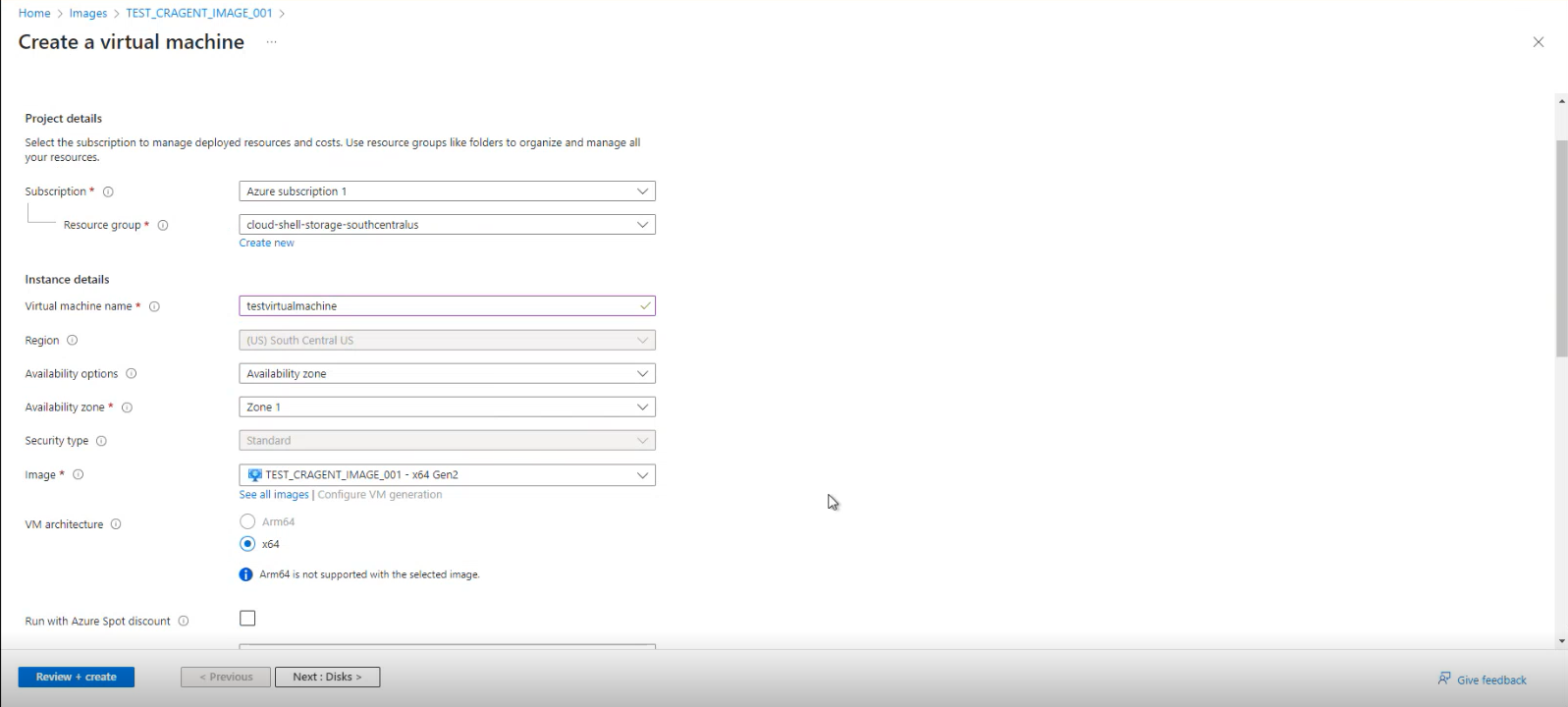
For the creation, note the following:

* Name the VM however is appropriate for your environment
* The region will be set to where the image was created
* Set the availability zone to whatever is best for your environment
* Confirm the Image selected is the image created above
* The VM architecture must be left as x64
<img className="block h-32 dark:hidden" src="https://mintcdn.com/cloudred/swTjN0G2nb2atZA1/onboarding/agents/azure-images/virtual-machine-notes.png?fit=max&auto=format&n=swTjN0G2nb2atZA1&q=85&s=32f7c3f71fe2fb61396604a626ac39cb" width="1597" height="720" data-path="onboarding/agents/azure-images/virtual-machine-notes.png" />

<img className="hidden h-32 dark:block" src="https://mintcdn.com/cloudred/swTjN0G2nb2atZA1/onboarding/agents/azure-images/virtual-machine-notes.png?fit=max&auto=format&n=swTjN0G2nb2atZA1&q=85&s=32f7c3f71fe2fb61396604a626ac39cb" width="1597" height="720" data-path="onboarding/agents/azure-images/virtual-machine-notes.png" />

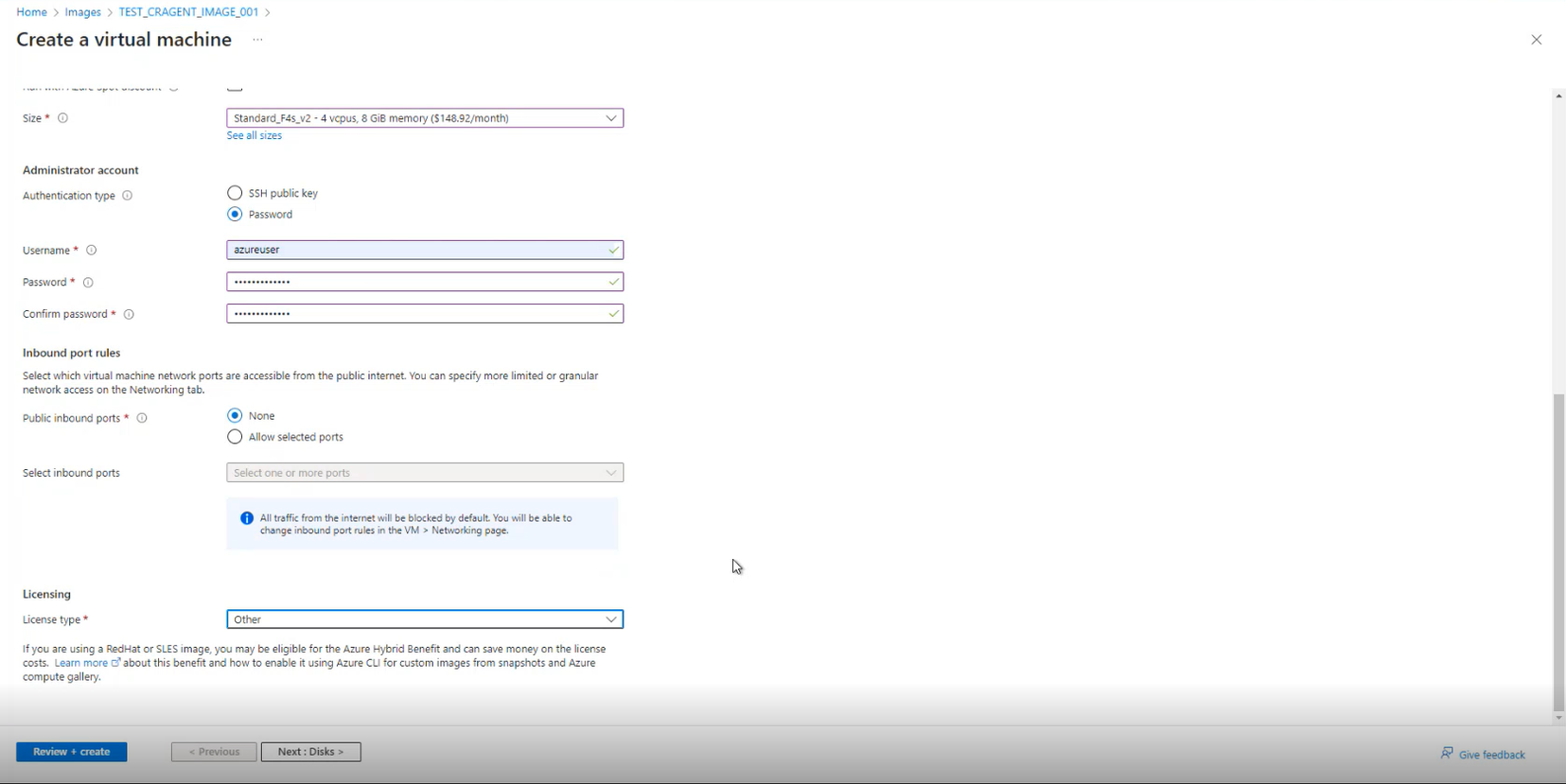
* For the size, select Standard\_F4s\_v2
* The Authentication type must be set to Password
* The username must must be set to azureuser
* The password can be set to anything you like
  * Note - this account will not be usable after the installation is complete
* Public inbound access is recommended to be set to none
* The license type should be set to other
<img className="block h-32 dark:hidden" src="https://mintcdn.com/cloudred/swTjN0G2nb2atZA1/onboarding/agents/azure-images/virtual-machine-notes-extended.png?fit=max&auto=format&n=swTjN0G2nb2atZA1&q=85&s=63327a9646fbd95892e1484787e412fd" width="1655" height="829" data-path="onboarding/agents/azure-images/virtual-machine-notes-extended.png" />

<img className="hidden h-32 dark:block" src="https://mintcdn.com/cloudred/swTjN0G2nb2atZA1/onboarding/agents/azure-images/virtual-machine-notes-extended.png?fit=max&auto=format&n=swTjN0G2nb2atZA1&q=85&s=63327a9646fbd95892e1484787e412fd" width="1655" height="829" data-path="onboarding/agents/azure-images/virtual-machine-notes-extended.png" />

**The disks, networking, management and monitoring settings should be set as best fits for your environment.**  <br />

> Please note - it is important that you do not add any data to the Custom data nor the User data area in the Advanced section.

<img className="block h-32 dark:hidden" src="https://mintcdn.com/cloudred/XLCPZIg1Q1S_lH4Z/onboarding/agents/azure-images/custom-data.png?fit=max&auto=format&n=XLCPZIg1Q1S_lH4Z&q=85&s=c33efbffe83b120c5b4d3c8d3fa7c0c0" width="1278" height="708" data-path="onboarding/agents/azure-images/custom-data.png" />

<img className="hidden h-32 dark:block" src="https://mintcdn.com/cloudred/XLCPZIg1Q1S_lH4Z/onboarding/agents/azure-images/custom-data.png?fit=max&auto=format&n=XLCPZIg1Q1S_lH4Z&q=85&s=c33efbffe83b120c5b4d3c8d3fa7c0c0" width="1278" height="708" data-path="onboarding/agents/azure-images/custom-data.png" />

Tags should be configured as best fits your environment.

<br />

<br />

## Registering the Cloud.Red Agent

To register the device, all previous instructions must be complete and a user must be able to reach the agent’s private IP, over HTTPS on port 443, to register the Cloud.Red Agent.

### Connect to the Agent’s HTTPS Console

In your web browser, visit the IP address of your VM.

<img className="block h-16 dark:hidden" src="https://mintcdn.com/cloudred/AQSK3WOPlgyaBGvE/onboarding/agents/registering-agent-images/web-browser.png?fit=max&auto=format&n=AQSK3WOPlgyaBGvE&q=85&s=f49ee0f179f5d67d5bd7d04bcc3f85f0" width="543" height="44" data-path="onboarding/agents/registering-agent-images/web-browser.png" />

<img className="hidden h-16 dark:block" src="https://mintcdn.com/cloudred/AQSK3WOPlgyaBGvE/onboarding/agents/registering-agent-images/https-ip-dark-mode.png?fit=max&auto=format&n=AQSK3WOPlgyaBGvE&q=85&s=965c890995aa6e2ba76dae7b99ddcd13" width="333" height="38" data-path="onboarding/agents/registering-agent-images/https-ip-dark-mode.png" />

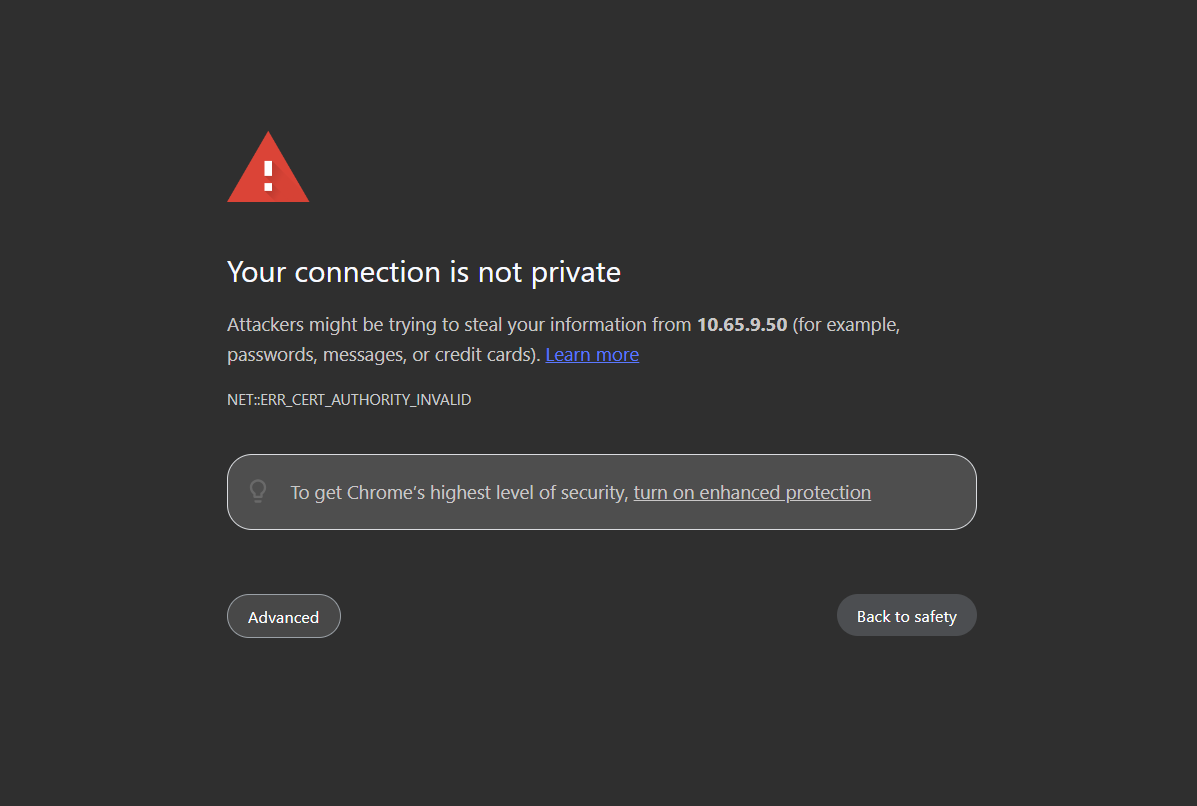
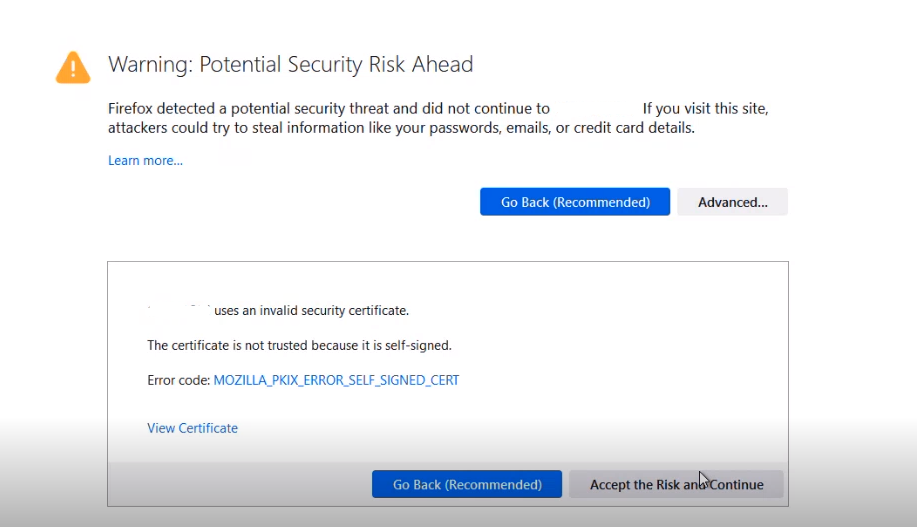
Accept the potential security risk and continue (this will look different in different browsers)
<img className="block h-96 dark:hidden" src="https://mintcdn.com/cloudred/AQSK3WOPlgyaBGvE/onboarding/agents/registering-agent-images/warning-potential.png?fit=max&auto=format&n=AQSK3WOPlgyaBGvE&q=85&s=c3c541ca7657ce335072547b0a4a44cb" width="917" height="527" data-path="onboarding/agents/registering-agent-images/warning-potential.png" />

<img className="hidden h-96 dark:block" src="https://mintcdn.com/cloudred/AQSK3WOPlgyaBGvE/onboarding/agents/registering-agent-images/warning-potential-dark.png?fit=max&auto=format&n=AQSK3WOPlgyaBGvE&q=85&s=63c645ed24e9c2f90705421af8ec7cbb" width="1197" height="806" data-path="onboarding/agents/registering-agent-images/warning-potential-dark.png" />

### Continue Registration

Follow one of the following methods:
<AccordionGroup>
  <Accordion icon="" title="Method 1 - Click Step 1’s Link">
    <img className="block h-96 dark:hidden" src="https://mintcdn.com/cloudred/AQSK3WOPlgyaBGvE/onboarding/agents/registering-agent-images/steps-to-register.png?fit=max&auto=format&n=AQSK3WOPlgyaBGvE&q=85&s=29bab80392c8239ad1c4a6966be03334" width="1242" height="633" data-path="onboarding/agents/registering-agent-images/steps-to-register.png" />

    <img className="hidden h-96 dark:block" src="https://mintcdn.com/cloudred/AQSK3WOPlgyaBGvE/onboarding/agents/registering-agent-images/steps-to-register.png?fit=max&auto=format&n=AQSK3WOPlgyaBGvE&q=85&s=29bab80392c8239ad1c4a6966be03334" width="1242" height="633" data-path="onboarding/agents/registering-agent-images/steps-to-register.png" />

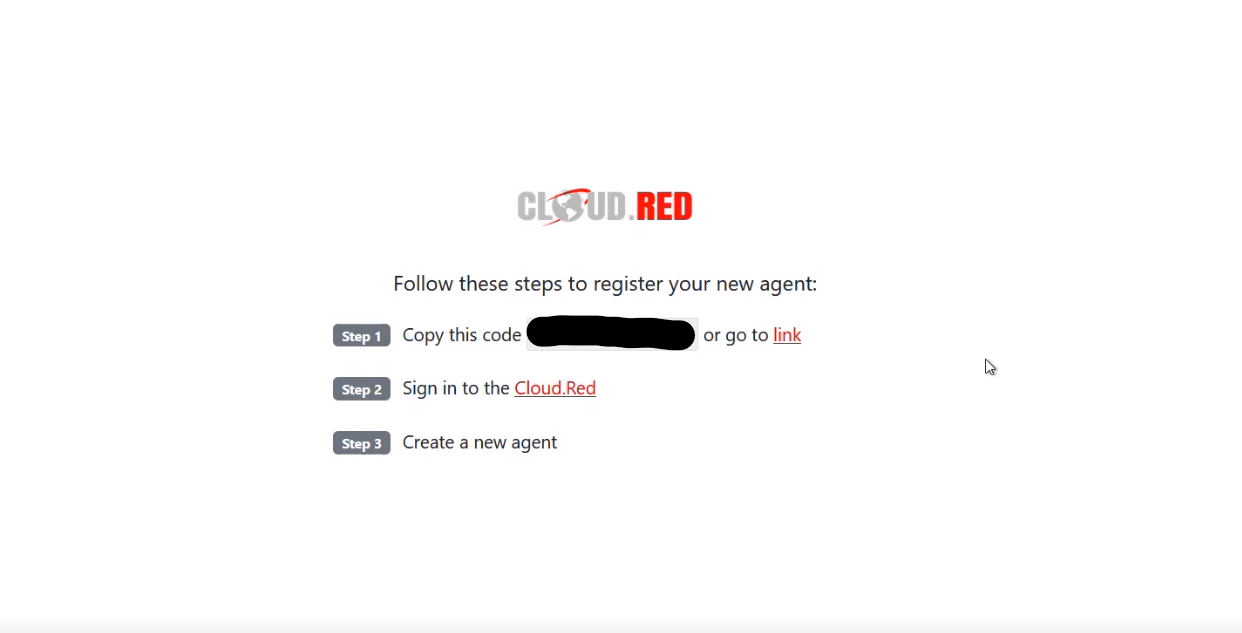
    > Click the link at the end of “Step 1”.

    * You will be brought to the Cloud.Red Portal. <br />
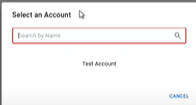
    * Select your account.

    <img className="block h-32 dark:hidden" src="https://mintcdn.com/cloudred/AQSK3WOPlgyaBGvE/onboarding/agents/registering-agent-images/select-account.png?fit=max&auto=format&n=AQSK3WOPlgyaBGvE&q=85&s=48d9d6362a275d776493544e9cfefcd8" width="196" height="105" data-path="onboarding/agents/registering-agent-images/select-account.png" />

    <img className="hidden h-32 dark:block" src="https://mintcdn.com/cloudred/AQSK3WOPlgyaBGvE/onboarding/agents/registering-agent-images/select-account.png?fit=max&auto=format&n=AQSK3WOPlgyaBGvE&q=85&s=48d9d6362a275d776493544e9cfefcd8" width="196" height="105" data-path="onboarding/agents/registering-agent-images/select-account.png" />

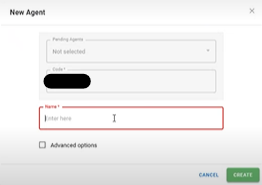
    * The agent code will be auto-populated.
    * Use the agent name provided to you by your WorldTech IT project manager.
    <img className="block h-32 dark:hidden" src="https://mintcdn.com/cloudred/AQSK3WOPlgyaBGvE/onboarding/agents/registering-agent-images/name-agent.png?fit=max&auto=format&n=AQSK3WOPlgyaBGvE&q=85&s=c71895cddbb03f6dad7988f90f6a2a49" width="262" height="185" data-path="onboarding/agents/registering-agent-images/name-agent.png" />

    <img className="hidden h-32 dark:block" src="https://mintcdn.com/cloudred/AQSK3WOPlgyaBGvE/onboarding/agents/registering-agent-images/name-agent.png?fit=max&auto=format&n=AQSK3WOPlgyaBGvE&q=85&s=c71895cddbb03f6dad7988f90f6a2a49" width="262" height="185" data-path="onboarding/agents/registering-agent-images/name-agent.png" />
  </Accordion>

  <Accordion icon="" title="Method 2 - Copy the Code and Create the Agent in the Cloud.Red Portal">
    <img className="block h-96 dark:hidden" src="https://mintcdn.com/cloudred/AQSK3WOPlgyaBGvE/onboarding/agents/registering-agent-images/steps-to-register.png?fit=max&auto=format&n=AQSK3WOPlgyaBGvE&q=85&s=29bab80392c8239ad1c4a6966be03334" width="1242" height="633" data-path="onboarding/agents/registering-agent-images/steps-to-register.png" />

    <img className="hidden h-96 dark:block" src="https://mintcdn.com/cloudred/AQSK3WOPlgyaBGvE/onboarding/agents/registering-agent-images/steps-to-register.png?fit=max&auto=format&n=AQSK3WOPlgyaBGvE&q=85&s=29bab80392c8239ad1c4a6966be03334" width="1242" height="633" data-path="onboarding/agents/registering-agent-images/steps-to-register.png" />

    > Copy the code displayed in the middle of the registration page seen in step 1.

    Go to [Cloud.Red](https://portal.cloud.red) and navigate to the agents tab on the left-hand menu.

    <img className="block h-32 dark:hidden" src="https://mintcdn.com/cloudred/AQSK3WOPlgyaBGvE/onboarding/agents/registering-agent-images/agent-screen-light.png?fit=max&auto=format&n=AQSK3WOPlgyaBGvE&q=85&s=484f108a5f51bd2061eece380d2e684d" width="1909" height="320" data-path="onboarding/agents/registering-agent-images/agent-screen-light.png" />

    <img className="hidden h-32 dark:block" src="https://mintcdn.com/cloudred/AQSK3WOPlgyaBGvE/onboarding/agents/registering-agent-images/agent-screen-dark.png?fit=max&auto=format&n=AQSK3WOPlgyaBGvE&q=85&s=d87448bb3acd2c012125b1e98c9c625e" width="1910" height="290" data-path="onboarding/agents/registering-agent-images/agent-screen-dark.png" />

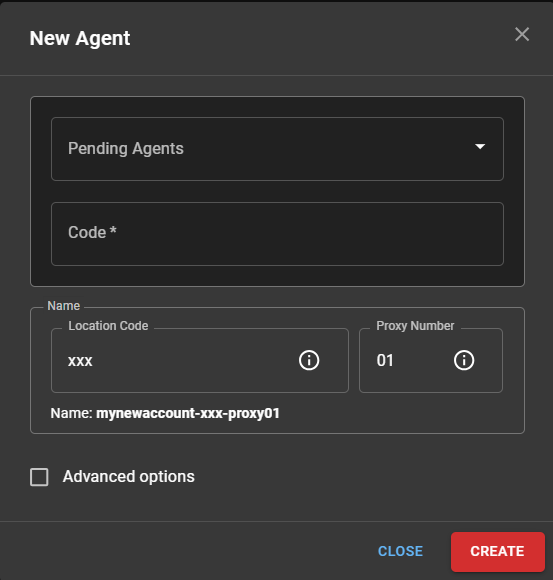
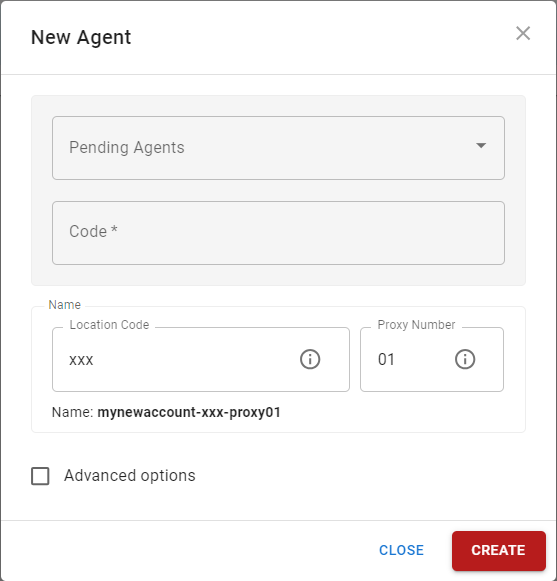
    * In the top right corner, click new.
    * Paste the copied code.
    <img className="block h-32 dark:hidden" src="https://mintcdn.com/cloudred/AQSK3WOPlgyaBGvE/onboarding/agents/registering-agent-images/new-agent-light.png?fit=max&auto=format&n=AQSK3WOPlgyaBGvE&q=85&s=9666b9fc43d8e5c8cedac3ed4f324682" width="557" height="581" data-path="onboarding/agents/registering-agent-images/new-agent-light.png" />

    <img className="hidden h-32 dark:block" src="https://mintcdn.com/cloudred/AQSK3WOPlgyaBGvE/onboarding/agents/registering-agent-images/new-agent-dark.png?fit=max&auto=format&n=AQSK3WOPlgyaBGvE&q=85&s=a53a5f08629d520c47abf6663b1e3521" width="553" height="580" data-path="onboarding/agents/registering-agent-images/new-agent-dark.png" />

    * Use the agent name provided to you by your WorldTech IT project manager.
  </Accordion>
</AccordionGroup>

> **Please contact WorldTech IT to complete the installation.**