> ## Documentation Index
> Fetch the complete documentation index at: https://docs.cloud.red/llms.txt
> Use this file to discover all available pages before exploring further.

# Monitoring Stand-Up

> F5 BIG-IP - Monitoring Configuration

## Management Routes

**If you intend on SYSLOG and SNMP Traps leaving your management interfaces, you will need to create management routes to push traffic out of the management interfaces.**  <br />

<Tip>
  **Please consult with WorldTech IT to discuss whether this option is best suited for your environment.  <br />
  Additionally, follow these instructions carefully, as incorrect management-route configurations can impact the functionality of your device.**
</Tip>

Reference:  <br />
[myF5](https://my.f5.com/manage/s/article/K13284)

<br />

> **SSH to the management of each BIG-IP and enter the TMSH shell**

Enter the following:

```yaml theme={null}
create /sys management-route <AGENT_IP>/32 gateway <GATEWAY_ADDRESS>
save /sys config
```

* `<AGENT_IP>` must be replaced with the IP address of the Cloud.Red agent that will be interfacing with your device
* `<GATEWAY_ADDRESS>` must be replaced with the IP address of the gateway appropriate to leave the management interface and route the traffic to the agent.
  * This is normally the same IP address as the default management route

> **Note:** this configuration does not sync among BIG-IPs, and must be repeated on each BIG-IP in a cluster.  <br />
> This must be completed before performing any of the following steps

<br />

<br />

## Syslog Configuration

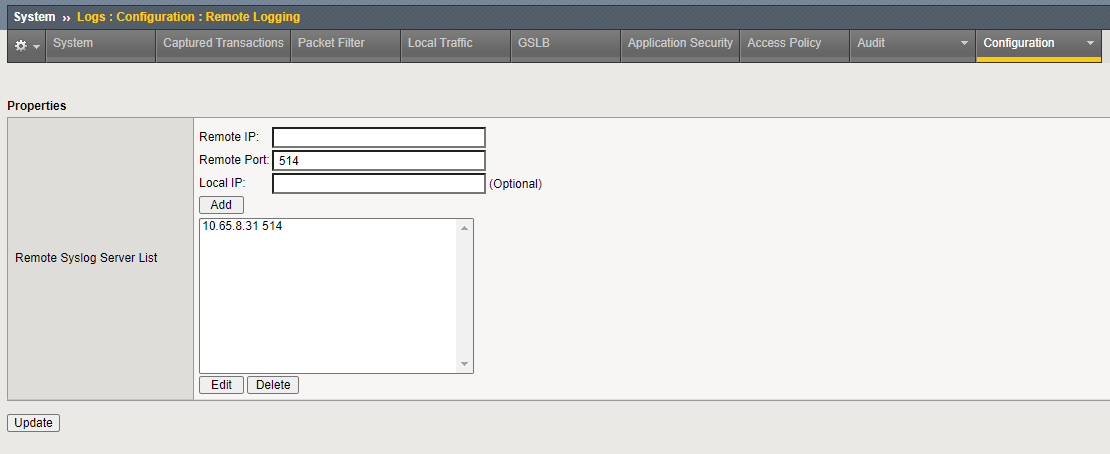
In the GUI, visit System  ››  Logs : Configuration : Remote Logging  <br />
Add the IP of the Cloud.Red agent your BIGI-P will interface with, for port 514.  <br />
Click the update button when done.  <br />

<img className="block h-96 dark:hidden" src="https://mintcdn.com/cloudred/AQSK3WOPlgyaBGvE/onboarding/agents/monitoring-images/syslog-configuration.png?fit=max&auto=format&n=AQSK3WOPlgyaBGvE&q=85&s=b6c6045983d9d68e589db70f0706ce6e" width="1110" height="454" data-path="onboarding/agents/monitoring-images/syslog-configuration.png" />

<img className="hidden h-96 dark:block" src="https://mintcdn.com/cloudred/AQSK3WOPlgyaBGvE/onboarding/agents/monitoring-images/syslog-configuration.png?fit=max&auto=format&n=AQSK3WOPlgyaBGvE&q=85&s=b6c6045983d9d68e589db70f0706ce6e" width="1110" height="454" data-path="onboarding/agents/monitoring-images/syslog-configuration.png" />

<br />

<br />

## SNMP Trap Configuration

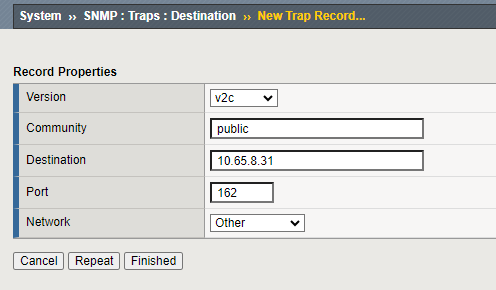
In the GUI, visit System  ››  SNMP : Traps : Destination  <br />
Add a new destination, version set to v2c, community to public, destination to the IP address of the agent that will be interfacing with, port to 162, and network to “Other”.  <br />

> **Note:** if setting a management route for SNMP Traps to leave your management interfaces (as noted in the section above), use network “Management”.

Click the finished button when done.
<img className="block h-64 dark:hidden" src="https://mintcdn.com/cloudred/swTjN0G2nb2atZA1/onboarding/agents/monitoring-images/snmp-trap-configuration.png?fit=max&auto=format&n=swTjN0G2nb2atZA1&q=85&s=1697a1febd77ff4b2a6a718eb9480648" width="496" height="290" data-path="onboarding/agents/monitoring-images/snmp-trap-configuration.png" />

<img className="hidden h-64 dark:block" src="https://mintcdn.com/cloudred/swTjN0G2nb2atZA1/onboarding/agents/monitoring-images/snmp-trap-configuration.png?fit=max&auto=format&n=swTjN0G2nb2atZA1&q=85&s=1697a1febd77ff4b2a6a718eb9480648" width="496" height="290" data-path="onboarding/agents/monitoring-images/snmp-trap-configuration.png" />

<br />

<br />

## SNMP Polling Configuration

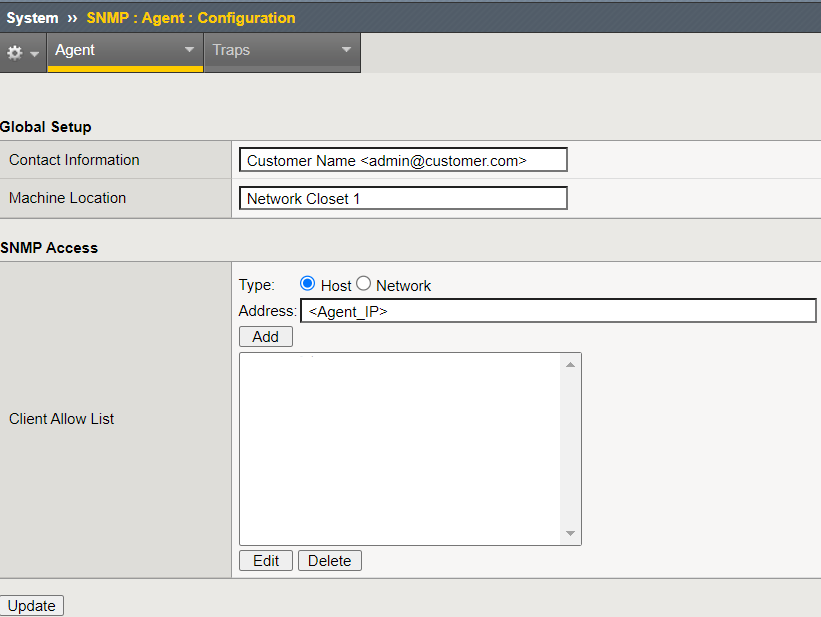
In the GUI, visit System  ››  SNMP : Agent : Configuration  <br />
**Add the agents IP address to SNMP access.**
<img className="block h-96 dark:hidden" src="https://mintcdn.com/cloudred/swTjN0G2nb2atZA1/onboarding/agents/monitoring-images/snmp-agent-configuration.png?fit=max&auto=format&n=swTjN0G2nb2atZA1&q=85&s=49a66fb385ad4d5dc15a51375e93eef4" width="821" height="617" data-path="onboarding/agents/monitoring-images/snmp-agent-configuration.png" />

<img className="hidden h-96 dark:block" src="https://mintcdn.com/cloudred/swTjN0G2nb2atZA1/onboarding/agents/monitoring-images/snmp-agent-configuration.png?fit=max&auto=format&n=swTjN0G2nb2atZA1&q=85&s=49a66fb385ad4d5dc15a51375e93eef4" width="821" height="617" data-path="onboarding/agents/monitoring-images/snmp-agent-configuration.png" />

In the GUI, visit System  ››  SNMP : Agent : Access (v1, v2c)  <br />
Gather an existing community string that agent can use or create a new one.  <br />
If creating a new community string:

* Add a new record, for the Community set the desired string. Source can optionally be set to the IP address of the Cloud.Red agent that will be interfacing with this BIG-IP (this is not required).
* Leave Access set to read only.
* Click the finished button when done.

<img className="block h-64 dark:hidden" src="https://mintcdn.com/cloudred/swTjN0G2nb2atZA1/onboarding/agents/monitoring-images/snmp-trap-configuration.png?fit=max&auto=format&n=swTjN0G2nb2atZA1&q=85&s=1697a1febd77ff4b2a6a718eb9480648" width="496" height="290" data-path="onboarding/agents/monitoring-images/snmp-trap-configuration.png" />

<img className="hidden h-64 dark:block" src="https://mintcdn.com/cloudred/swTjN0G2nb2atZA1/onboarding/agents/monitoring-images/snmp-trap-configuration.png?fit=max&auto=format&n=swTjN0G2nb2atZA1&q=85&s=1697a1febd77ff4b2a6a718eb9480648" width="496" height="290" data-path="onboarding/agents/monitoring-images/snmp-trap-configuration.png" />

<br />

<br />

## Add the WorldTech IT Monitoring Heartbeat Logic

* SSH to the management of BIGIP and enter the BASH shell  <br />
  Reference:  <br />
  [myF5](https://my.f5.com/manage/s/article/K10272)
  <br />

Execute the following:

```yaml tmsh.yaml theme={null}
tmsh create sys icall script WTIT-MONITORING-HEARTBEAT-icall-script definition { catch { exec /bin/logger -p local0.notice "01070728:5: Node WTIT-MONITORING-HEARTBEAT monitor status up." } }
tmsh create sys icall handler periodic WTIT-MONITORING-HEARTBEAT-icall-handler { interval 60 script WTIT-MONITORING-HEARTBEAT-icall-script }
tmsh save /sys config
```

<Tip>
  **If there are any difficulties or questions, please contact WorldTech IT to schedule a working session.**
</Tip>