> ## Documentation Index
> Fetch the complete documentation index at: https://docs.cloud.red/llms.txt
> Use this file to discover all available pages before exploring further.
# Script Runner
> Create, manage, and execute scripts or Ansible playbooks in Orchestration.
**Script Runner** in Orchestration is the central hub for creating, managing, and running scripts and Ansible playbooks.\
It allows for quick execution of **tasks** across devices, track outputs, and manage associated resources like forms, tags, and Readmes, all in one place.\
Additionally, Script Runner provides the capability to set up easy-to-use, predefined "solutions" that users can access without ever needing direct access to the devices the solution is allowed to operate against.
***
## 📖 What is a Script?
A **Script** in Script Runner is a lightweight program that can be executed directly on the **F5 platform** to perform a wide variety of actions.\
We currently support four interpreters:
* **Bash**
* **Python**
* **Node**
* **TCLSH**
***
## 📌 Overview
The **Script Runner** page provides the following functionality:
* Create new scripts or solutions
* Edit and execute existing scripts
* View execution results in real time
* Manage forms, documentation, tags, and schedules associated with scripts
* Organize scripts and services in a structured, labeled table
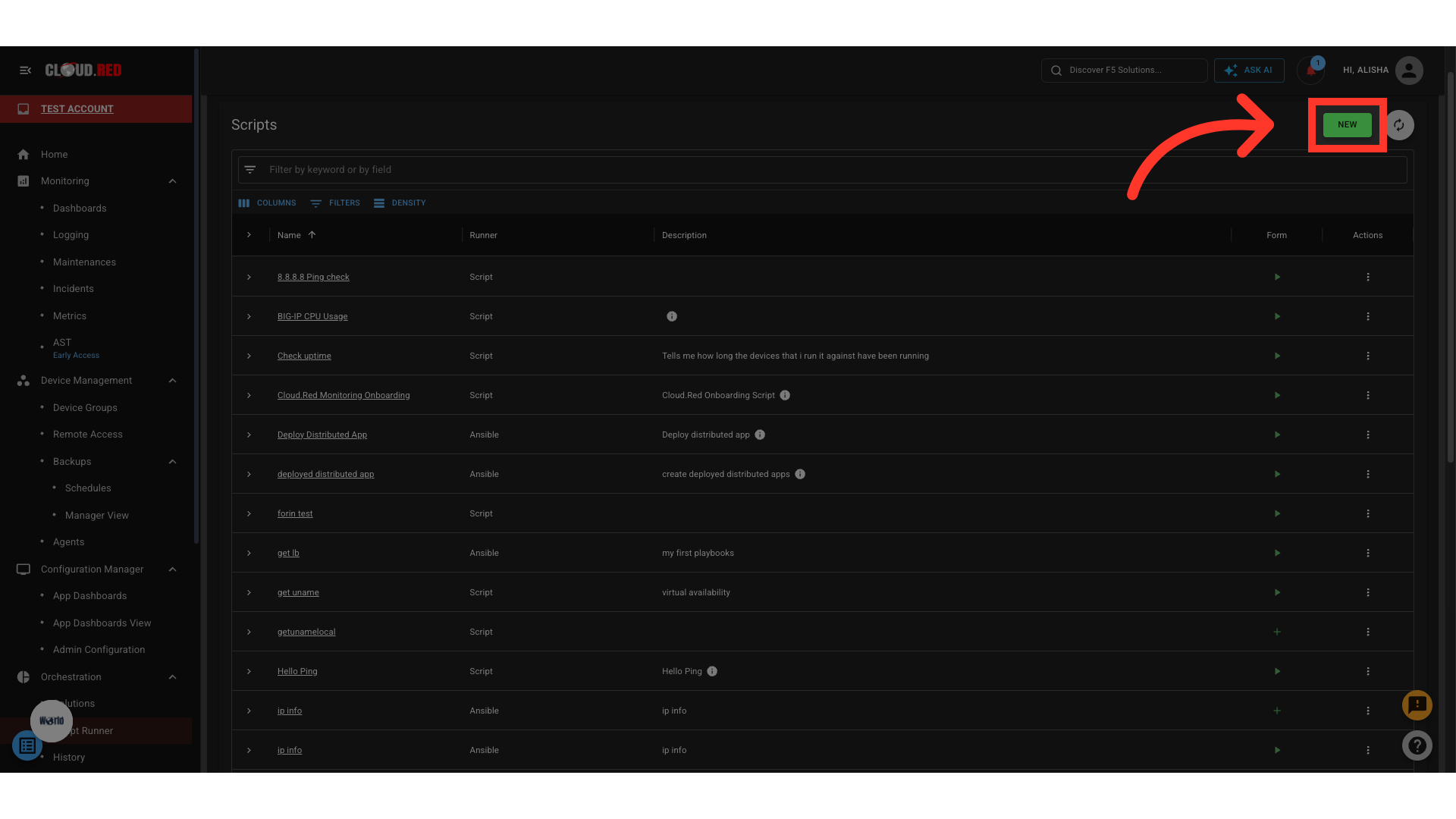
The **New** button in the top-right corner provides options to:
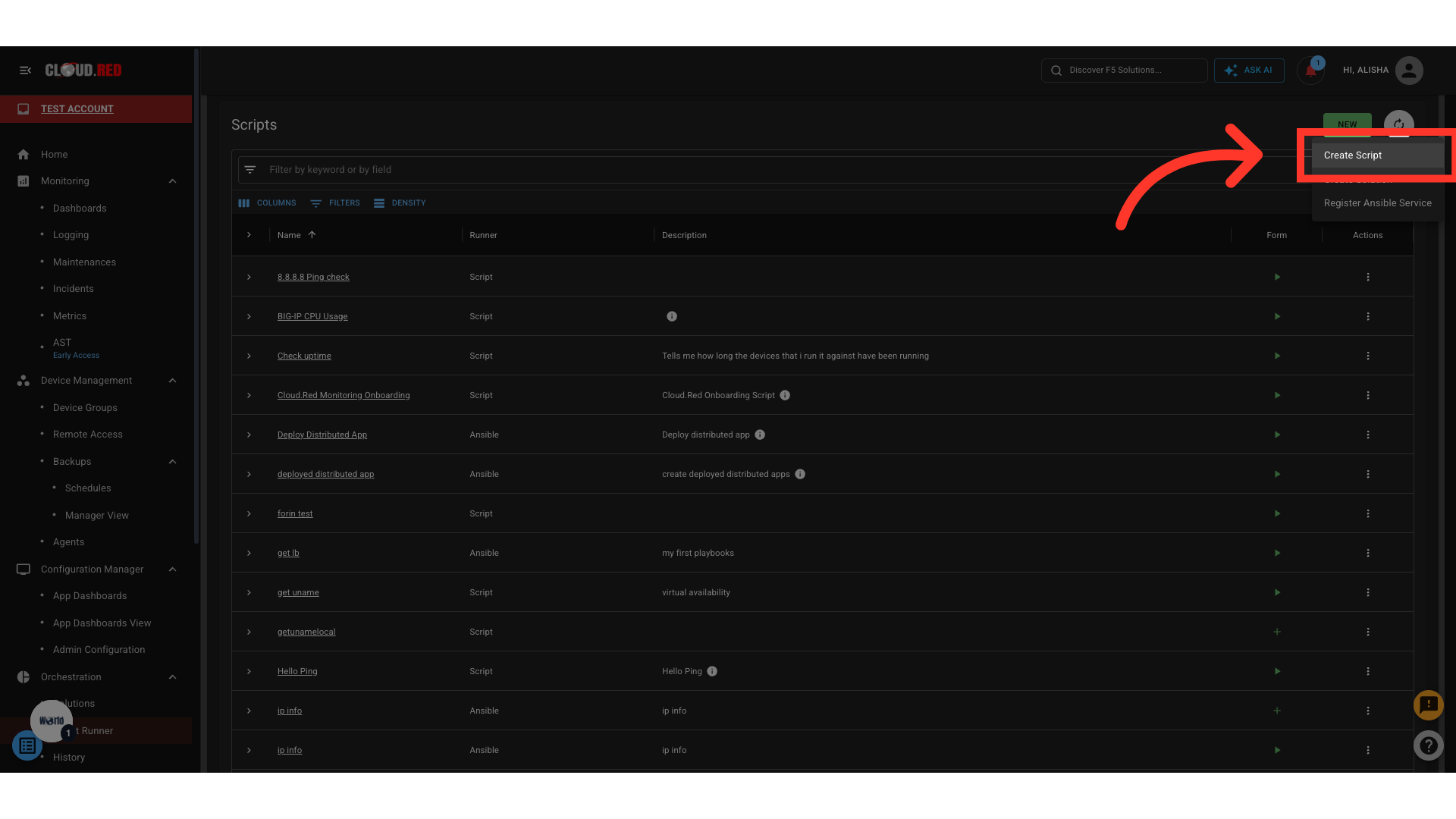
* **Create Script**
* **Create Solution**
 ***
## 📋 Script & Service Table
All created scripts and services appear in a structured table.
| Column | Description |
| --------------- | ------------------------------------------------------- |
| **Name** | Name of the script or service |
| **Runner** | Type of runner (e.g., Script or Ansible) |
| **Description** | Detailed explanation of what the script or service does |
| **Form** | Add a form if none exists, or execute an existing form |
| **Action Menu** | Options to manage the script or service |
***
## 📝 Creating a New Script
1. To create a new script, click "New Script" using the "New" button in the upper-right corner of the Script Runner page.
***
## 📋 Script & Service Table
All created scripts and services appear in a structured table.
| Column | Description |
| --------------- | ------------------------------------------------------- |
| **Name** | Name of the script or service |
| **Runner** | Type of runner (e.g., Script or Ansible) |
| **Description** | Detailed explanation of what the script or service does |
| **Form** | Add a form if none exists, or execute an existing form |
| **Action Menu** | Options to manage the script or service |
***
## 📝 Creating a New Script
1. To create a new script, click "New Script" using the "New" button in the upper-right corner of the Script Runner page.
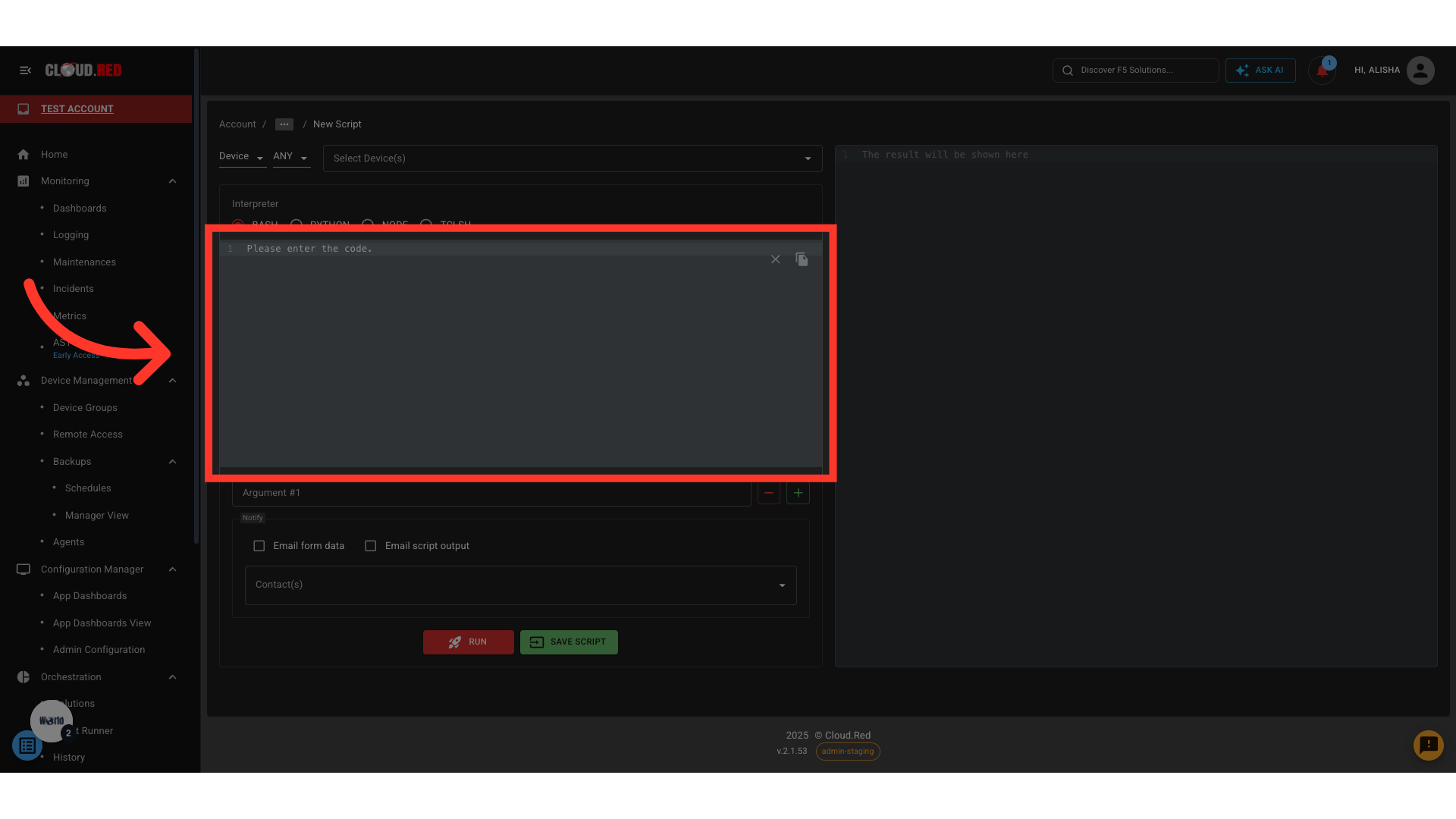
 2. On the script creation page:
* Write or copy the intended script for use.
2. On the script creation page:
* Write or copy the intended script for use.
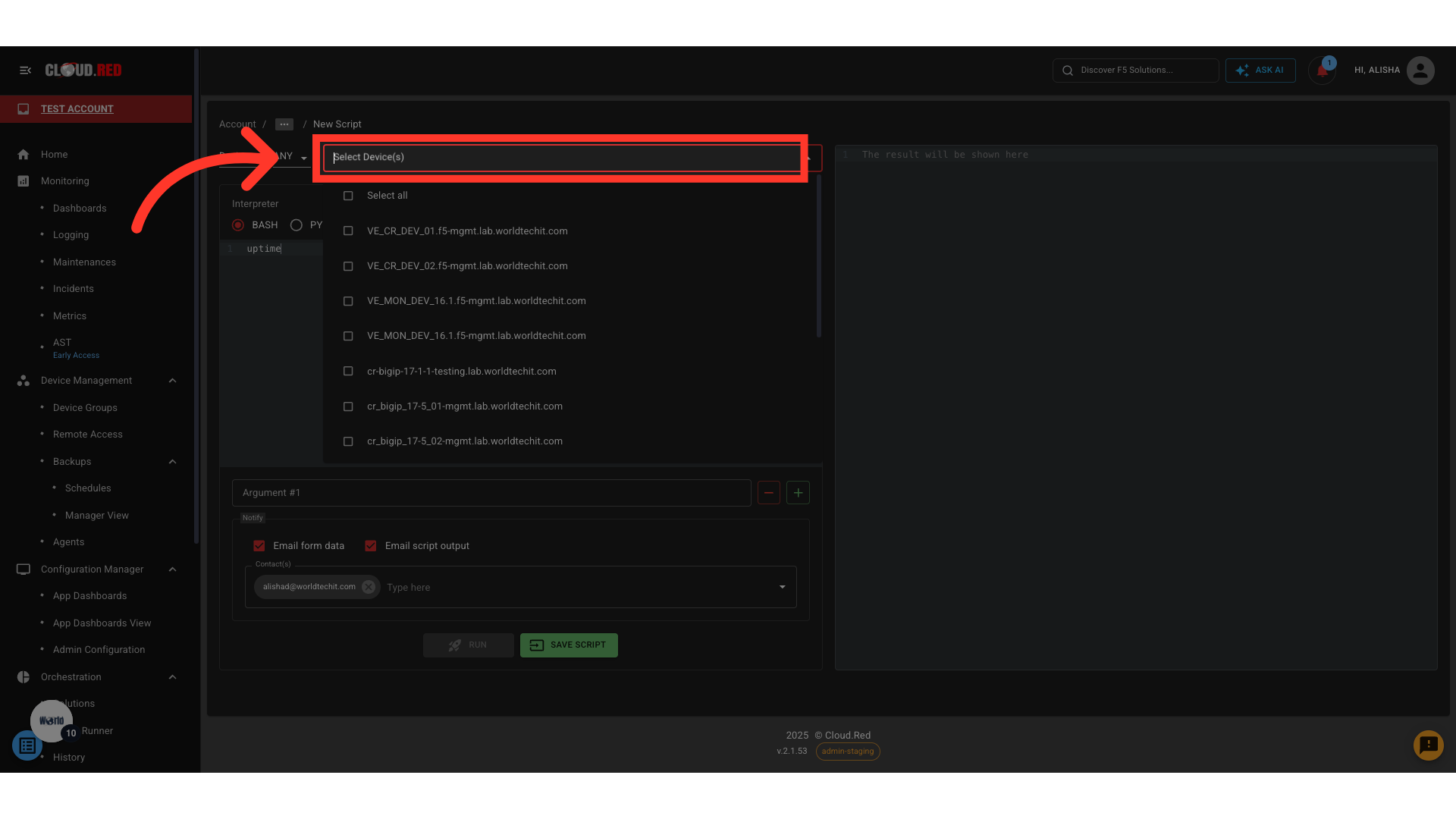
 * **Script Runner** allows the ability to **Run** the script immediately against selected devices before saving. To do so, select the devices or device groups (includes the ability to chose device state: active, standby, or any if using device groups) that the script is intended to run against.
 * Select the "Run" button to execute the task.
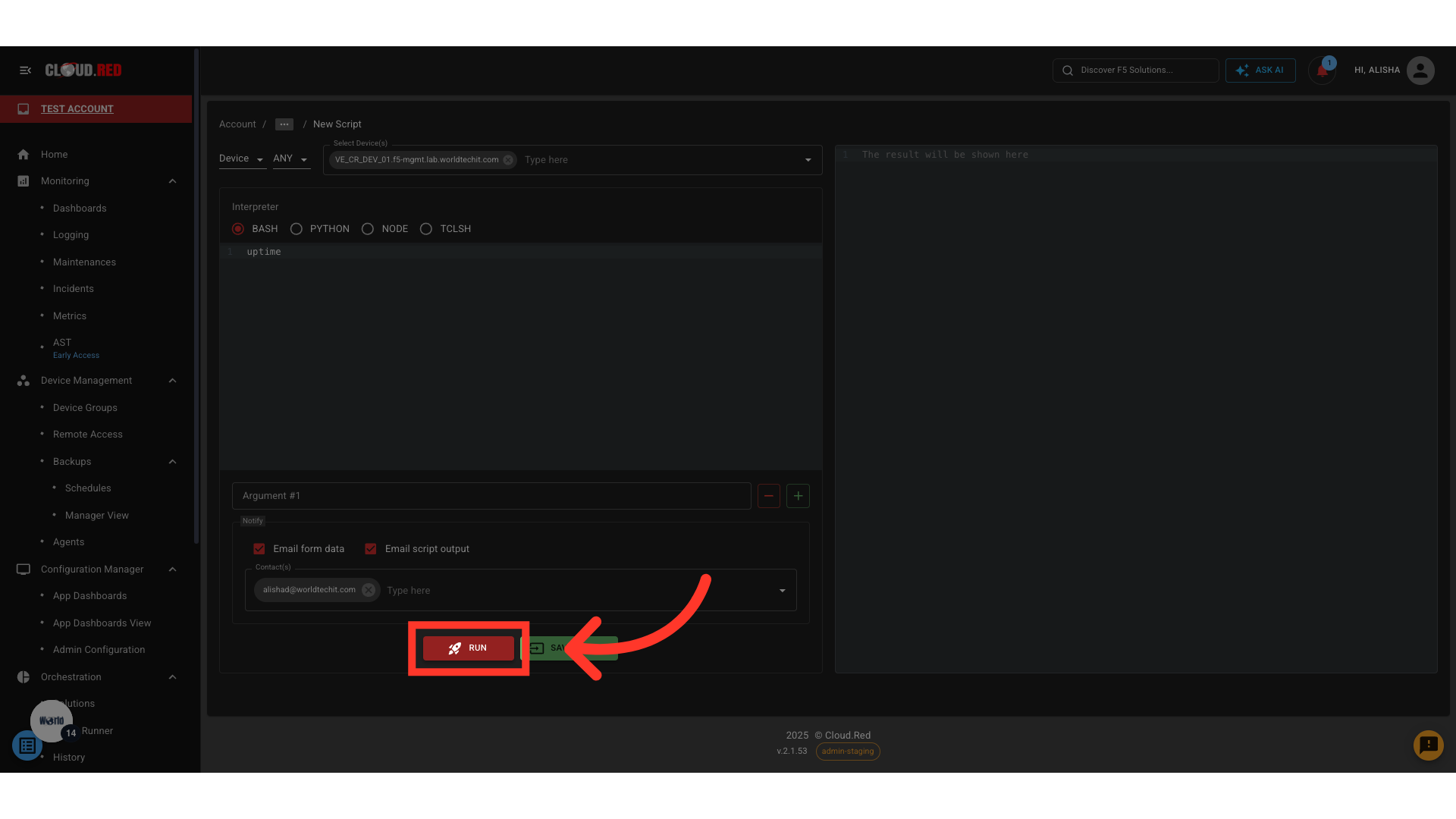 If run immediately, results are shown in real time on the right-hand side of the page
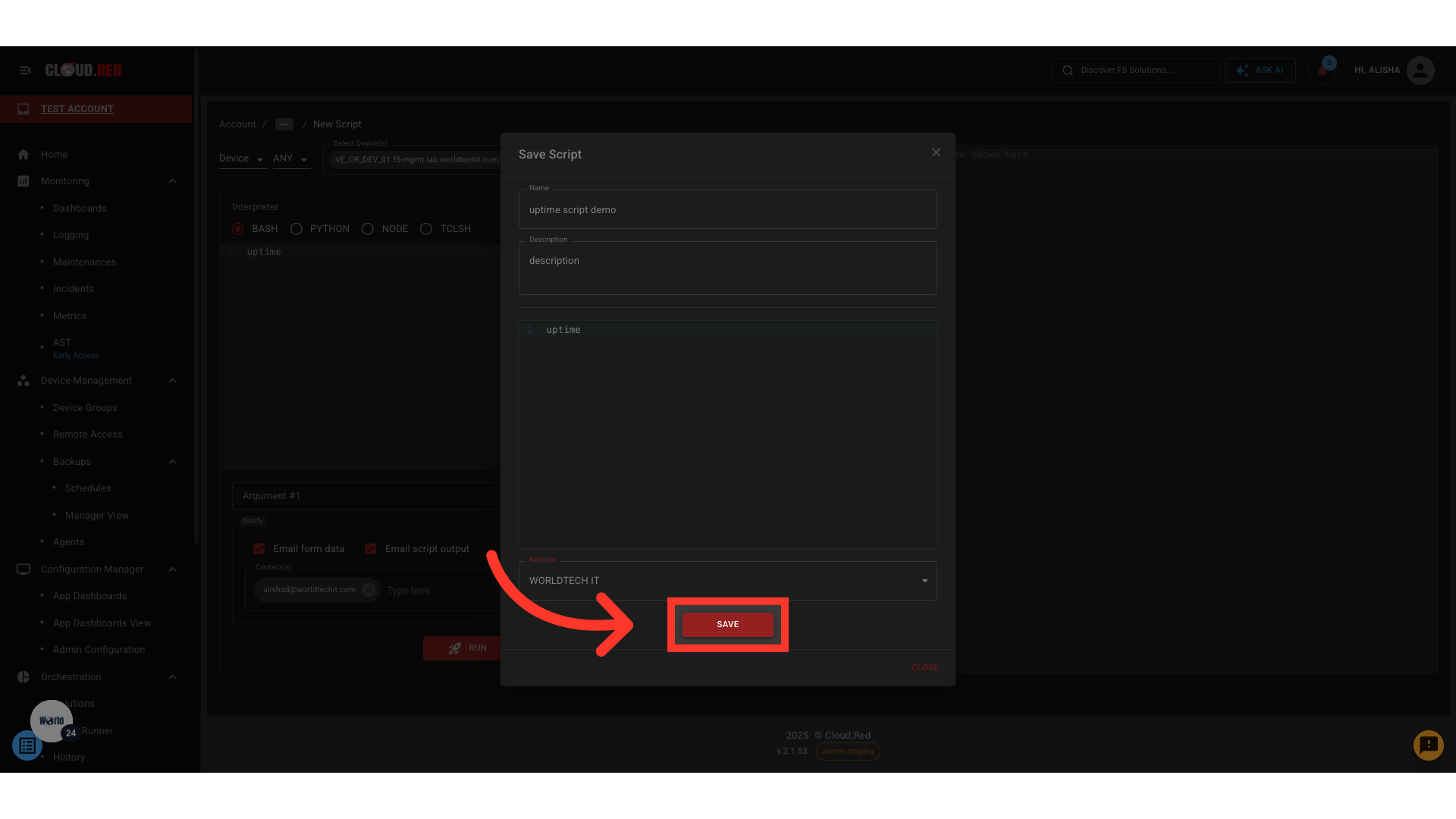
* To save the script for later use, select Save Script, and enter a **Name** and **Description**.
If run immediately, results are shown in real time on the right-hand side of the page
* To save the script for later use, select Save Script, and enter a **Name** and **Description**.
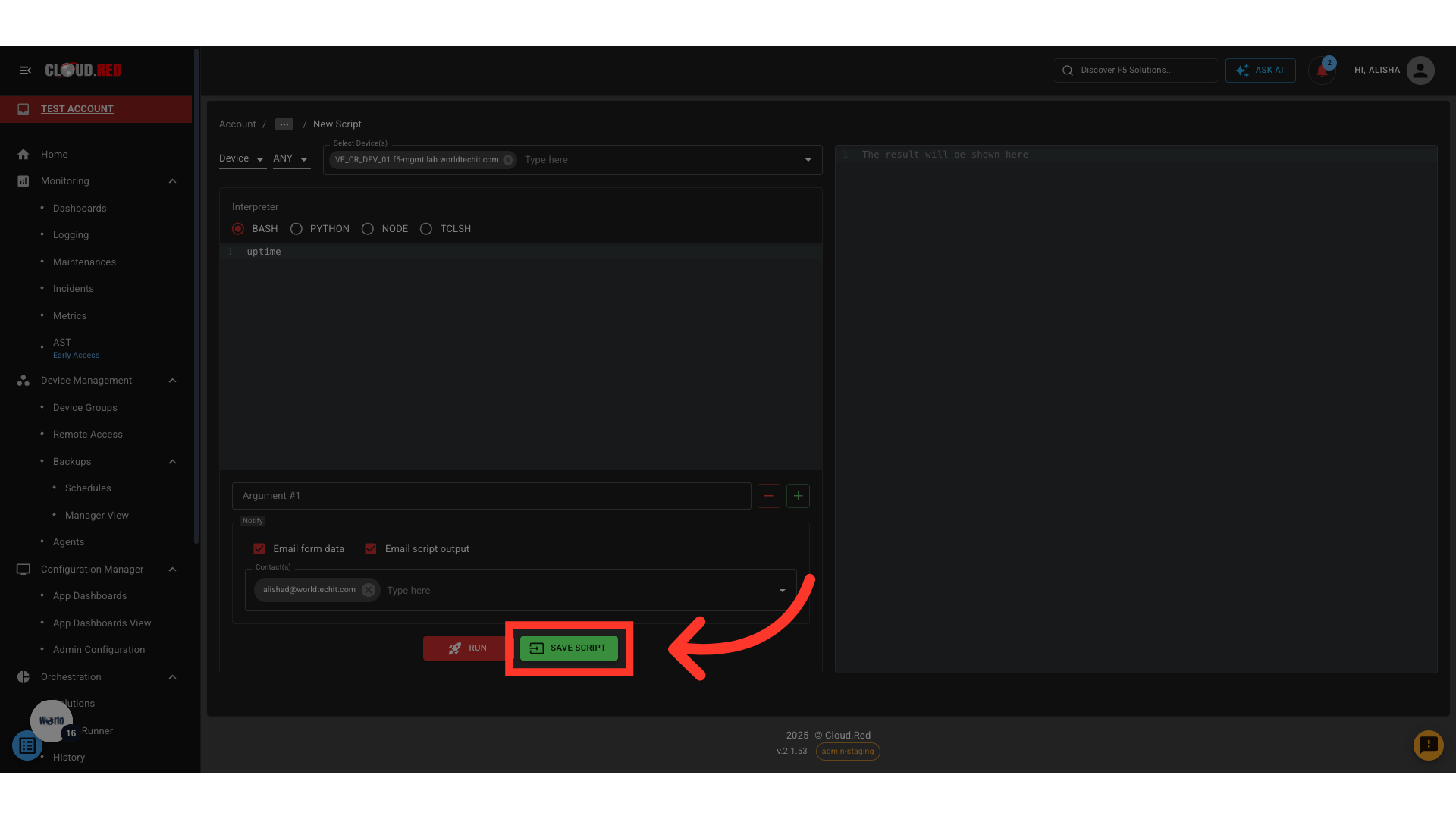 3. Saving a script allows:
* Ease of use through the script runner repo.
3. Saving a script allows:
* Ease of use through the script runner repo.
 * Ability to create easy-to-use forms for convenience in future use or for the creation of solutions.
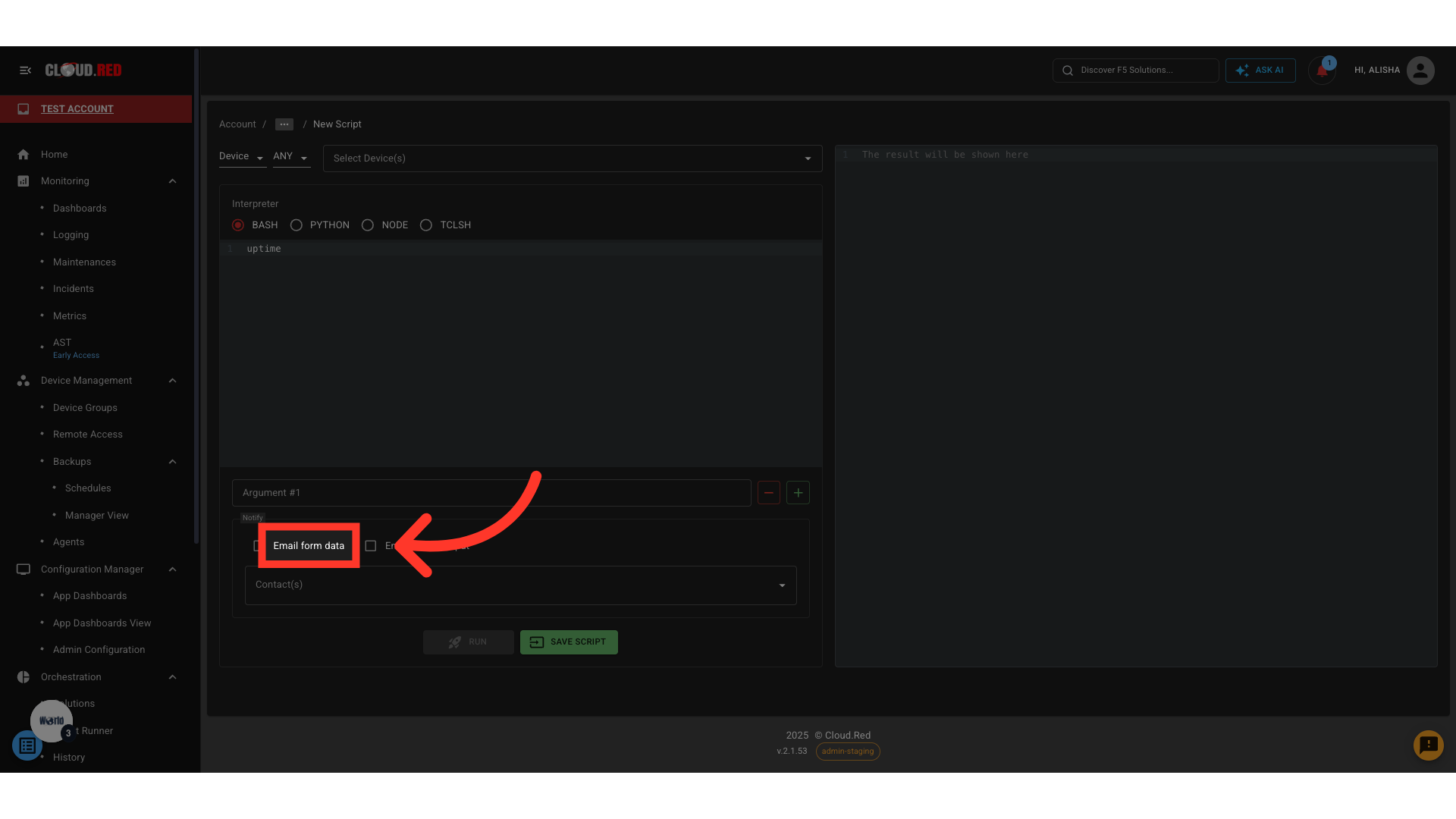
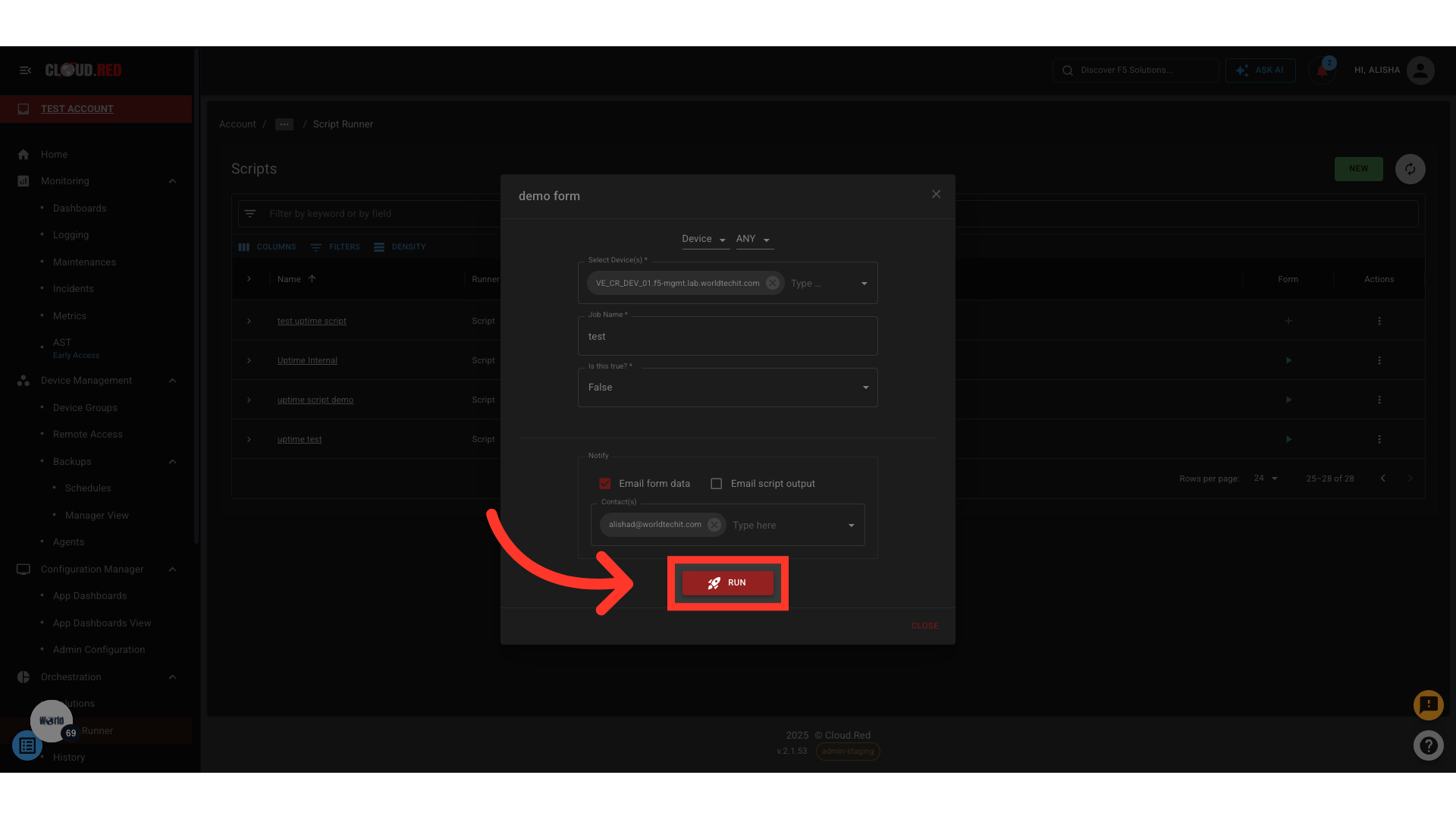 **Optional:**
* Email script output to a chosen contact list
* Send notifications to a selected contact list
**Optional:**
* Email script output to a chosen contact list
* Send notifications to a selected contact list
 ***
## 📖 Add README File
A **README file** can be found for a script or a service to provide documentation, usage notes, or additional context.
### ➤ Access the README Tab
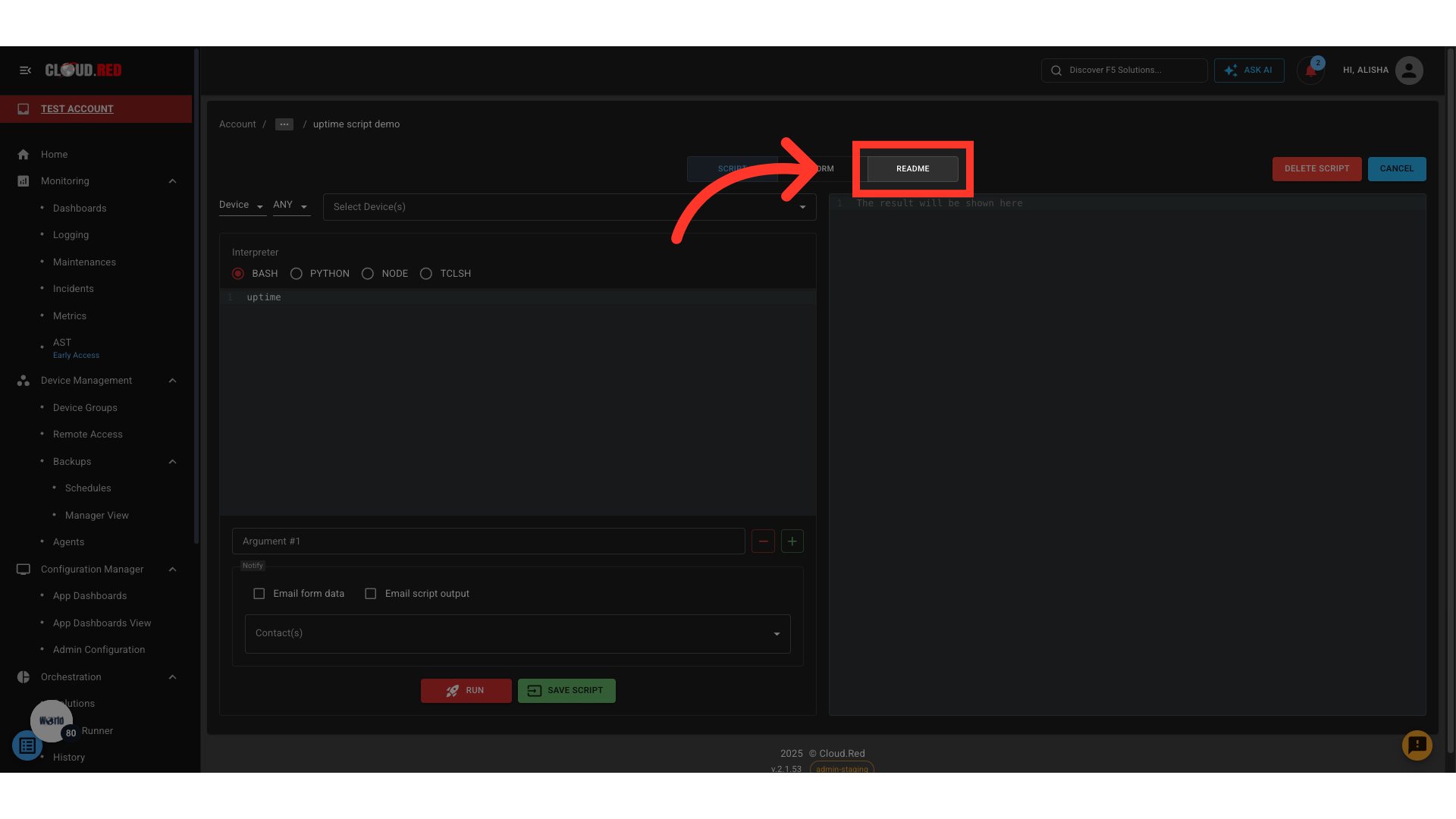
Open any script or service and navigate to the **README** tab.
***
## 📖 Add README File
A **README file** can be found for a script or a service to provide documentation, usage notes, or additional context.
### ➤ Access the README Tab
Open any script or service and navigate to the **README** tab.
 ### ➤ Edit or Add a README File
README files can only be added or edited for scripts, not for solutions or services
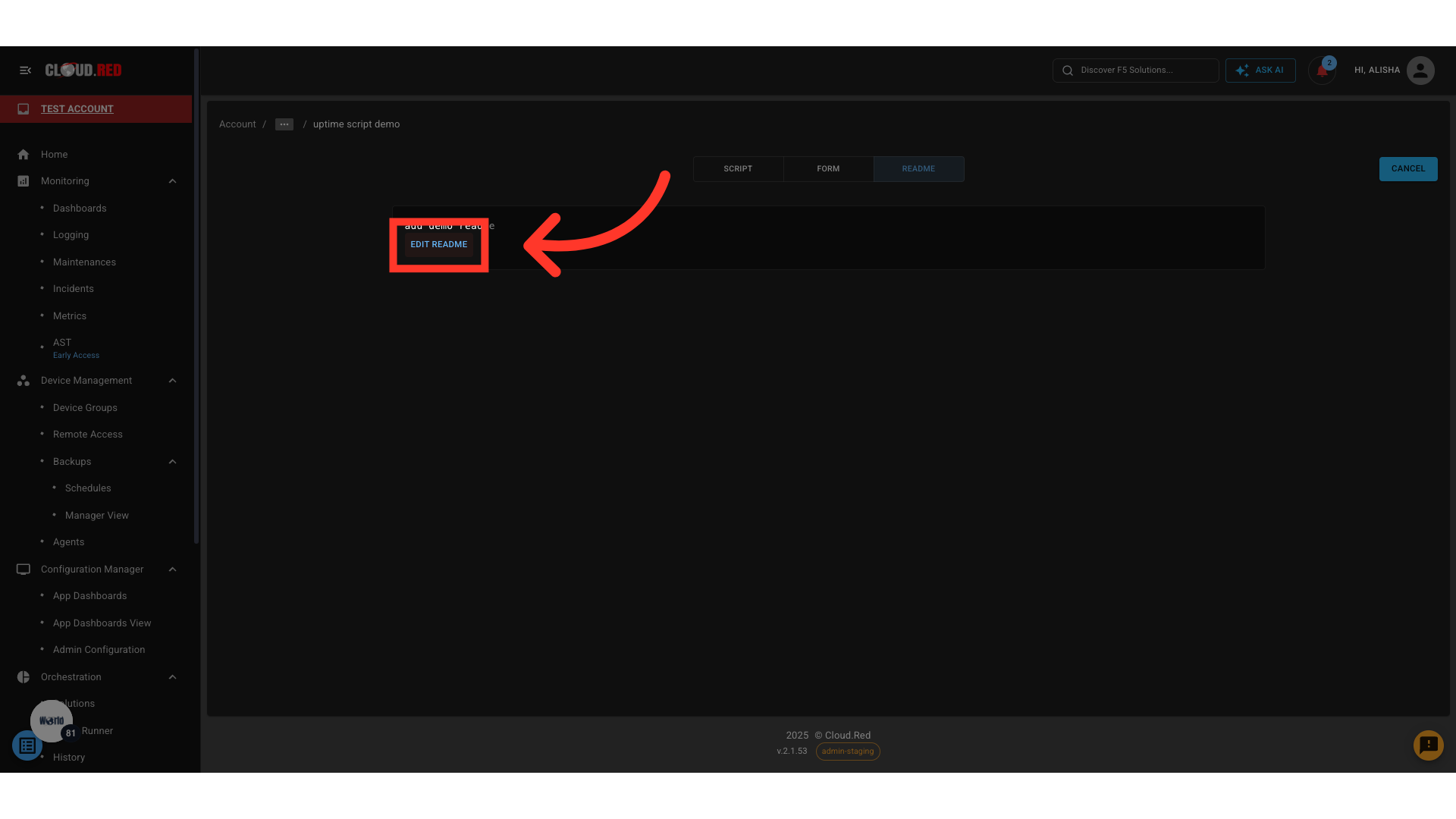
Click **Edit** to create a new README or update an existing one.\
Use this space to describe script functionality, usage instructions, or dependencies.
### ➤ Edit or Add a README File
README files can only be added or edited for scripts, not for solutions or services
Click **Edit** to create a new README or update an existing one.\
Use this space to describe script functionality, usage instructions, or dependencies.
 ### ➤ View an Existing README
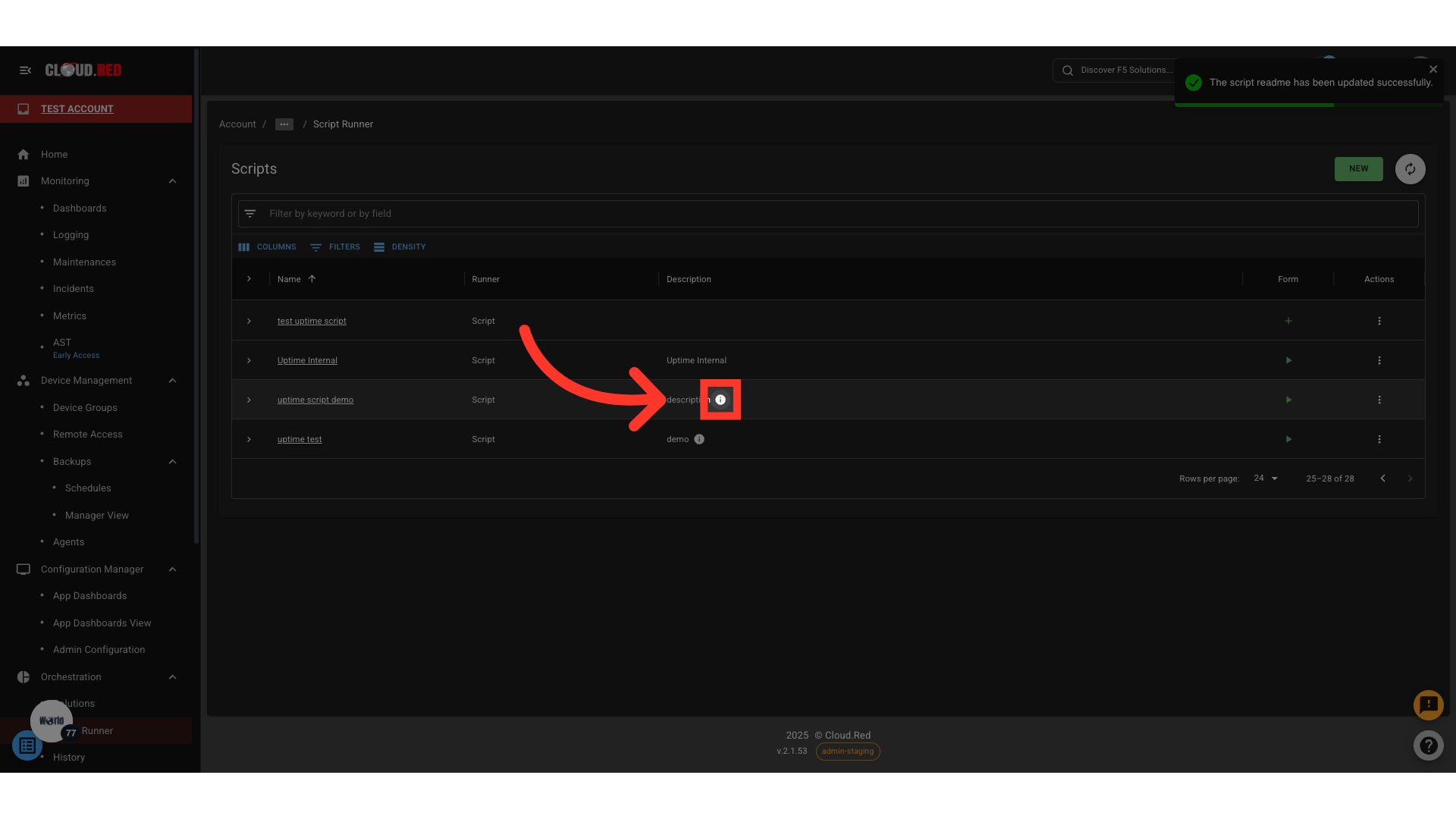
Once saved, the README is displayed in the tab for quick reference by all users who access the script or service.
### ➤ View an Existing README
Once saved, the README is displayed in the tab for quick reference by all users who access the script or service.
 README files support Markdown syntax. Use Markdown for Better Formatting.
***
## 🛠 Action Menu Options
The **Action Menu** provides quick management tools:
* **Delete** script or service
* **Add / Edit / Delete Form**
* **Create Solutions**
* **Add / Edit README** file associated with the script/service
* **Add Tags** for better categorization
* **View Scheduled Tasks** linked to the script/service
README files support Markdown syntax. Use Markdown for Better Formatting.
***
## 🛠 Action Menu Options
The **Action Menu** provides quick management tools:
* **Delete** script or service
* **Add / Edit / Delete Form**
* **Create Solutions**
* **Add / Edit README** file associated with the script/service
* **Add Tags** for better categorization
* **View Scheduled Tasks** linked to the script/service