> ## Documentation Index
> Fetch the complete documentation index at: https://docs.cloud.red/llms.txt
> Use this file to discover all available pages before exploring further.

# Remote Access Configuration

> This section describes how to configure remote access to the system.

> To make the best use of these documents, you must already have access to Cloud.Red, have worked with WorldTech IT to onboard your managed hosts, and have a basic understanding of navigating the Cloud.Red portal. <br />
>
> Further – various functions highlighted in these documents will require elevated roles to execute. For example – you may need Edit or Admin rights on the Account, Agents, or Device Groups to execute. If you do not have the necessary rights to execute a required function, please consult your client administrator.

Cloud.Red Remote Access can be easily configured from the GUI, in accordance with your permissions, for **Account**, **Agents**, and **Device Groups**.

## Account Controls:

To access the account controls:

1. Click on the upper-right-hand navigation icon
2. Select **“account properties”**

<img className="block h-32 dark:hidden" src="https://mintcdn.com/cloudred/koMaGrKIt_v1XVcy/remote-access/remote-access-configuration-images/right-hand-nav-properties-light.png?fit=max&auto=format&n=koMaGrKIt_v1XVcy&q=85&s=7c47f4f55f7618a0a5172407c00a64cb" width="256" height="330" data-path="remote-access/remote-access-configuration-images/right-hand-nav-properties-light.png" />

<img className="hidden h-32 dark:block" src="https://mintcdn.com/cloudred/koMaGrKIt_v1XVcy/remote-access/remote-access-configuration-images/right-hand-nav-properties-dark.png?fit=max&auto=format&n=koMaGrKIt_v1XVcy&q=85&s=1f7721e01fc7a79c8b612b11f5c15b9c" width="241" height="331" data-path="remote-access/remote-access-configuration-images/right-hand-nav-properties-dark.png" />

You will see controls for Remote Management, SSO, and File Transfer. If you make any changes, click the **“update”** button to save your changes.

> **Note:** Consult the ["Remote Access Controls"](/remote-access/remote-access-controls) section for information on defaults.

<img className="block h-40 dark:hidden" src="https://mintcdn.com/cloudred/koMaGrKIt_v1XVcy/remote-access/remote-access-configuration-images/remote-access-controls-light.png?fit=max&auto=format&n=koMaGrKIt_v1XVcy&q=85&s=fc18d1cc8a2ffdd30da6388ead4185b7" width="421" height="345" data-path="remote-access/remote-access-configuration-images/remote-access-controls-light.png" />

<img className="hidden h-40 dark:block" src="https://mintcdn.com/cloudred/koMaGrKIt_v1XVcy/remote-access/remote-access-configuration-images/remote-access-controls-dark.png?fit=max&auto=format&n=koMaGrKIt_v1XVcy&q=85&s=defd2309cc2b60b5b41c784bc275aff7" width="426" height="350" data-path="remote-access/remote-access-configuration-images/remote-access-controls-dark.png" />

## Account Permissions

To access account permissions:

1. Click on the upper-right-hand navigation icon.
2. Select **"Users & Permissions"**.

<img className="block h-40 dark:hidden" src="https://mintcdn.com/cloudred/koMaGrKIt_v1XVcy/remote-access/remote-access-configuration-images/right-hand-nav-users-light.png?fit=max&auto=format&n=koMaGrKIt_v1XVcy&q=85&s=7d42b227ec522ff2986a0688e708c911" width="265" height="335" data-path="remote-access/remote-access-configuration-images/right-hand-nav-users-light.png" />

<img className="hidden h-40 dark:block" src="https://mintcdn.com/cloudred/koMaGrKIt_v1XVcy/remote-access/remote-access-configuration-images/right-hand-nav-users-dark.png?fit=max&auto=format&n=koMaGrKIt_v1XVcy&q=85&s=47cd8452a636770c922bfea41a9ddbbd" width="254" height="332" data-path="remote-access/remote-access-configuration-images/right-hand-nav-users-dark.png" />

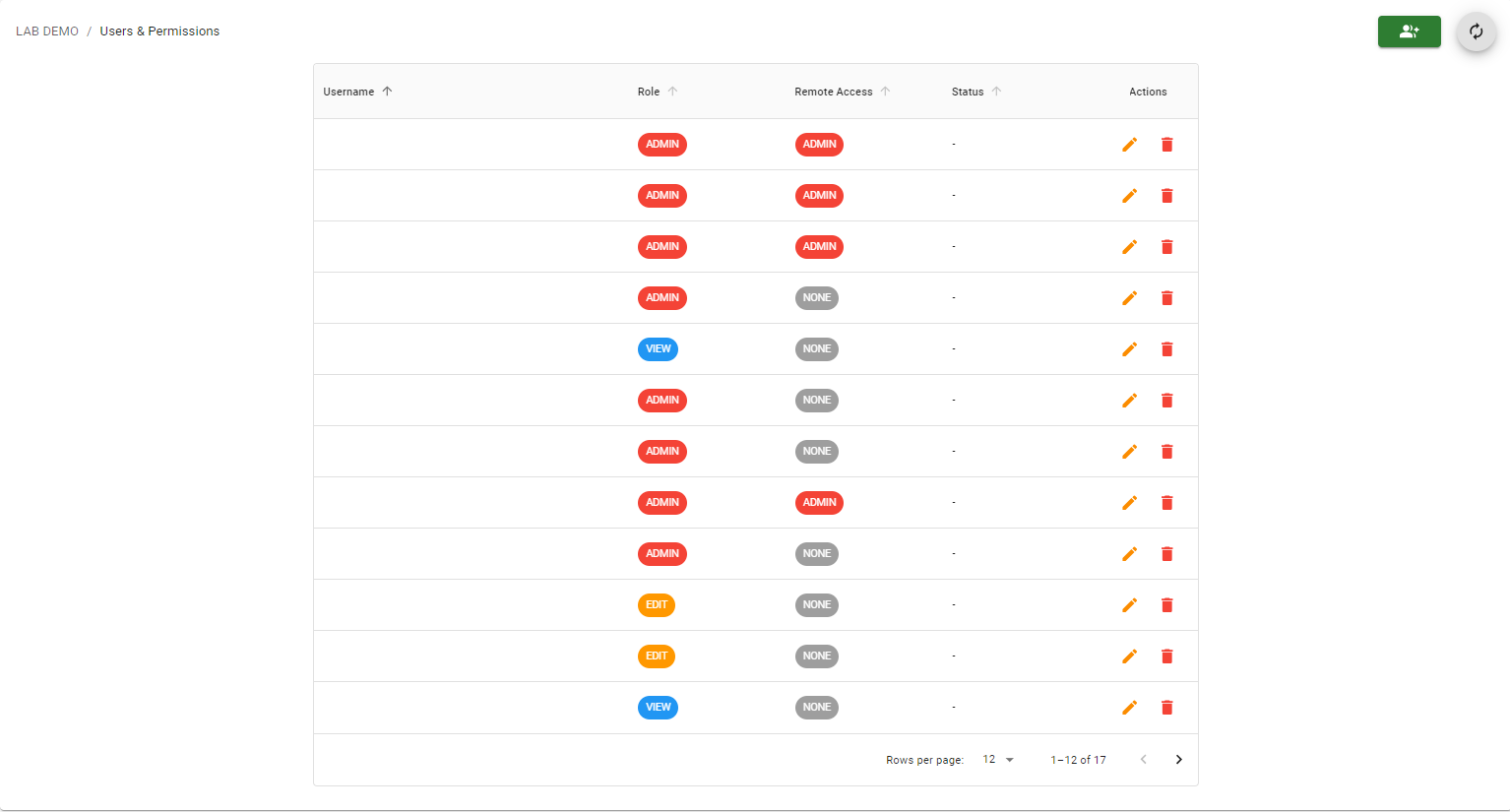
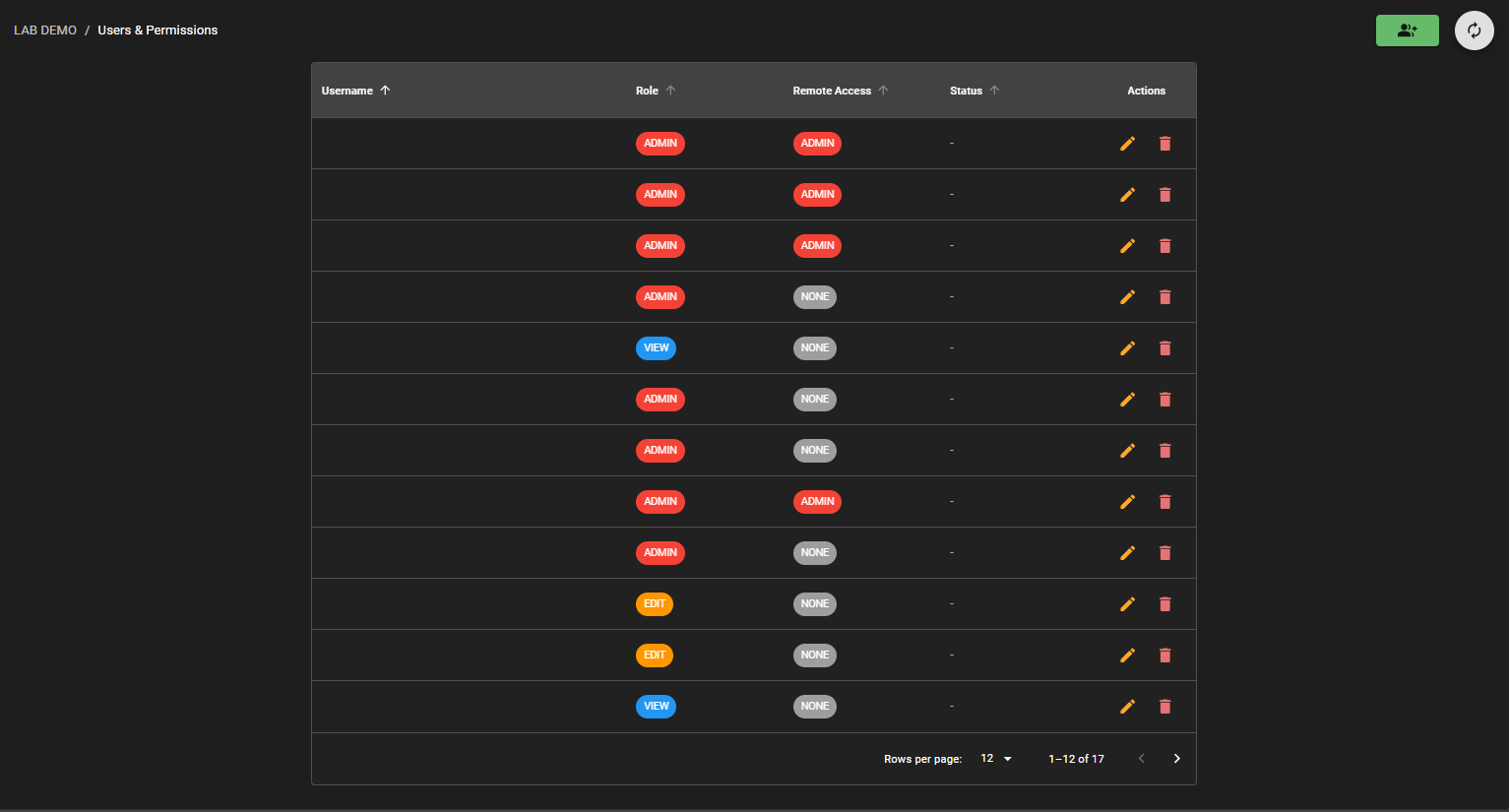
Here, you can see a list of users for the account and modify users’ permissions based on your own permissions.
<img className="block h-80 dark:hidden" src="https://mintcdn.com/cloudred/koMaGrKIt_v1XVcy/remote-access/remote-access-configuration-images/users-permissions-light.png?fit=max&auto=format&n=koMaGrKIt_v1XVcy&q=85&s=dea58ee5ae1b40e3e5255852b2e8ee30" width="1534" height="825" data-path="remote-access/remote-access-configuration-images/users-permissions-light.png" />

<img className="hidden h-80 dark:block" src="https://mintcdn.com/cloudred/koMaGrKIt_v1XVcy/remote-access/remote-access-configuration-images/users-permissions-dark.png?fit=max&auto=format&n=koMaGrKIt_v1XVcy&q=85&s=a588d854e551a0520a358813d88ee957" width="1533" height="825" data-path="remote-access/remote-access-configuration-images/users-permissions-dark.png" />

> **Please note:** Users who have not yet accepted their invitation to the account will not appear.

To configure remote access for an agent:

1. From the left menu pane, select **“Agents”**.
2. In the Agents List, click on the actions icon next to the agent's name and select **“Remote Management”**.


<img className="block h-32 dark:hidden" src="https://mintcdn.com/cloudred/koMaGrKIt_v1XVcy/remote-access/remote-access-configuration-images/agents-actions-light.png?fit=max&auto=format&n=koMaGrKIt_v1XVcy&q=85&s=ff2a859023491ea19a0bb1805c110924" width="1502" height="212" data-path="remote-access/remote-access-configuration-images/agents-actions-light.png" />

<img className="hidden h-32 dark:block" src="https://mintcdn.com/cloudred/koMaGrKIt_v1XVcy/remote-access/remote-access-configuration-images/agents-actions-dark.png?fit=max&auto=format&n=koMaGrKIt_v1XVcy&q=85&s=fd0600964af9932284caf870372d7b68" width="1507" height="212" data-path="remote-access/remote-access-configuration-images/agents-actions-dark.png" />

A dialog window will pop up with controls for Remote Management, SSO, and File Transfer.

<img className="block h-64 dark:hidden" src="https://mintcdn.com/cloudred/koMaGrKIt_v1XVcy/remote-access/remote-access-configuration-images/agent-remote-management-light.png?fit=max&auto=format&n=koMaGrKIt_v1XVcy&q=85&s=a038ef0c8dff2b5d641e66e191799b2d" width="441" height="473" data-path="remote-access/remote-access-configuration-images/agent-remote-management-light.png" />

<img className="hidden h-64 dark:block" src="https://mintcdn.com/cloudred/koMaGrKIt_v1XVcy/remote-access/remote-access-configuration-images/agent-remote-management-dark.png?fit=max&auto=format&n=koMaGrKIt_v1XVcy&q=85&s=1a3a915a74b1132f1bcfc724b441a31f" width="442" height="473" data-path="remote-access/remote-access-configuration-images/agent-remote-management-dark.png" />

> **Note:** For changes to save make sure to click the **update** button
> **Note:** Consult the ["Remote Access Controls"](/remote-access/remote-access-controls) section for information on defaults.

## Device Group Permissions

To configure permissions for a device group:

1. From the left menu pane, select **“Device Groups”**.
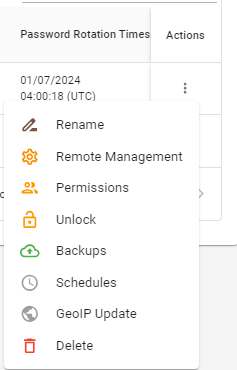
2. In the Agents List, click on the menu icon next to the device group's name and select **“Permissions”**.
<img className="block h-32 dark:hidden" src="https://mintcdn.com/cloudred/koMaGrKIt_v1XVcy/remote-access/remote-access-configuration-images/device-group-actions-light.png?fit=max&auto=format&n=koMaGrKIt_v1XVcy&q=85&s=ab60c365b3b7e687cf2971709d0cf405" width="237" height="370" data-path="remote-access/remote-access-configuration-images/device-group-actions-light.png" />

<img className="hidden h-32 dark:block" src="https://mintcdn.com/cloudred/koMaGrKIt_v1XVcy/remote-access/remote-access-configuration-images/device-group-actions-dark.png?fit=max&auto=format&n=koMaGrKIt_v1XVcy&q=85&s=7bb1f9a20a2984d947751459c21d28b8" width="201" height="367" data-path="remote-access/remote-access-configuration-images/device-group-actions-dark.png" />

You will see a list of users for the agent and can modify users’ permissions as allowed by your own permissions.

<img className="block h-96 dark:hidden" src="https://mintcdn.com/cloudred/koMaGrKIt_v1XVcy/remote-access/remote-access-configuration-images/device-group-permissions-light.png?fit=max&auto=format&n=koMaGrKIt_v1XVcy&q=85&s=45fcdfc01c6419f6d2b56dd98924c89f" width="559" height="842" data-path="remote-access/remote-access-configuration-images/device-group-permissions-light.png" />

<img className="hidden h-96 dark:block" src="https://mintcdn.com/cloudred/koMaGrKIt_v1XVcy/remote-access/remote-access-configuration-images/device-group-permissions-dark.png?fit=max&auto=format&n=koMaGrKIt_v1XVcy&q=85&s=2a5c58fe41a830bd9ef6ce6268300cd9" width="564" height="842" data-path="remote-access/remote-access-configuration-images/device-group-permissions-dark.png" />

> **Please note:** Users who have not yet accepted their invitation to the account will not appear.
