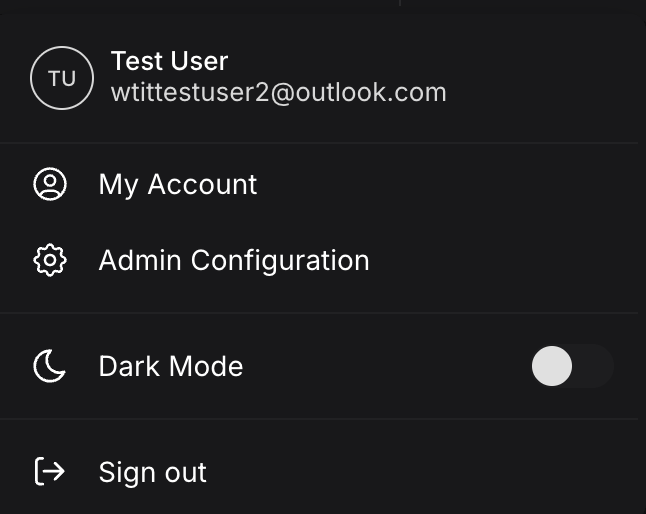
Cloud.Red allows any user to reset their own password, and Account Admins can additionally reset the password or OTP (One-Time Password / MFA) of any user in the account. Select your profile in the upper-right hand navigation and choose “My Account”, then select the “Settings” tab.
Resetting Your Password (All Users)

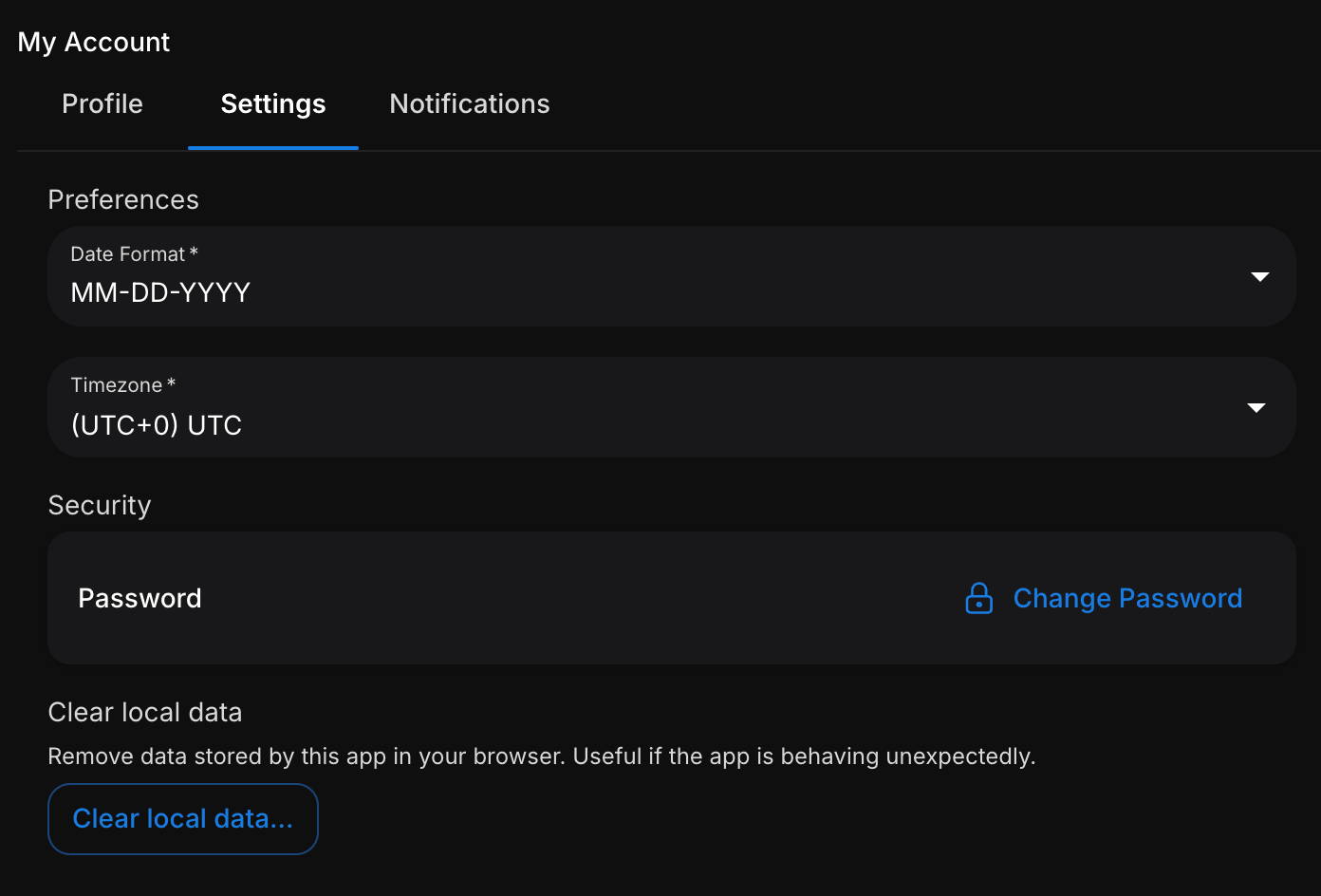
All users will see a Security section with a “Change Password” option to reset their own password.
Resetting User Credentials (Account Admins)

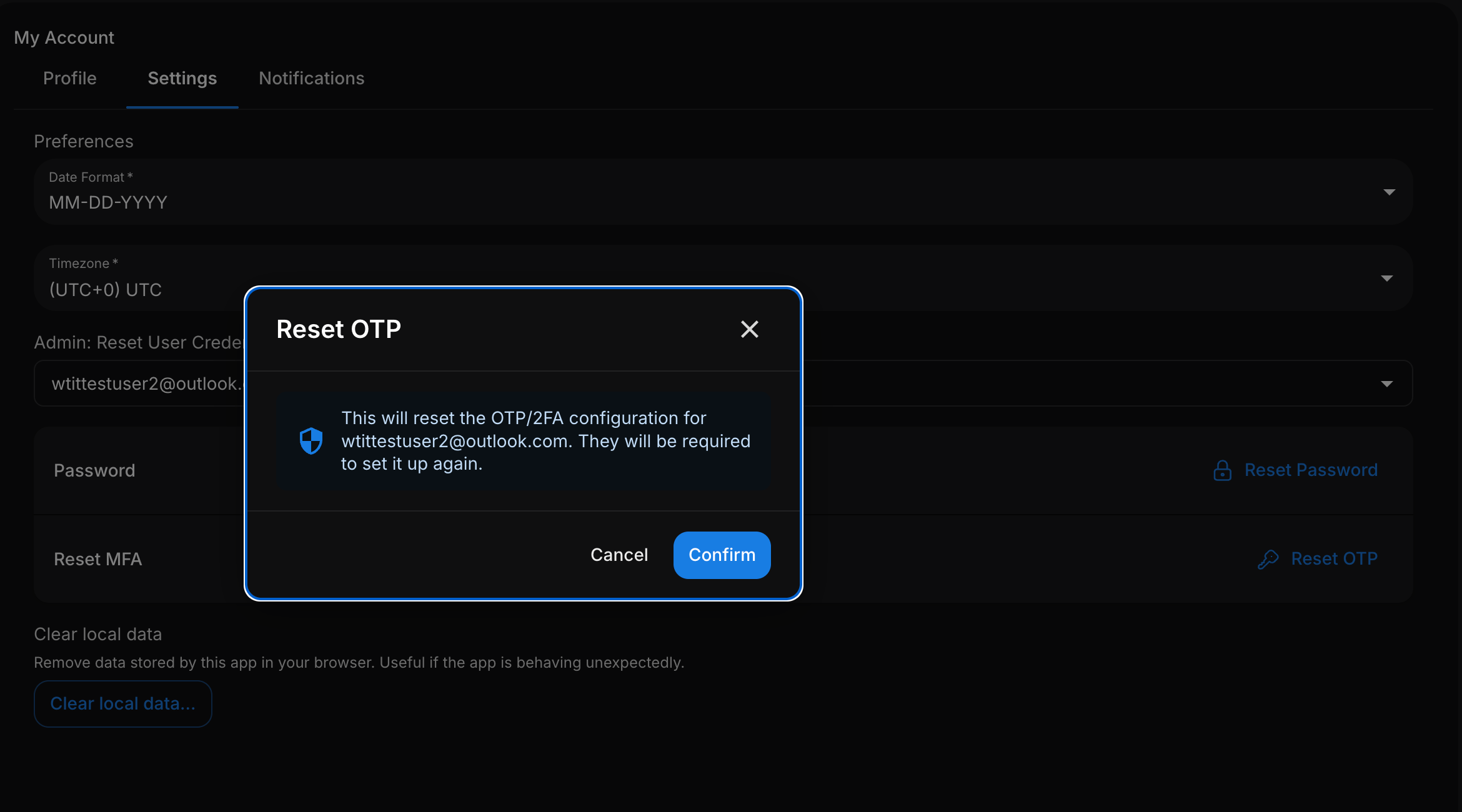
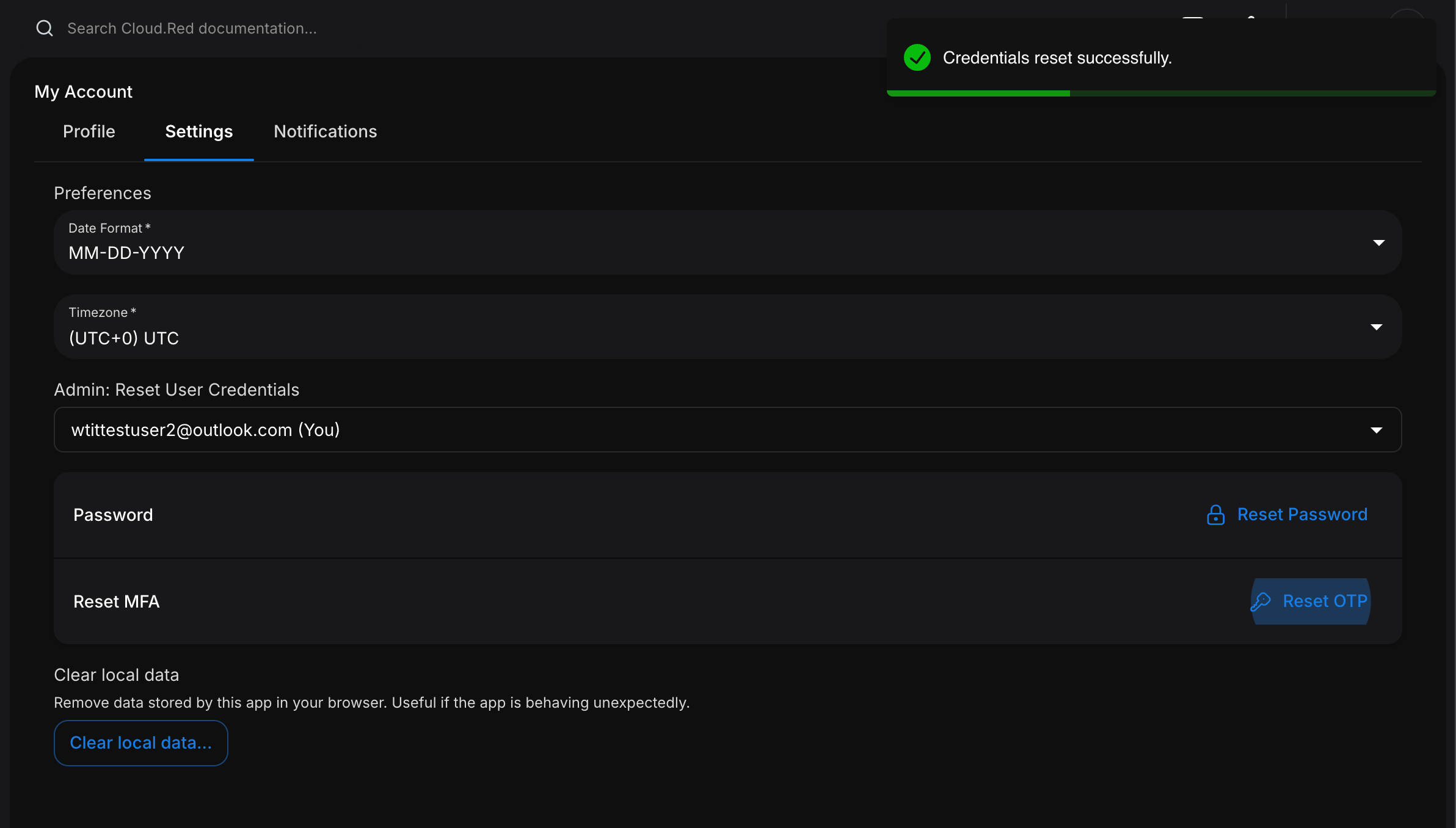
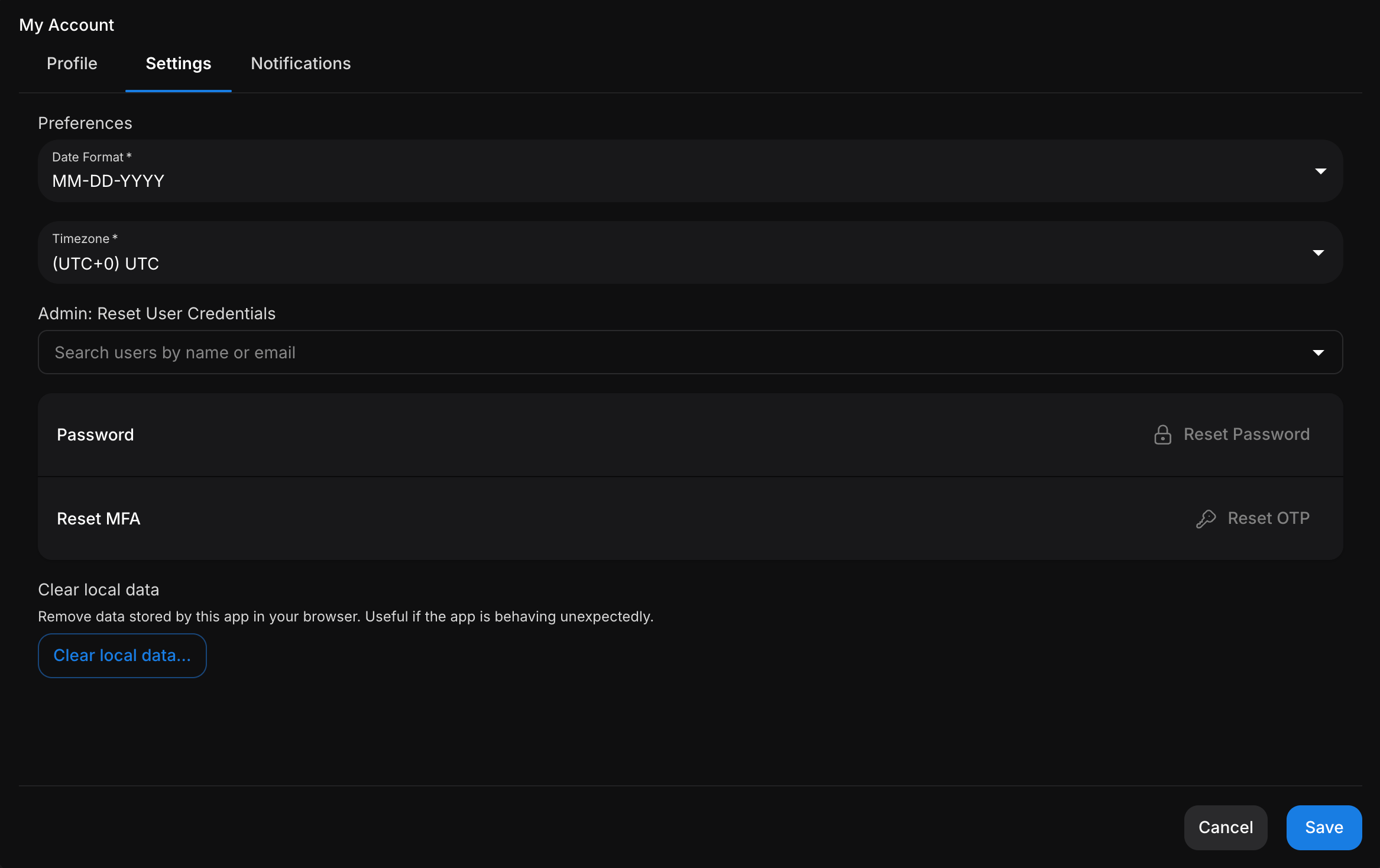
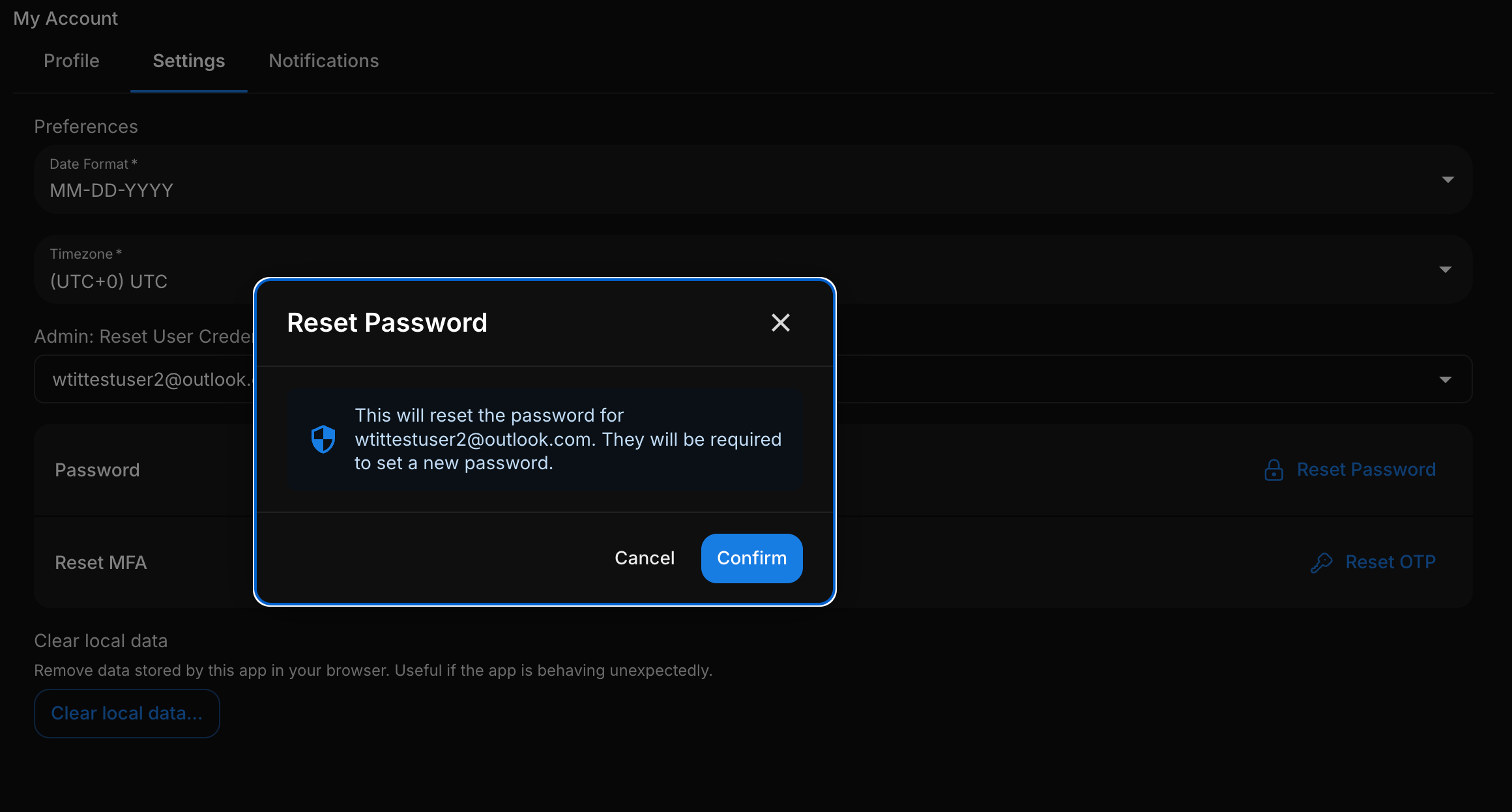
Account Admins will see an “Admin: Reset User Credentials” section. Search for and select a user by name or email — you can also select yourself. Once a user is selected, choose the desired reset action: Reset Password - Resets the selected user’s password. The user will be required to set a new password. Reset OTP - Resets the selected user’s OTP/2FA configuration. The user will be required to set it up again. Select “Confirm” and a “Credentials reset successfully.” notification will appear.
Completing the Reset

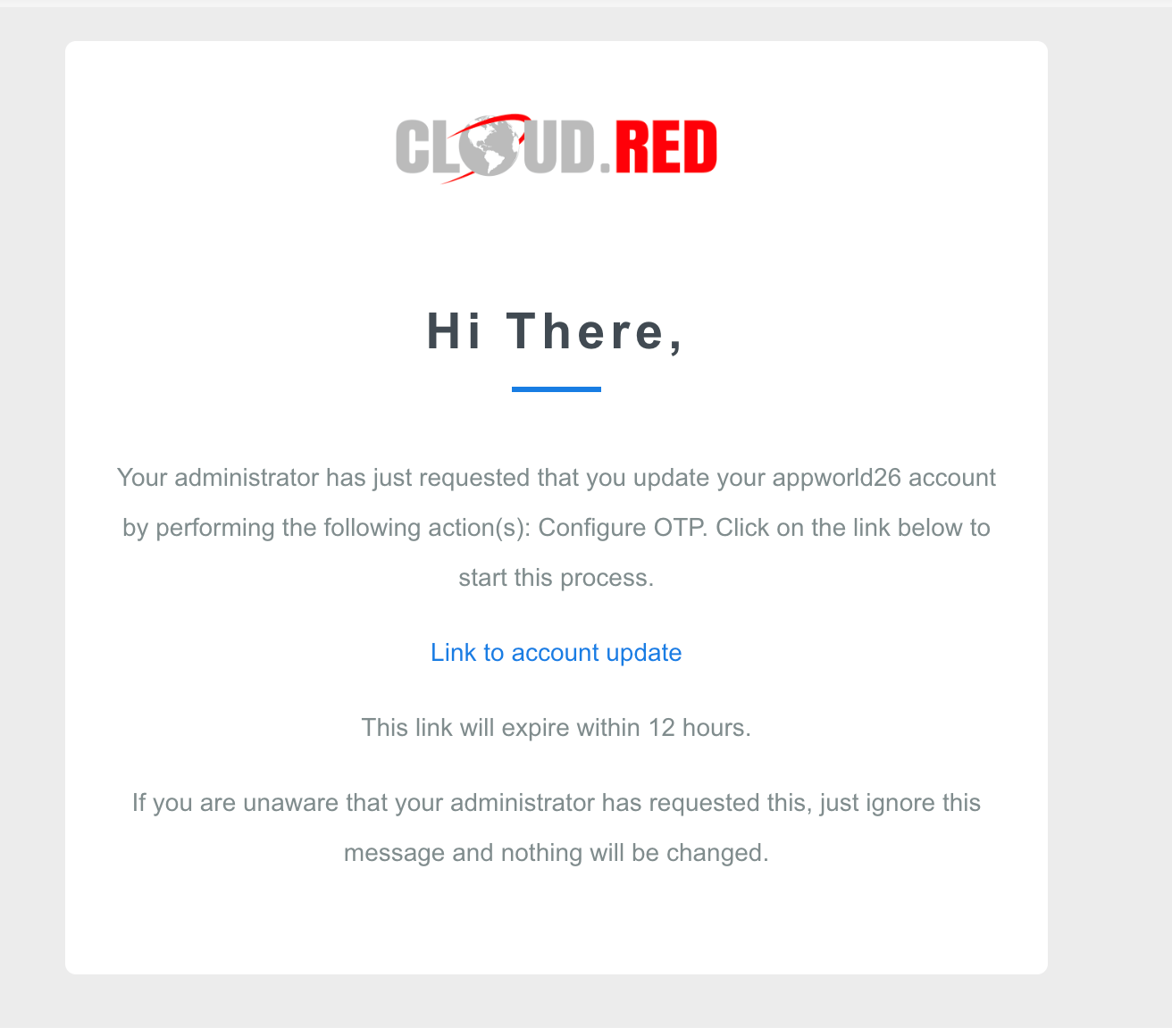
The user will receive an email with a link to complete the reset.
The link in the email will expire within 12 hours, but the reset requirement does not. The user will still be required to complete the reset at their next login.
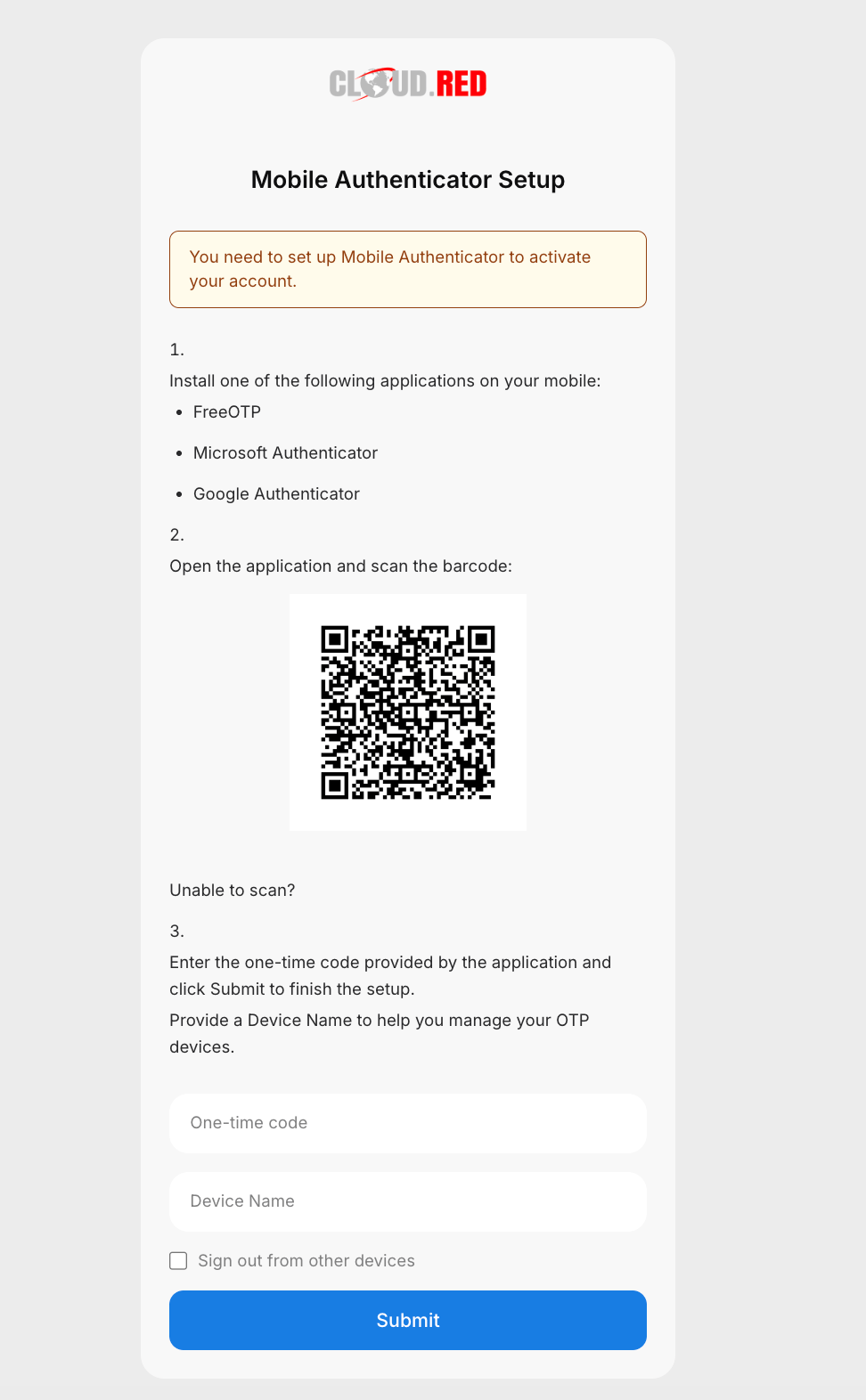
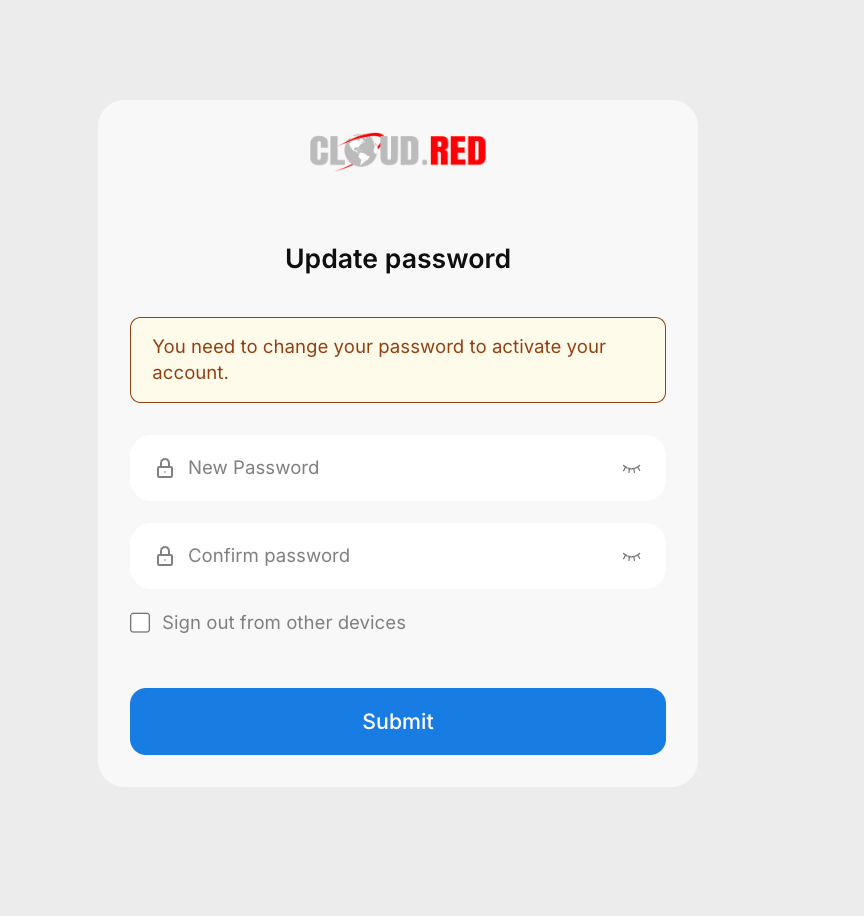
For an OTP reset, the link opens the Mobile Authenticator Setup page. Scan the QR code with an authenticator app (FreeOTP, Microsoft Authenticator, or Google Authenticator), then enter the one-time code and a device name to finish the setup. For a password reset, the link opens the Update Password page where the user sets and confirms a new password.
Check “Sign out from other devices” to end any other active sessions when completing the reset.